
System Requirements & Installation
CRITIR system requirements, installation, and first launch
System requirements
| Item | Minimum | Recommended |
|---|---|---|
| OS | Windows 10 (64-bit) | Windows 11 (64-bit) |
| CPU | Intel Core i5 / AMD Ryzen 5 | Intel Core i7 / AMD Ryzen 7 or better |
| RAM | 8 GB | 16 GB or more |
| GPU | Not required | NVIDIA GPU (CUDA-capable, 4 GB+ VRAM) |
| Storage | 2 GB or more of free space | SSD recommended |
| Display | 1920×1080 | 2560×1440 or higher |
GPU acceleration
All core features run on the CPU alone. If a supported GPU is available, the following features are accelerated.
| Feature | Required GPU | Notes |
|---|---|---|
| Image linking (SfM) | NVIDIA GPU (CUDA) | Runs on the CPU if no GPU is available |
| 3D model generation | GPU (NVIDIA, AMD, or Intel) | Any GPU vendor works. Without a GPU, the CPU generates a 3D model of the same quality (it takes longer) |
Recommended configuration for heavy 3D work
If you routinely generate 3D models and orthomosaics from image sets of several hundred photos, we recommend the following configuration on top of the recommended requirements above.
| Item | Recommended |
|---|---|
| GPU | NVIDIA GeForce RTX series (8 GB+ VRAM) |
| NVIDIA driver | Latest driver with CUDA 12 support |
| RAM | 32 GB or more |
| CPU | 8 cores or more |
| Storage | NVMe SSD (tens of GB of free space for projects) |
More RAM allows image linking (SfM) to run with higher parallelism, which shortens processing time — especially for large image sets.
Installation
Double-click the installer (.exe) to run it. Allow administrator rights when asked (64-bit Windows is required)
Choose the setup language (日本語 / English)
Follow the on-screen instructions and choose an installation location. Turn on Create a desktop shortcut if you want one
When the installation finishes, click "Finish"
If your browser or Windows shows a warning while downloading or installing, see Troubleshooting.
License activation
The license activation screen appears the first time you launch the app. Enter the license key issued at purchase and click "Activate".
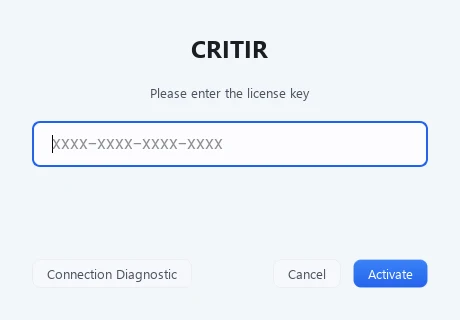
If activation fails, for example on a corporate network, Connection Diagnostic on the same screen checks the connection. The result is saved as a file on your desktop — please send it to support.
First launch
Once the license is activated, the project list screen appears.
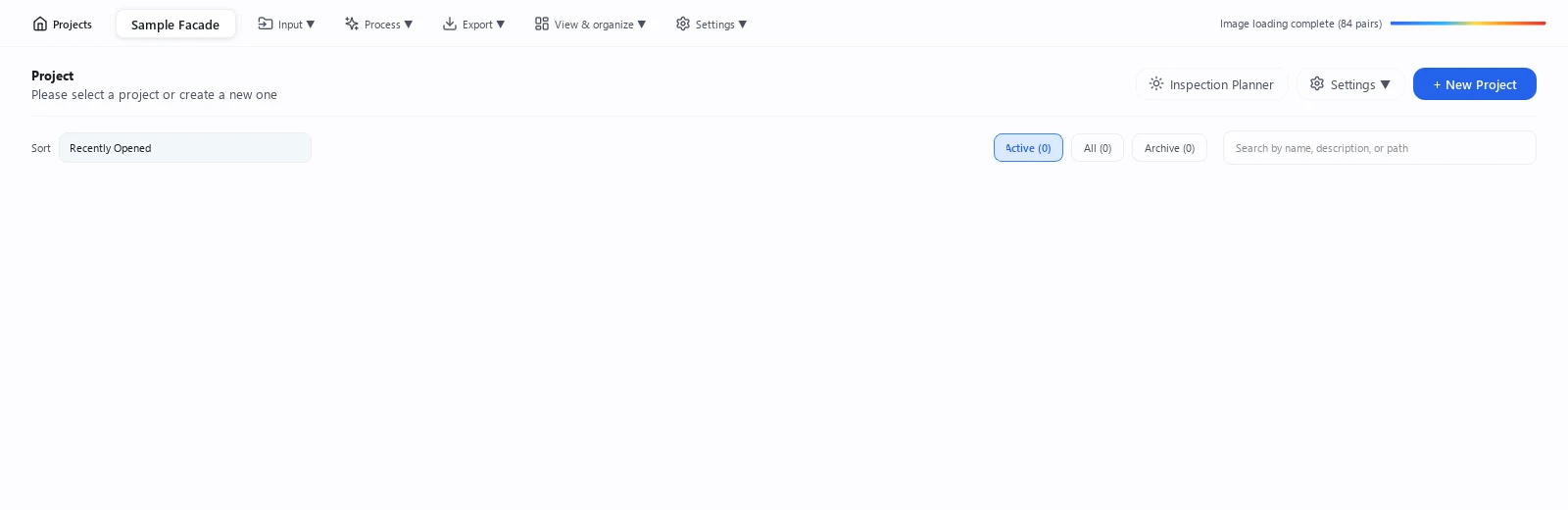
Click 1 "+ New Project" in the top right to create your first project.
When you are ready, continue to the Quickstart to walk through the full workflow from shooting to report export.
CRITIR Documentation
How to use CRITIR for thermal inspection of façades, solar arrays and structures — from capture planning and anomaly analysis to orthos, 3D, measurements and reports, explained with screenshots and diagrams.
Quickstart
Walk through a full thermal façade survey in CRITIR — shooting, creating a project, generating an ortho, overlaying drawings, analysing and recording, and exporting the report.