
Set link
Link two sets with four pairs of matching points and compare photos of the same spot side by side — for year-over-year or time-of-day comparisons.
Last time and this time,
side by side at the same spot.
In this chapter you will learn to
- Link two sets with four matching points
- Verify the fit with the overlay check
- Line up photos of the same spot side by side
- See a linked set's measurements on the image you compare
Set link automatically finds images that show the same location across different sets and lets you compare them side by side.
- Temporal comparison — see how the same wall surface has changed between the previous inspection and the current one
- Time-of-day comparison — compare sets captured under different conditions, such as morning versus evening
Prerequisites
Set link requires at least two sets with generated orthomosaics, because the orthomosaics serve as the reference for aligning the sets to each other.
Sets without an orthomosaic cannot be selected for linking (they appear in the list as "Orthomosaic not generated"). Run orthomosaic generation first.
Creating a link
Select Process ▾ → Set Link on the toolbar.
Set link is a PRO plan feature. See Plans and features for details.
Step 1: Selecting sets
In the "Please select the set to link" list, check the sets you want to compare and click Start Linking.
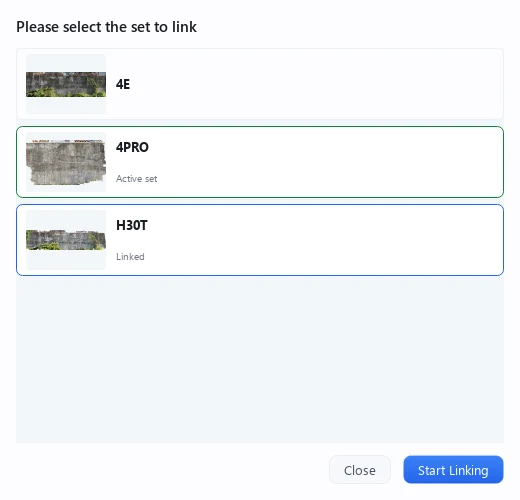
- Selecting one set creates a one-to-one link with the current set
- Selecting multiple sets creates a group link that combines them
- If a group already exists, it is shown as "Existing Group" and you can add sets to it
Step 2: Specifying points
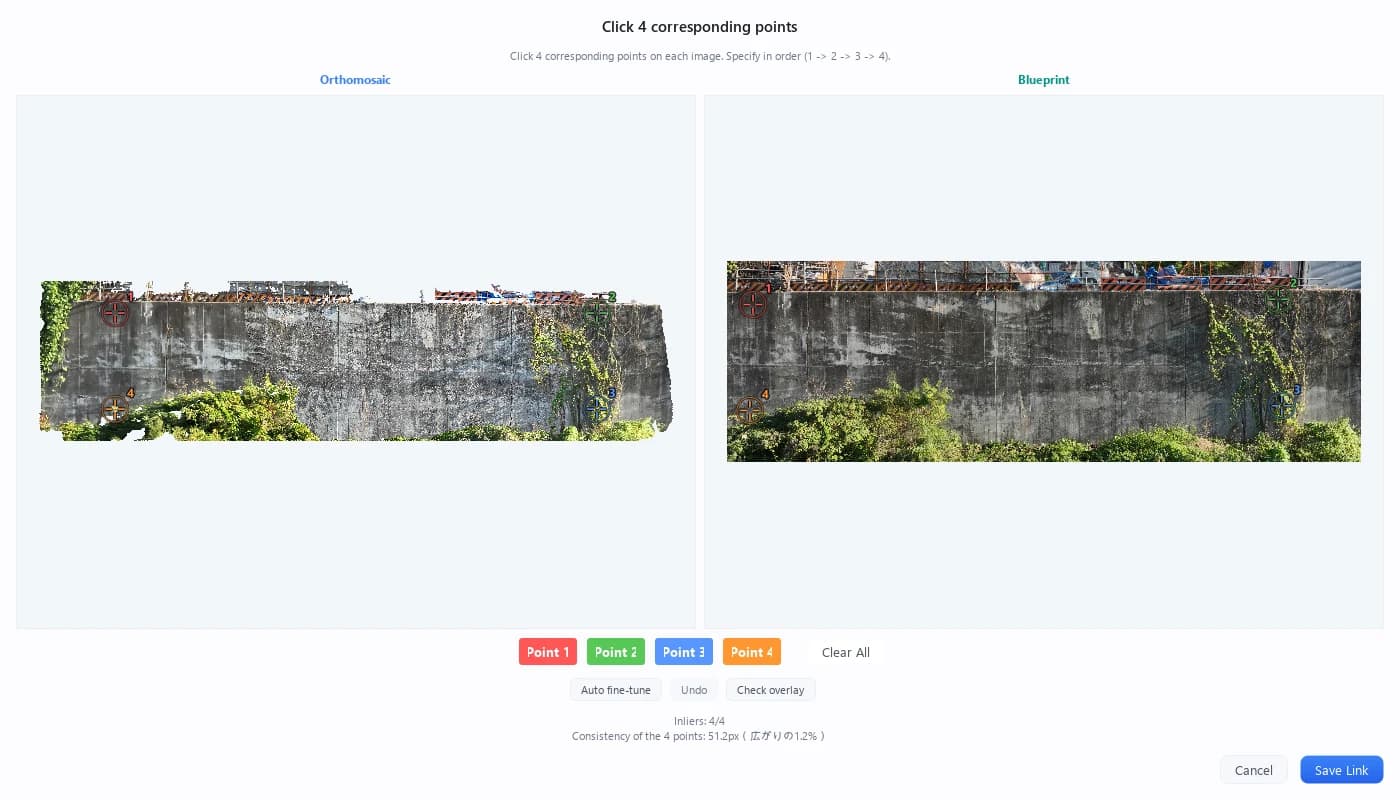
On the orthomosaics shown side by side, click four matching points on each image to establish the correspondence. Choosing points that are clearly identifiable in both images — building corners, window frames, and so on — improves accuracy.
- Use the Point 1–Point 4 buttons at the bottom to switch which point you are entering
- Click Clear All to start over
- On each side, use Visible / Thermal above the image to switch the orthomosaic you click on to the thermal orthomosaic. This helps with night flights where the visible image is too dark (it cannot be selected for a set without a thermal orthomosaic). Either way, the resulting link works the same
- Auto fine-tune refines the four points to match the image texture (Undo reverts it). It cannot match visible against thermal, so use the same image type on both sides
- 1 shows how well the four points agree ("inliers 4/4" and the four-point misfit). If the misfit is large, check your points
Spread the four points wide
If all four points are bunched in one part of the image, the fit tends to loosen the further you get from them. Pick clear landmarks near the corners of the wall and aim to draw as large a quadrilateral as you can — the whole ortho will line up much better.
How four points make two inspections line up
The previous and current orthomosaics rarely match exactly: a different drone or a different flight leaves them at slightly different angles and scales. As long as it is the same wall, though, the warp that lays one on top of the other (a projective transformation) is fixed by four pairs of matching points. That is why set link asks you to click four points on each side.
There is a catch: with exactly four points, the transformation always solves "perfectly", even if one point was placed a little off. So CRITIR takes each point in turn, predicts where it should be from the other three, and shows the gap between that prediction and where you actually clicked as the four-point misfit.
Once the two sets are tied together, CRITIR can find the photos on the other side that cover the same area as the one you are looking at, and lay measurements drawn in one set over the images of the other. In a year-on-year comparison, the chore of hunting for "which photo was it last time?" simply disappears.
Checking the fit (overlay check)
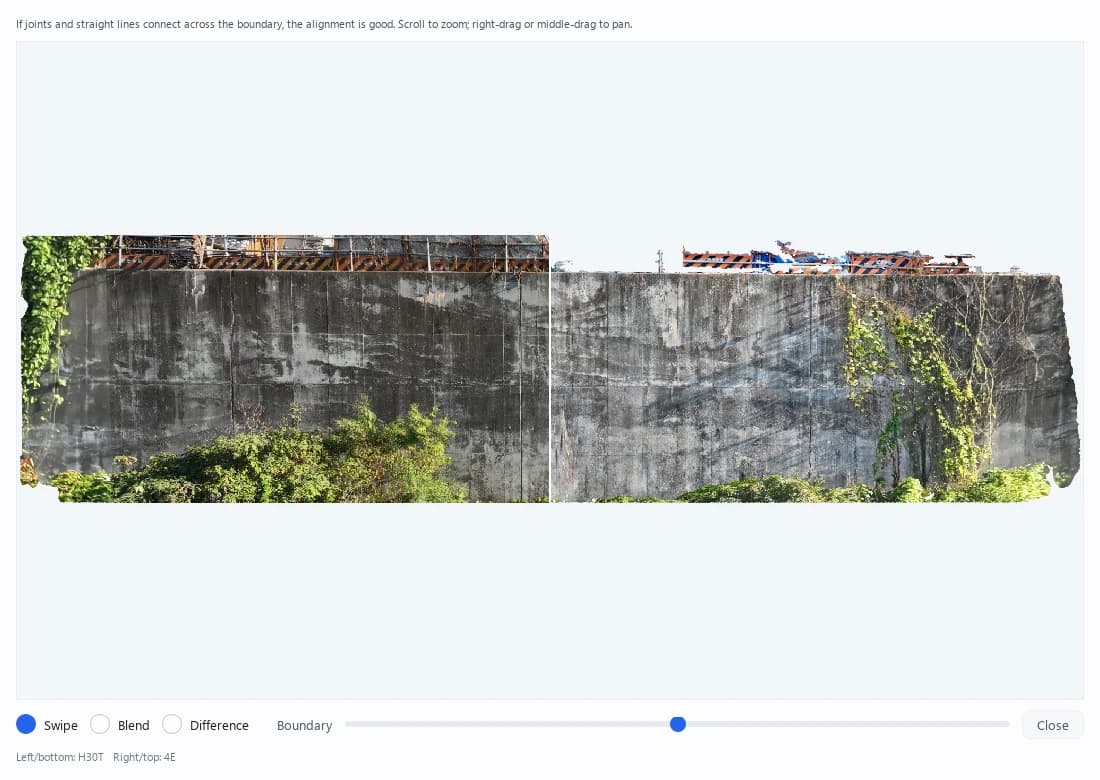
Check overlay opens a window that overlays the two orthomosaics. Use Swipe (move the divider to switch sides), Blend and Difference to check that joints and edges line up. The image at the top of this page is the swipe view.
Click Save Link 2 to save the spatial relationship between the sets.
Comparing
After creating a link, you can compare sets in Compare Mode (display mode 8).
A comparison panel appears on the left side of the screen for each linked set. Images showing areas that overlap the currently displayed image are extracted automatically for each set and listed.
- Click a thumbnail to switch to that image
- Thumbnails show the overlap ratio and whether thermal/visible images are available
- Right-click a thumbnail → Set as Reference Image to change the image used as the comparison reference
Use a shared temperature scale for year-on-year comparisons
Set Temperature scale to Shared on the compare-mode toolbar and both sides use the same temperature range and the same colours, so differences between last time and this time are read on one yardstick (temperature scale in compare mode).
Measurements drawn in a linked set are projected onto the images you compare, too. In the ortho viewer, the display mode menu can overlay a linked set's orthomosaic (visible or infrared) — hover to preview, click to keep it.
Removing a link
Open Process ▾ → Set Link again and uncheck the linked sets to remove the link. When you confirm in the dialog, the removal is saved immediately.
Adding, renaming, reordering, and deleting sets is done from the set menu in the image list panel → Set Management.... This is a separate feature from set link.
Ortho viewer
See how anomalies spread across a whole wall or solar array, overlay drawings, and check camera coverage and inspection progress — plus why a thermal ortho offers three kinds of temperature.
Same-location search
Click one point on an image, ortho or 3D model to list every photo that shows that spot. Includes an illustrated look at how candidates are chosen and ranked.