
Orthomosaic generation
Stitch many drone or ground photos into one front-on image of a building façade, retaining wall or solar array. Includes an illustrated look at how a photo differs from an orthomosaic.
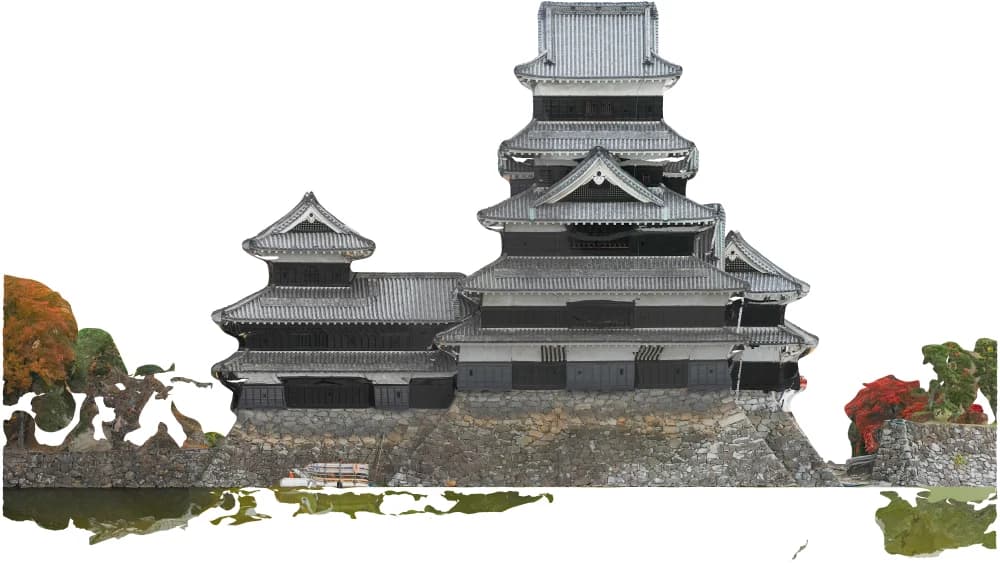
Dozens of photos become
one straight-on view.
In this chapter you will learn to
- Turn angled photos into one front-on image
- Choose between planar and 3D model orthomosaics
- Pick the plane you want, or specify it by hand
- Give the result real-world scale
An orthomosaic stitches many photos together into a single image of the whole wall seen straight on. You can see at a glance where on the building an anomaly is, overlay it on drawings, and use it as the overview in reports. CRITIR can generate visible and infrared orthomosaics at the same time.
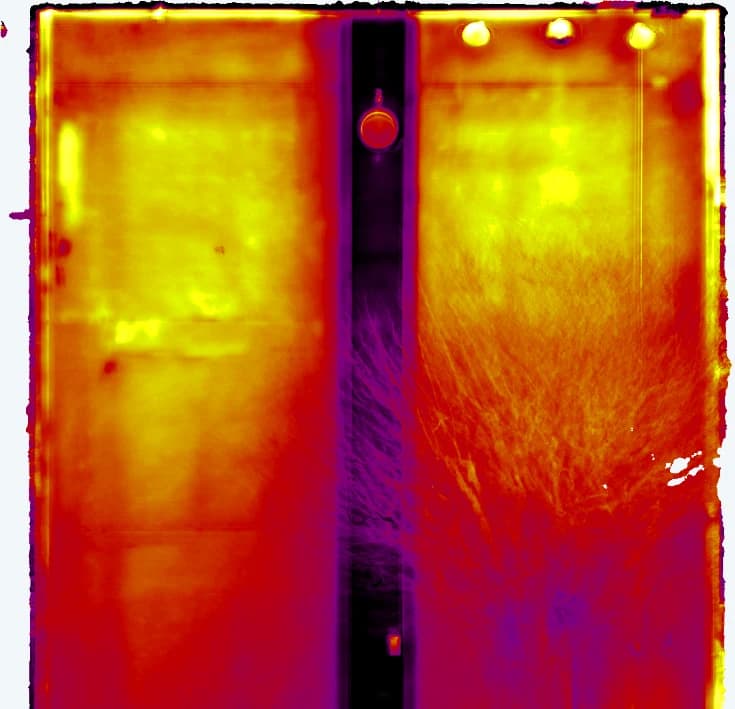
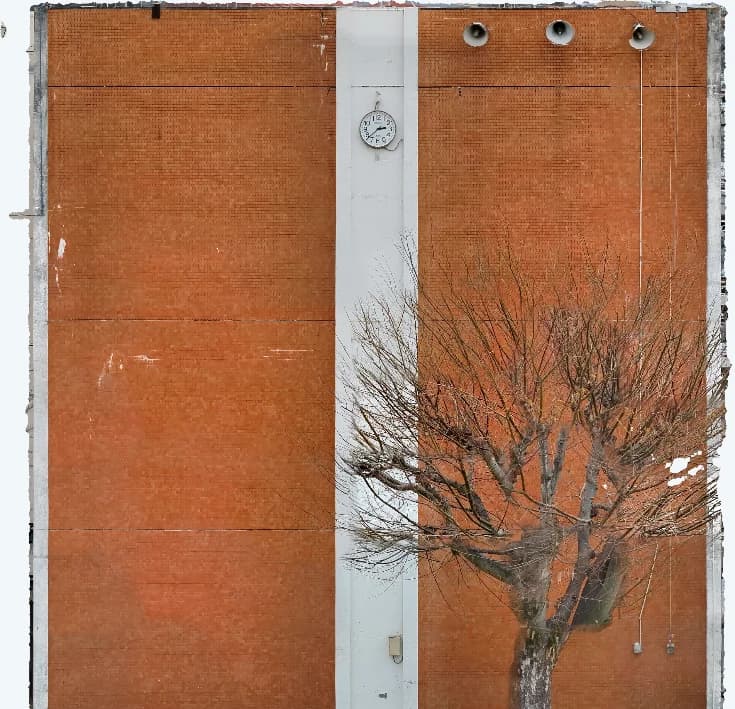
What is an orthomosaic?
Even photos taken at an angle are brought to a front-on shape: image linking (SfM) recovers where each photo was taken from and in which direction, and the photos are re-projected onto the wall. Walls too large for a single photo end up in one image with their geometry intact.
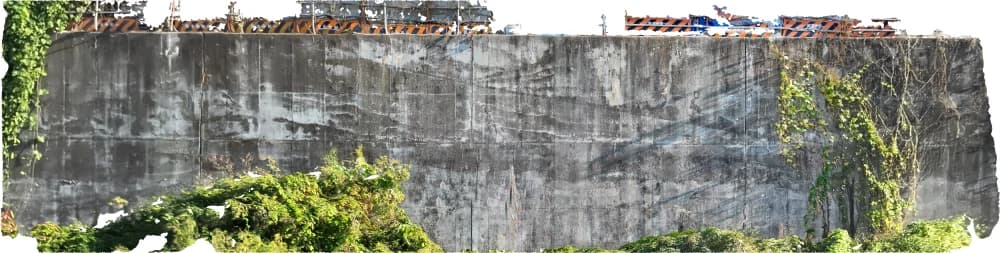
How is an orthomosaic different from a photo?
A photo is formed by light from all over the wall converging on a single point in the lens (central projection). Parts close to the camera come out large, parts far away come out small, and a wall shot at an angle turns into a trapezoid. Even within one photo, the scale changes from place to place.
An orthomosaic is redrawn as if the wall had been captured with parallel rays square to its surface (orthographic projection). The scale is the same everywhere, so lengths and areas can be compared directly on the image, and it lines up neatly with drawings.
CRITIR uses image linking (SfM) to work out where each photo was taken from and which way it was facing. Once that is known, every pixel can be traced back to the spot on the wall its light came from — which is how many photos can be "re-pasted" onto the wall and merged into a single orthomosaic.
Launching the wizard
Launch the generation wizard from either of the following:
- Process ▾ → Image Linking, Ortho, and 3D Generation on the toolbar
- The Generate Orthomosaic button in the minimap at the bottom of the right panel (shown when no orthomosaic exists yet)
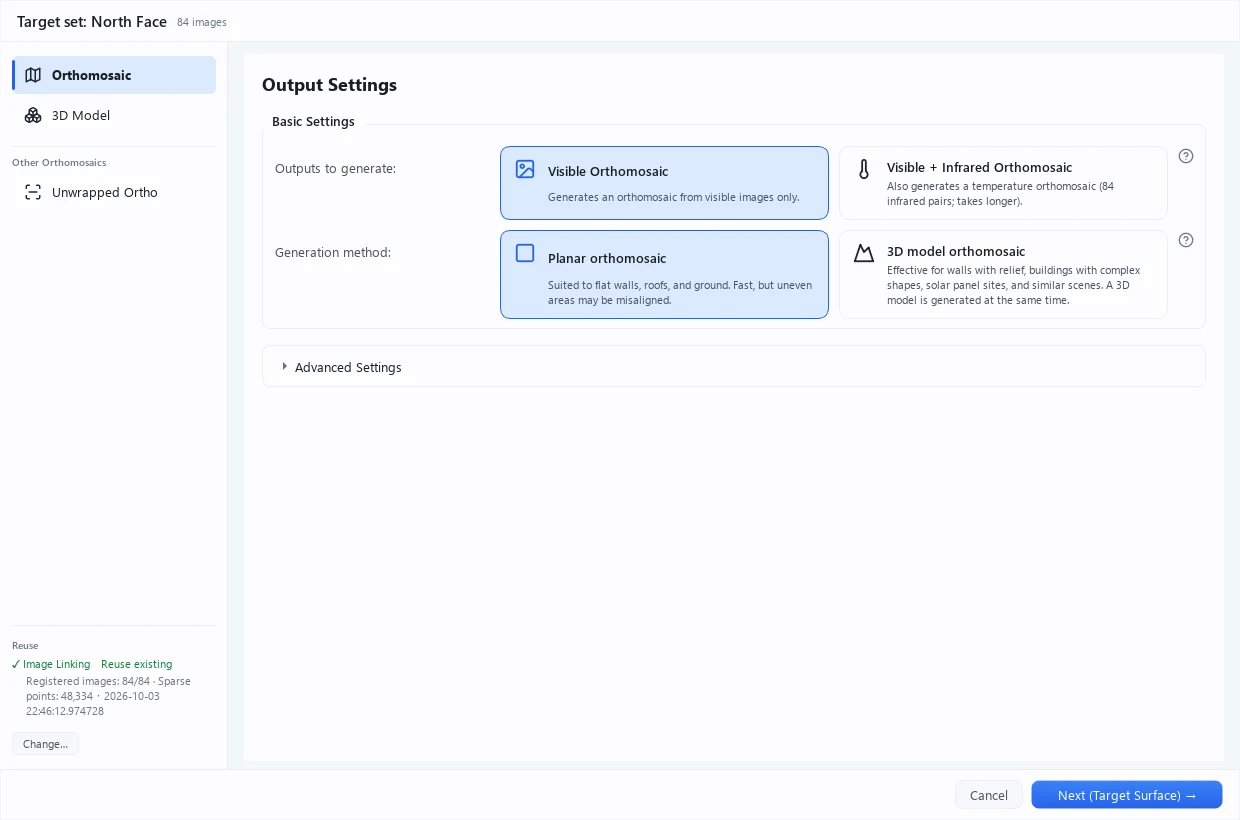
Use the rail on the left 1 to choose what to create: Orthomosaic / 3D model / Other orthos → Unwrapped ortho. This page describes the steps for Orthomosaic (see 3D models and Unwrapped ortho for the others).
The target is the set currently open in the main window (shown as Target set: … at the top of the wizard). To make an orthomosaic of another set, switch sets in the main window first.
Wizard steps
Step 1: Output settings
2 Output to generate 3 Generation method 4 Advanced settings
Output to generate
At the top of the output settings, choose Output to generate from two cards.
| Option | Description |
|---|---|
| Visible orthomosaic (default) | Generates only the orthomosaic from visible images |
| Visible + infrared orthomosaic | Also generates the temperature orthomosaic. Requires visible/infrared image pairs, and takes more time and disk space |
The Infrared orthomosaic items under Advanced settings can only be changed when Visible + infrared orthomosaic is selected. Sets with no image pairs cannot select Visible + infrared orthomosaic.
Resolution
The orthomosaic resolution is decided automatically from the ground sampling distance (GSD) of the photos and the extent of the target after image linking. There is no preset or pixel size to choose.
Generation method
Choose how the orthomosaic is made with the Generation method cards in the output settings.
| Option | Description |
|---|---|
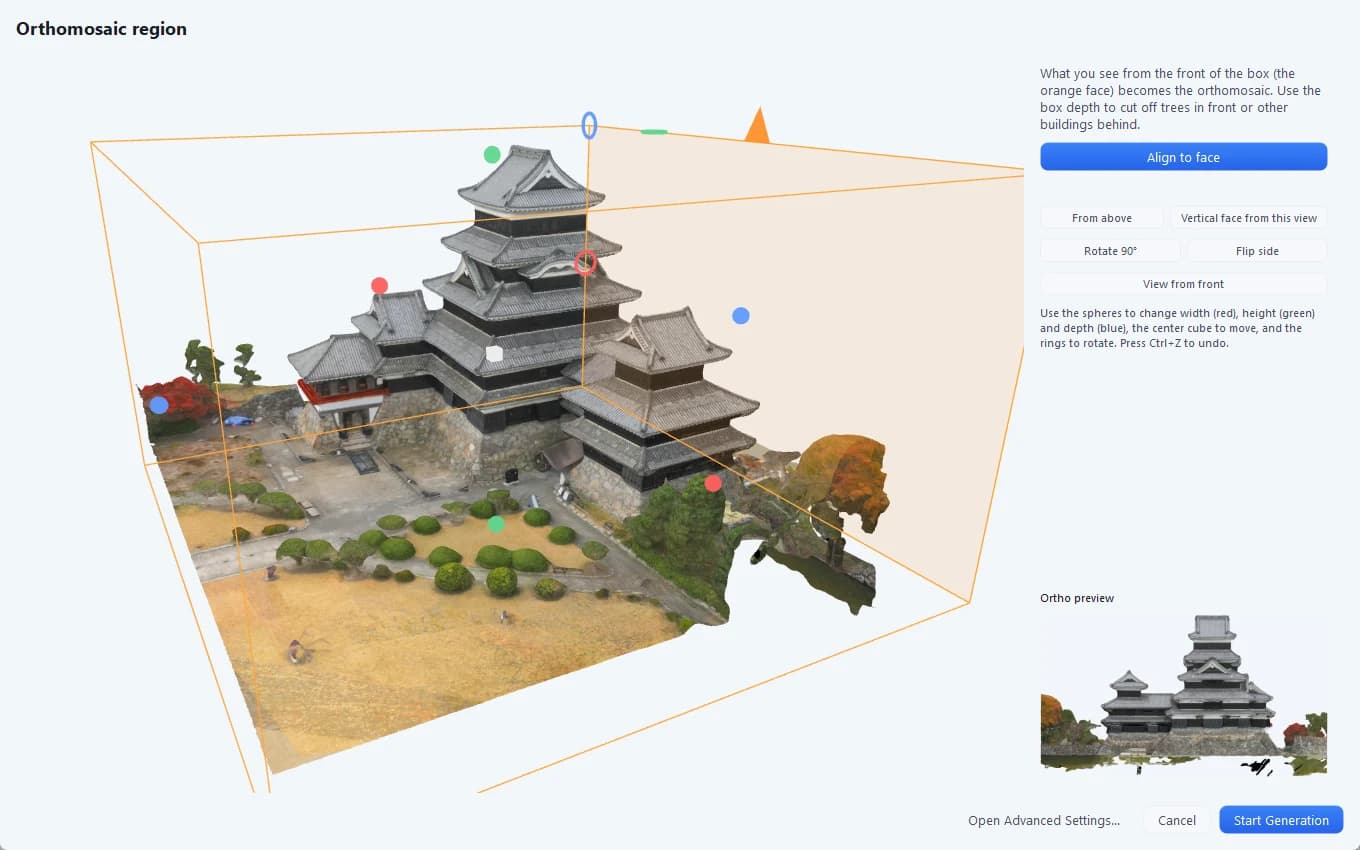
| 3D model orthomosaic (default, recommended) | Effective for walls with relief, buildings with complex shapes, solar panel sites, and similar scenes. Specify the surface, extent and depth to turn into an orthomosaic directly with a box on the 3D model. You can make orthomosaics of several surfaces, such as each facade or slope of a building, from one 3D model. Requires sufficiently overlapping images |
| Planar orthomosaic | Projects the target as a single flat plane. Suits flat walls, roofs, ground, and so on. Selected instead for sets where 3D model orthomosaic is unavailable |
When 3D model orthomosaic is selected and there is no 3D model yet, the wizard generates it at the same time (a few minutes to over ten minutes). Holes in the 3D model are transparent in the orthomosaic as well.
If Visible + infrared orthomosaic is selected as the output in this case, a temperature-mapped 3D model (infrared 3D) is also created automatically after the orthomosaic finishes. It is not created when an existing 3D model is used.
If a 3D model already exists, the Create Ortho button on the toolbar of the 3D viewer lets you specify the surface and extent directly on that 3D model, without going through the wizard (default output settings and the saved scale are used).
The orthomosaics you create are managed together in the Products list in the right panel of the ortho viewer, where a click switches the display. Surface-corrected orthomosaics created with earlier versions can still be viewed and measured from this list (new ones can no longer be generated).
Advanced settings
The defaults are recommended in most cases, but you can adjust the advanced settings if you run into problems.
Image linking settings
The Reuse section in the rail on the left of the wizard shows how existing products such as the image-linking result will be handled. Press Change… to open the Artifacts to Reuse screen, where Image linking settings lets you choose the Image Linking Method for image linking (SfM).
| Method | Description |
|---|---|
| Reuse existing result (recommended) | Keeps the same coordinate system as the existing 3D data and measurements. Available when a previous image-linking result remains for the same set |
| Apply added/removed photos to the existing result (recommended) | Shown when photos have been added or removed since the last image linking. Updates the existing result without rebuilding it and keeps the coordinate system (the numbers of added and removed photos are shown) |
| Compute new image linking | Runs image linking from scratch. May create a new coordinate system |
| Use the previous image linking result (unused) | Shown instead of Compute new image linking when a result computed earlier from the same photos and settings was left unused, for example because it was cancelled. No recomputation |
When Apply added/removed photos to the existing result is selected, the wizard shows a banner ("Photos have changed since the last image link (N added, N removed)…") with an Apply to image link only and close button. Clicking it adds only the positions and orientations of the added photos to the current image link (and drops the removed photos) without rebuilding the orthomosaic or 3D model, then closes the wizard. The coordinate system does not change, so existing orthomosaics, 3D models, measurements and scale keep working as they are. Progress is shown in the toolbar.
Once image-link preparation has started, Apply to image link only and close is no longer available. Cancel the wizard and open it again.
If you try to generate by reusing an image-linking result with a low share of registered images (registration rate), the Check the image link result dialog appears. Areas covered by unregistered images will be missing from the output, so choose Redo image linking / Change settings / Generate anyway / Cancel.
During image linking, images whose position is far off from the other photos are automatically re-registered, and images that still do not fit are excluded.
Open Advanced Image Linking Settings to change the following (not available while reusing an existing result).
Moving to the next page
The button below the output settings reads Start Image Linking when SfM (image linking) will be computed, and Next (Target Surface) → (Next (Ortho Region) → for a 3D model orthomosaic) when an existing image-linking result is reused (the button shows the process name when a long process starts, and the destination when the next page opens immediately). When image linking runs, the wizard minimizes itself after a few seconds and the main window shows a notification once it finishes. When an existing result is reused, the plane candidates from last time are restored as they were, so you move straight on to target plane selection.
Step 2: Target plane selection
When 3D model orthomosaic is selected as the generation method, the following pages are shown instead of this step.
- 3D region (only when there is no 3D model yet): narrow the area to reconstruct with a box while looking at the sparse point cloud, then press Generate 3D model. The region controls are the same as when generating a 3D model
- Orthomosaic region: specify the surface, extent and depth of the orthomosaic with a box on the 3D model
You then continue to Step 3: Scale settings.
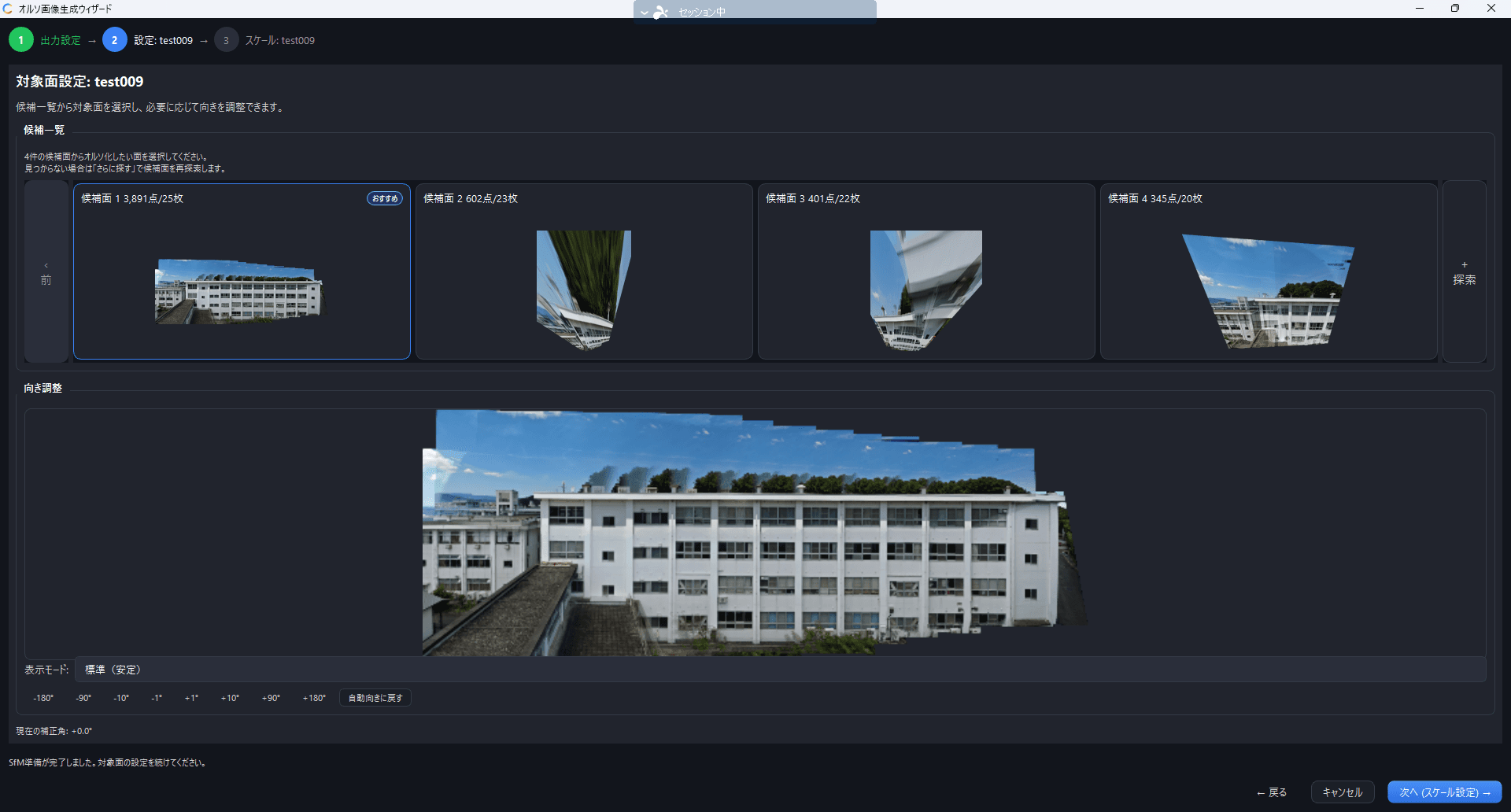
Candidate planes automatically detected from the image linking (SfM) result are shown in a grid. Select the candidate that corresponds to the target wall surface.
- The most suitable candidate is marked with a "Recommended" badge
- If no candidate fits, click "Find More" to search for additional candidates
- Newly found candidates are marked with a "NEW" badge
Specifying a plane manually
Automatic detection looks for planes based on point-cloud density, so the plane you want may not appear among the candidates — the candidate list may be empty, the structure may be slender, or you may want only part of a wall. In that case, click "Specify Plane Manually..." and click the target surface on a photo to create a candidate. The steps ① Click a surface → ② Generate preview → ③ Save are shown at the top of the screen.
- Pick an image from the thumbnails where the target plane is clearly visible
- ① Click a surface: click the surface you want to orthorectify; the area detected as the same surface is highlighted (the first time can take tens of seconds to load the model)
- ② Generate preview: click Generate Preview from This Area (Update Preview from the second time on) to generate a combined orthomosaic preview
- If the surface does not fit in one image, click the same surface in another image to extend the area, then update the preview again
- ③ Save: when the preview looks right, click Save This Preview
If no surface can be detected where you clicked, "Could not detect a surface at this position" is shown. Click a different position, such as near the middle of the surface.
| Action | Description |
|---|---|
| Preview controls | Scroll to zoom, drag to pan, double-click to fit |
| Remove Area from This Image | Cancels the selection on the currently displayed image |
| Clear All | Discards every area you specified |
Start from the photo where the surface looks biggest
Pick the photo in which the surface fills the most of the frame and click near its middle. Any edges that don't fit can be added by clicking the same surface in other photos — the whole surface comes together in just a few clicks.
The highlighted area is also used as the area included in the orthomosaic.
Saving adds it to the candidate list with that candidate selected.
Enclosing the surface instead
When Use a camera-facing vertical plane (for slender structures such as towers and chimneys) is turned on (or when detecting a surface by clicking is not available), the first step becomes ① Enclose surface and you specify the target surface with a rectangle.
- Click the start point, move the mouse, and click the end point to enclose the target plane
- Click Generate Preview from This Area and check the result (enclosing the same surface on other images merges the results)
- When the preview looks right, click Save This Preview
The enclosed area is also used as the area included in the orthomosaic, which is useful when you want to crop out just the wall.
Orientation adjustment (optional)
When you select a candidate, the orientation of the orthomosaic is estimated automatically. For nearly horizontal surfaces such as the ground, roofs and solar panels (overhead orthomosaics), the orthomosaic is created with north at the top when the north direction can be determined from the photos' GPS (when it cannot, for example with a single flight line or shots from one spot, the orientation is estimated from the shooting direction). Orthomosaics with a known north show a north arrow in the Ortho Viewer. If needed, fine-tune it with the rotation buttons (±180° / ±90° / ±10° / ±1°). Click "Restore Auto Orientation" to reset to the initial state.
Step 3: Scale settings (optional)
You can calibrate the real-world scale of the orthomosaic by specifying two points with a known distance between them. This step can be skipped.
- Click two points with a known distance on the image (e.g. a door height or window width)
- Enter the actual distance and unit (m / cm / mm)
- Click "Add Measurement"
Registering 2–4 measurements is recommended for better accuracy. Because the median of the measurements is used, the calibration is robust against outliers.
The scale you set here is a per-set setting: it applies not only to the orthomosaic but also to the 3D model, the unwrapped ortho (cylinder / truncated cone), and measurements on the original images. Even if you skip this step, you can set or correct it at any time from Process ▾ → Scale Settings. See Scale settings for details.
Starting generation
Once all settings are complete, click "Start Generation" and the orthomosaic is generated automatically.
Generation takes time depending on the number of images and your PC's specifications.
You can continue other work during processing, but you cannot switch projects or sets.
Infrared image analysis
Make temperature anomalies — from delaminated tiles to overheating solar panels — easy to spot with the display range, palettes, alarms and temperature masks, plus an illustrated look at why delaminated tiles appear warm.
Ortho viewer
See how anomalies spread across a whole wall or solar array, overlay drawings, and check camera coverage and inspection progress — plus why a thermal ortho offers three kinds of temperature.