
Scale settings
Give one known length with two points so distances and areas on orthos, 3D models and photos come out in real units — and see why photos alone can't tell you size.
One known length
makes everything real-size.
In this chapter you will learn to
- Give real-world scale with a known length
- Catch measurement mistakes from the % difference
- Check where the current scale comes from
- Keep your measurements after re-running image linking
To make distances and areas measured on photos real-world values, tell CRITIR at least one known length on an image. Just mark something like a wall width or a door height with two points, and every measurement — on orthomosaics, 3D models and photos — becomes real-world size.
What is scale?
The 3D geometry reconstructed by image linking (SfM) has no real-world size on its own. The shape is correct, but whether "1" means a metre or a centimetre is undefined.
Scale is the factor that converts that reconstructed coordinate system into real-world units (metres). Scale is a per-set setting, and it applies to every product generated from that set:
- Measurements on the orthomosaic
- Measurements on the 3D model
- Measurements on the unwrapped ortho (cylinder / truncated cone)
- Measurements on the original (single) images
In other words, while scale is unset, distances and areas are not real-world values on any screen.
A photo alone can't tell you how big things are
A small model close to the camera and a real building far away: if size and distance are in the same ratio, the two produce exactly the same photo. A photo records only "what is seen in which direction", never "how many metres it is".
Image linking (SfM) is no different. It can recover the shape and the camera positions correctly from many photos, but the overall size cannot be determined from the photos alone (with GPS-tagged photos it can be estimated from the capture positions). Give it one length you actually measured, such as the height of a door or the width of a wall, and the scale follows — every length and area becomes real-world size.
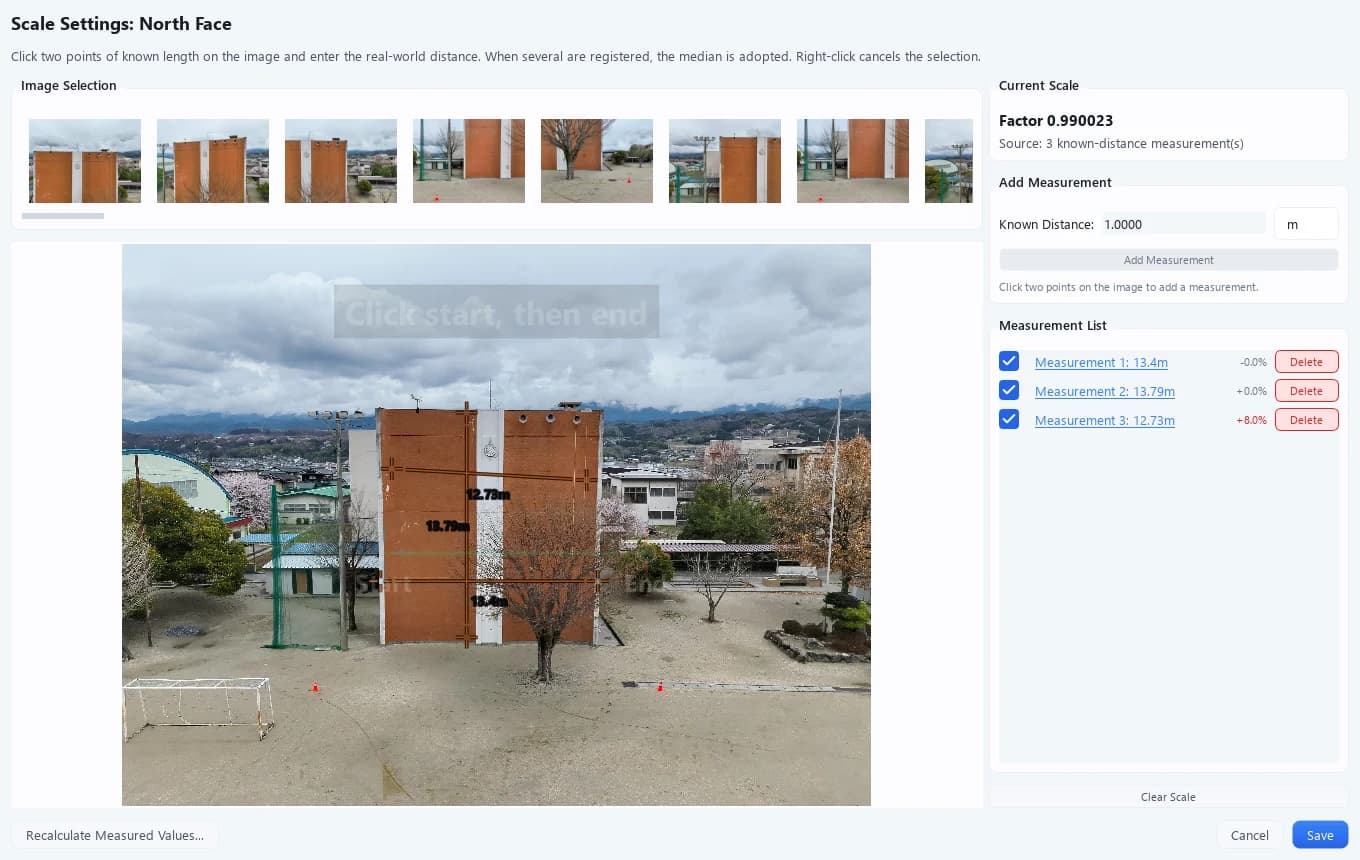
Registering several measurements is still recommended, because it lets you catch a misplaced click or a typo. The measurement list shows, for each measurement, the factor it alone gives and its difference from the adopted value (the median) as a percentage. Good measurements agree closely; if one sticks out, that's the one to doubt. And because the median is used, a single outlier does not throw off the result.
Launching
Open it from Process ▾ → Scale Settings on the toolbar. It applies to the currently selected set.
Scale settings is a PRO plan feature. See Plans and features for details.
Scale cannot be computed for a set that has not been through image linking (SfM). Run Process ▾ → Image Linking, Ortho, and 3D Generation first.
This screen edits the same setting as Step 3 of the orthomosaic wizard.
Even if you never generate an orthomosaic (3D model only, or unwrapped ortho only), you can set the real-world scale here at any time.
Screen layout
| Area | Contents | |
|---|---|---|
| Image Selection | Visible-image thumbnails for the set. Images excluded from the project are not listed | |
| 2 | View | The image you place two points on. Scroll to zoom, drag to pan |
| 1 | Current Scale | The factor in use and its source |
| 3 | Add Measurement | Known distance and unit input |
| 4 | Measurement List | List of registered measurements |
Adding a measurement
- Enter the known distance and choose the unit (m / cm / mm)
- Click two points on the image (right-click to cancel the selection)
- Click Add Measurement
Accuracy improves when you pick something whose dimension is certain and whose ends are clearly visible in the image — a door height, a window width, a known span.
Registering 2–4 measurements is recommended. With several measurements the median is adopted, so a single outlier will not badly skew the result. Measurements can be spread across different images.
Each row in the measurement list shows the difference between the factor derived from that measurement alone and the adopted value (the median). A row with a large difference usually means the clicked points are off, or the known distance was entered incorrectly.
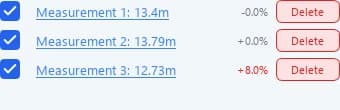
Rows whose points have no resolvable 3D position show Not computable.
Unchecking a row excludes that measurement from the scale calculation without deleting it.
Current scale (source)
| Display | Meaning |
|---|---|
| Not set (raw image-linking scale) | No factor resolved. Displayed distances and areas are not real-world values |
| Source: N known-distance measurement(s) | Resolved from the measurements registered on this screen |
| Source: GPS (estimated from capture positions) | Estimated automatically from the capture positions |
When your images carry GPS, scale is estimated automatically from the capture positions. If you register known-distance measurements for the same image linking, those take priority, because a manual measurement is more reliable.
Even with GPS, measure one length
With GPS-tagged photos the scale is estimated automatically, but once you register a known-distance measurement, the more reliable manual measurement takes priority. Even a single door height is worth registering.
The factor in use is shown as, for example, Factor 0.99. For sets without an orthomosaic it adds "No orthophoto yet, so a local plane from the point cloud is used".
Clear Scale resets the factor to unset. The registered measurements remain, so you can re-enable them later.
What changes when you save
Save stores the resolved factor on the set and applies it to existing products.
| Applied to | Details |
|---|---|
| Orthomosaic | The real-world (metre) figures are updated. The orthomosaic image itself is not regenerated — pixel density does not depend on scale |
| Saved measurements | Distances and areas of measurements created under the same image linking (SfM reconstruction) are updated to the new scale. Measurement positions do not move |
| 3D view | Applied to the 3D mesh currently displayed |
If the factor cannot be resolved — for example when every measurement is rejected — nothing is applied to the products and you are told so. Your measurements are still saved, so add or correct them and save again.
Recalculate measured values
Recalculate Measured Values... at the bottom left of the dialog recomputes the distances and areas of saved measurements from their positions on the original images. Positions do not move; only the numbers are rebuilt. Use it as a remedy when distance or area values have been left in the wrong scale, for example after switching the displayed product. It runs after the dialog closes (after the scale is saved).
After re-running image linking
A scale factor is stored together with the image linking (SfM reconstruction) it was derived from. Re-running image linking changes the scale of the reconstructed coordinate system itself, so the previous factor is no longer valid as-is.
However, the registered measurements (two points plus a known distance) remain. Reopening Scale Settings recalculates them against the current reconstruction, so you only need to press Save to apply the new factor — there is no need to place the points again.
Unwrapped ortho (cylinder / truncated cone)
Turn cylindrical and truncated-cone structures such as chimneys, tanks and silos into a single unwrapped image from a 3D model — with an illustrated look at how cylinders and cones unroll.
Measurement tools
Measure anomalies with spot, line, box, polygon and other tools, then record type, judgment and findings as inspection results — plus how one measurement appears on other photos and orthos.