
Project management
Manage hundreds of infrared and visible photos from drones or handheld cameras — of façades, solar arrays or other structures — as one set per face, then filter them and thin out duplicates by location.
Hundreds of photos,
neatly sorted by face.
In this chapter you will learn to
- Create a project with one set per wall face
- Organise projects with search, copy and archive
- Filter images by judgment and processing status
- Cull duplicate photos using location data
In CRITIR, one survey (building) is a project, and each batch of photos inside it (north face, south face, …) is a set. To create a project, you just point each set at its photo folder.
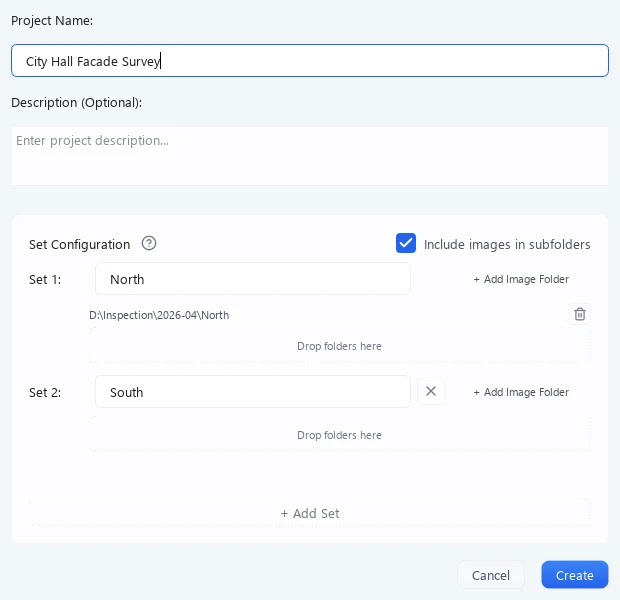
| Item | Description | |
|---|---|---|
| 1 | Project name | A name such as the building name (required) |
| 2 | Set name | The name of the batch of photos. If left empty, the project name is used |
| 3 | Image folders | Choose with + Add Image Folder, or drop folders here |
| 4 | Include images in subfolders | When on, photos in folders inside the folder are imported too (on by default) |
| 5 | + Add Set | Adds another set |
Creating a project
Select + New Project on the project list screen.
Basic settings
- Project name (required) — Enter a name that identifies the project, such as the building name
- Description (optional) — Free-form notes or remarks
Configuring sets
A set is a unit for grouping images. Orthomosaics are generated per set, so put each facade of a building (north face, south face, and so on) in its own set.
- Assign one or more image folders to each set
- Click "+ Add Set" to add another set
- Folders can be added to or removed from each set individually
For cylindrical or curved buildings: For targets with curved walls — tanks, silos, round buildings — a per-facade planar orthomosaic is not a good fit. In that case, group the images captured all the way around the building into a single set, generate a 3D model, and inspect and measure on the 3D model instead. If you want the whole circumference as a single unwrapped image, an unwrapped ortho (cylinder / truncated cone) is available once the 3D model exists.
Adding image folders
Choose a folder with + Add Image Folder, or drag a folder from Explorer onto the Drop folders here area.
To align infrared and visible images, both must be located in the same folder.
Finishing creation
Click "Create". The images in the specified folders are scanned automatically, and the main screen opens.
Automatic fine alignment during import
When images are imported, fine alignment runs automatically for newly completed visible and thermal image pairs. When adding images to an existing project, it targets the newly imported pairs. Existing manual adjustments are preserved.
Check the alignment in overlay mode after import. For further adjustments, use fine alignment in the viewer.
Managing the project list
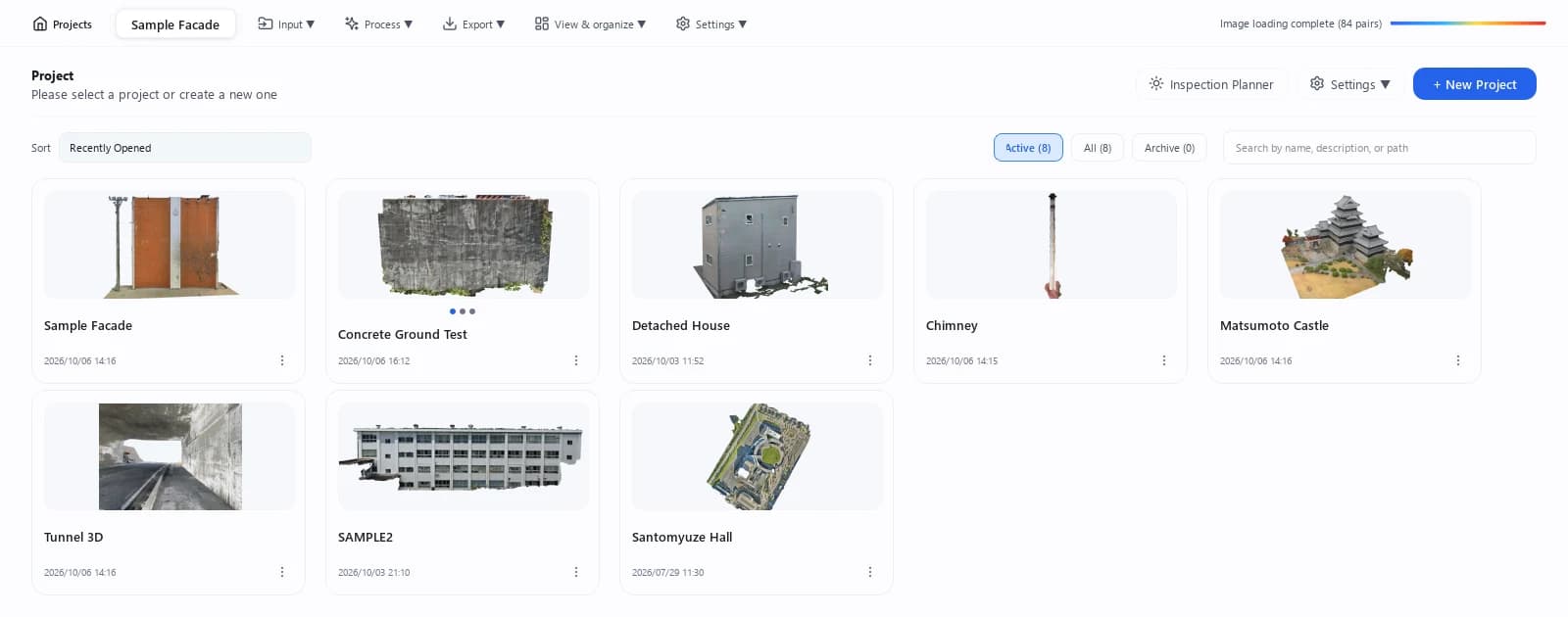
The list screen — shown right after startup, or opened with the Projects button at the far left of the toolbar — is where you organise your projects.
| Control | Description | |
|---|---|---|
| 1 | Search | Filter by part of the name, description or path |
| 2 | Filter | Active / All / Archive (each shown with a count) |
| 3 | Sort | Creation Date (Newest First) / Recently Opened / Name |
| 4 | + New Project | Create a project |
For projects with several sets, hovering over a card cycles through each set's photo (the dots under the card show how many).
Per-project menu
Use the button on each card, or right-click the card.
| Action | Description |
|---|---|
| Open | Opens the project |
| Open Folder | Opens the project's folder in Explorer |
| Rename | Renames the project |
| Copy Project | Duplicates it under a new name (see below) |
| Export... | Writes it out as a single file. See Export › Exporting projects |
| Archive / Unarchive | Hides it from the list, or brings it back. No data is deleted |
| Delete Project | Deletes the project |
Copying a project
You can choose between two copy scopes.
| Scope | What is duplicated |
|---|---|
| Copy All | Images, SfM, orthomosaics, measurements, reports and 3D products |
| Images Only | Set structure and image folders only (no SfM, orthomosaics, measurements or reports) |
Images Only is handy when you re-shoot the same site and want to carry over just the configuration. Duplicate project names are not allowed, so give the copy a new name.
Archive only hides a project from the list — its data remains. Switch the filter to Archive or All to unarchive it at any time.
Filtering images
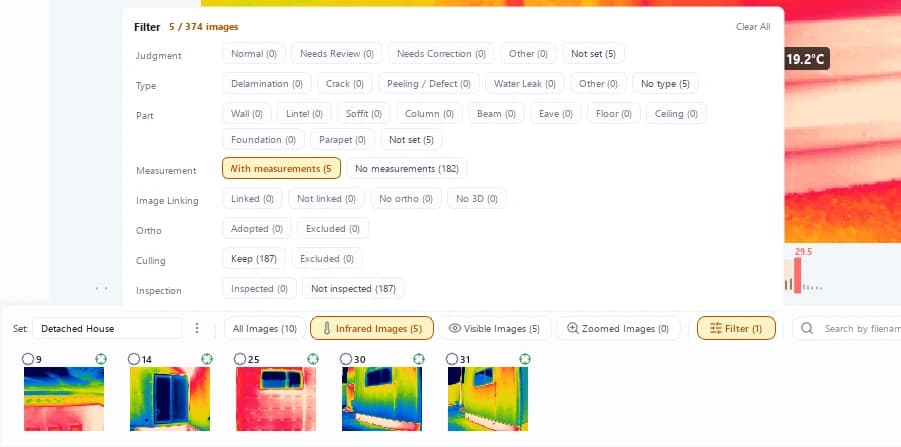
Use the controls at the top of the image list panel to narrow down which images are shown. This is handy when you are looking for specific images among hundreds.
| Control | Description |
|---|---|
| All Images / Infrared Images / Visible Images / Zoomed Images | Filter by image type using the tabs (counts shown in parentheses) |
| Search by filename... | Filter by part of the filename |
| Filter button | Opens a panel to filter by judgment, type, part and processing state (see below) |
Filter panel
Press the Filter button to open a panel with one row of choices per axis.
| Axis | Choices |
|---|---|
| Judgment | Normal / Needs Review / Needs Correction, etc. (the same judgment presets as the inspection table) |
| Type | Delamination / Crack, etc. (the same type presets) / No type |
| Part | Wall / Column / Beam, etc. (the same part presets) |
| Measurement | With measurements / No measurements |
| Image Linking | Linked / Not linked / No ortho / No 3D (matching the badges below) |
| Ortho | Adopted / Excluded |
| Culling | Keep / Excluded |
| Inspection | Inspected / Not inspected |
- Selecting several choices within one axis keeps images that match any of them (OR); combining axes keeps images that match all of them (AND). An axis with nothing selected is ignored
- The count next to each choice is the number of images after the image-type tab and filename search, before the axes are applied. It does not change when you toggle other axes
- While a filter is active the button reads Filter (N) (N = number of axes with a condition) and its tooltip lists the conditions. The panel header shows Showing N / M, and the image-type tab counts reflect the filtered result
- When no image matches, the list shows "No image matches … at the same time." together with a button such as Remove the "Judgment" condition (→ 12 images) for an axis that would bring results back
- Clear all removes every condition at once
Catch measurements that will miss the overview drawings
Combine Image Linking: Not linked with Measurement: With measurements (different axes, so AND) and you are left with exactly the images whose measurements will not appear on the ortho, 3D or report overview drawings. Running this once before you build a report heads off mismatches between the tables and the overview.
Badges on images outside the image link
Images that are not part of the image-linking (SfM) result show a badge in the top-left corner of the thumbnail image. Images that are fine (included in every product) show nothing.
| Badge | Meaning | Matching filter choice |
|---|---|---|
| No ortho | Not included in the image-linking result used by the ortho | Image Linking: No ortho |
| No 3D | Not included in the image-linking result used by the 3D model | Image Linking: No 3D |
| Unlinked | Not included in the image-linking result at all (neither ortho nor 3D) | Image Linking: Not linked |
- Hover over a badge to see the registration state for the ortho and the 3D mesh (registered / not registered / not generated) in its tooltip
- The Image Linking: Not linked filter shows every image carrying any of the No ortho, No 3D or Unlinked badges. Linked shows the images without a badge
- Ortho: Adopted / Excluded is separate from image linking: it filters by the images actually used in ortho generation (Adopted) and the images you set to be excluded from ortho generation (Excluded)
Measurements drawn on an image outside the image link do not appear on the ortho, in 3D, or on the report overview map (they still appear on the image pages and summary tables, so the report's tables and overview map disagree). For that reason, the badge turns to a warning color when the image has measurements. While such an image is shown in the viewer, a banner stays at the bottom of the screen, such as "This image is not in the image link. Measurements drawn here will not appear on the ortho, in 3D, or on the report overview map".
Marking images as inspected
Click the badge in the top-left corner of a thumbnail to mark the image as inspected (a green check badge). Click it again to clear the mark. Besides tracking which images you have reviewed, it also works well as a flag for images of interest you want to revisit later.

You can also select multiple images, right-click, and choose Mark as Inspected / Clear Inspected to set them in bulk.
When an image is marked as inspected, its camera frame is shown filled in the ortho viewer, so you can see inspected and uninspected areas at a glance.
Image right-click menu
Right-click thumbnails to act on the selected images (one or more).
| Action | Description |
|---|---|
| Set as Reference Image | Use it as the base of compare mode |
| Apply Temperature Display to Selected Images / Reset Temperature Display | Align or reset temperature display settings such as range and palette across the selection |
| Mark as Inspected / Clear Inspected | Add or remove the inspected mark described above |
| Exclude from ortho & 3D model / Clear ortho & 3D model exclusion | Stop or resume using the photo to color the orthomosaic and the 3D model (it is still used for image linking and 3D shape; takes effect when you regenerate) |
| Open Folder | Open the folder containing the photo in Explorer |
| Duplicate Image | Add a duplicate of the selected image to the project |
| Export Image... | Open image export |
| Exclude from project (restorable) / Restore to project | Remove from or return to the image linking, 3D and ortho input (same as "exclude" in culling by location). Photos are not deleted |
| Remove from Project | Remove the photo from the project |
Match the temperature display in one go
Once you have settled the range and palette on one image, select several thumbnails, right-click and choose Apply Temperature Display to Selected Images. Every photo you want to compare under the same conditions now looks the same way.
Culling by location
From Process ▾ → Cull by Location on the toolbar, you can automatically exclude duplicate images captured while hovering and the like. Running this before image linking, 3D reconstruction, or orthomosaic generation shortens processing time.
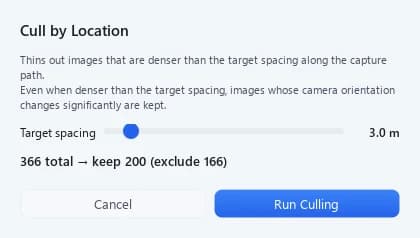
Move the Target spacing slider (0.5–30.0 m, default 3.0 m) and the result updates instantly, e.g. 361 total → keep 154 (207 excluded). Click Run Culling to apply.
How culling works
Following the capture path, an image becomes an exclusion candidate when its distance from the previously kept image is below the target spacing. Because this is not a simple "keep 1 out of N" rule, bursts from slow or hovering segments are consolidated without leaving gaps in fast-flight segments.
In addition, the following images are always kept, even where spacing is dense:
- Images where the camera heading (yaw) changed by 25° or more, or the tilt (pitch) changed by 20° or more
- The first and last images of the capture
- Images without GPS information
Why not just keep “1 out of N”?
A drone does not always fly at the same speed. While it stops to frame a shot (hovering) or creeps closer, the camera keeps taking photos. When it moves on to the next wall it flies faster, and the photos spread out.
Thin a flight like that mechanically — "every third photo in shot order" — and the dense parts keep plenty of near-duplicates while the already sparse parts develop gaps. Where a gap opens, neighbouring photos may no longer overlap enough.
CRITIR instead follows the capture positions along the path and decides by the distance from the last photo it kept, so the photos it keeps end up evenly spaced. On top of that, a photo where the camera turned sharply is kept even when it is close to its neighbours, because it is looking at a different part of the scene.
Culling is non-destructive. Excluded images are only removed from the inputs to image linking, 3D reconstruction, and orthomosaic generation — they are never deleted. Re-run with a looser target spacing to bring them back.
Sets without location (GPS) information cannot be culled. In that case the slider and the run button are disabled, and the message "Cannot cull: no location data." is shown.
Capture planning (Thermal Planner)
How sunlight hits a wall changes what a thermal survey can see. Simulate sun and shadow face by face and pick the right time to shoot before you leave for the site.
Viewer operations
Compare infrared and visible images in eight display modes, correct the misalignment caused by parallax between the two cameras, and read temperatures right under the cursor.