
Measurement tools
Measure anomalies with spot, line, box, polygon and other tools, then record type, judgment and findings as inspection results — plus how one measurement appears on other photos and orthos.
The moment you outline it,
it becomes a record.
In this chapter you will learn to
- Outline anomalies to measure temperature and area
- Record type, judgment and findings
- Save your usual values as presets
- Tidy up every measurement in the workspace
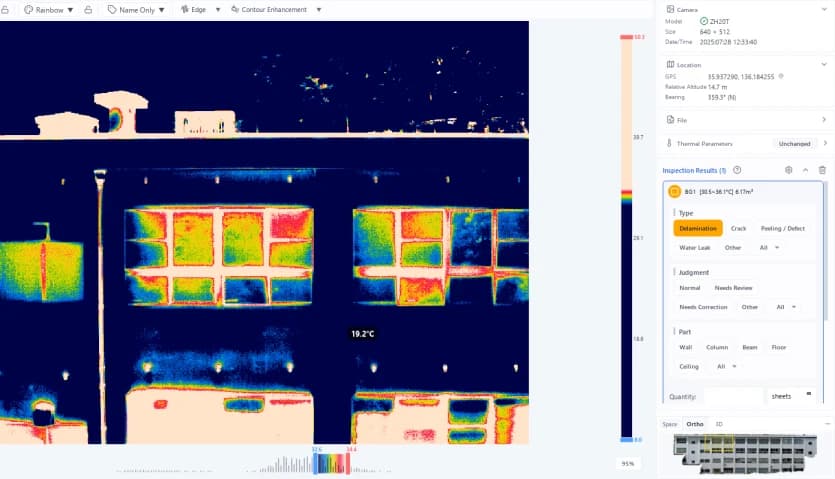
When you find a suspicious temperature anomaly, outline it with a measurement tool. The maximum and average temperatures and the area appear instantly, and you can record the type, judgment and findings right there as an inspection result.
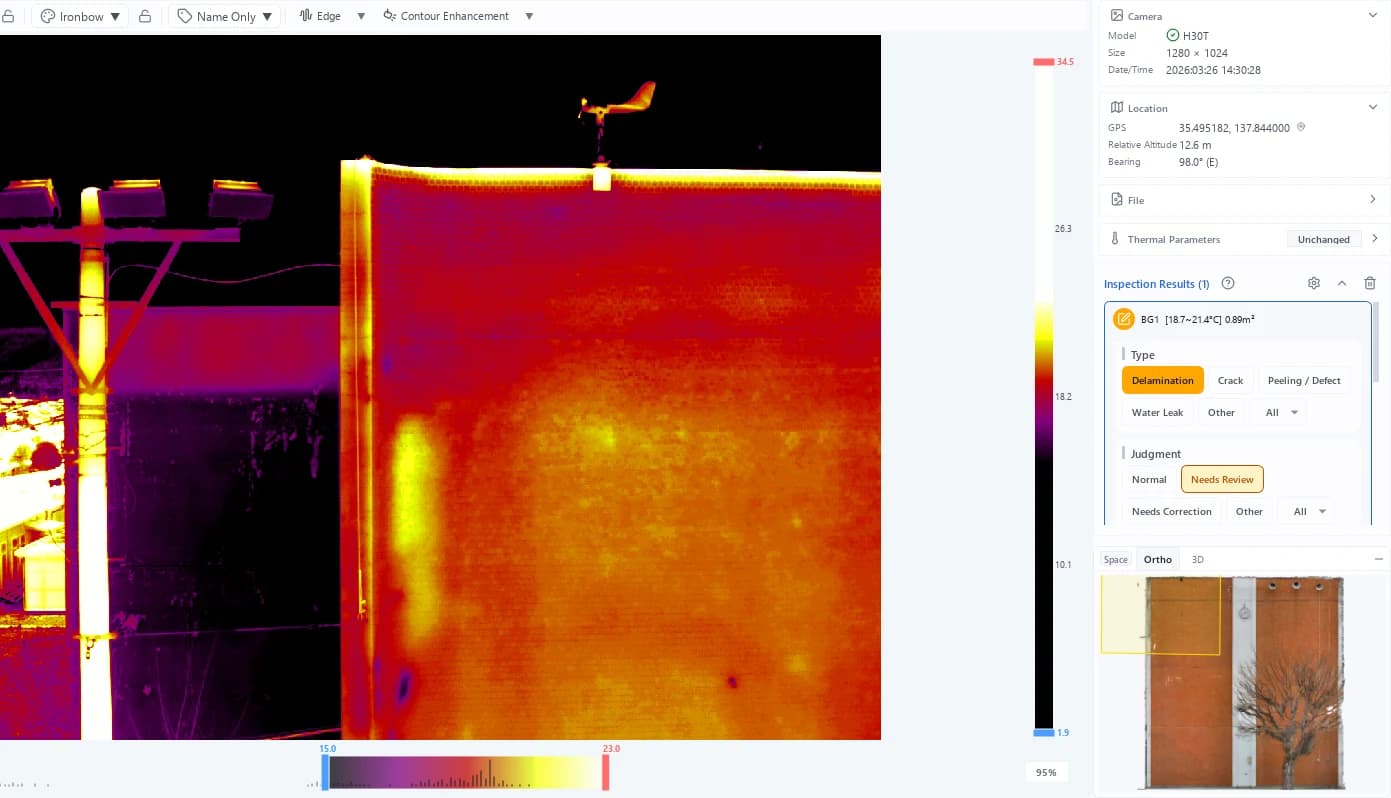
1 The measurement (label BG1 = the first "delamination") 2 The inspection result. Click it to edit type, judgment and findings
Selecting a tool
Select a measurement tool from the tool icon bar at the left edge of the window, or switch with keyboard shortcuts. Click the active tool again to deselect it.
Measurement tools
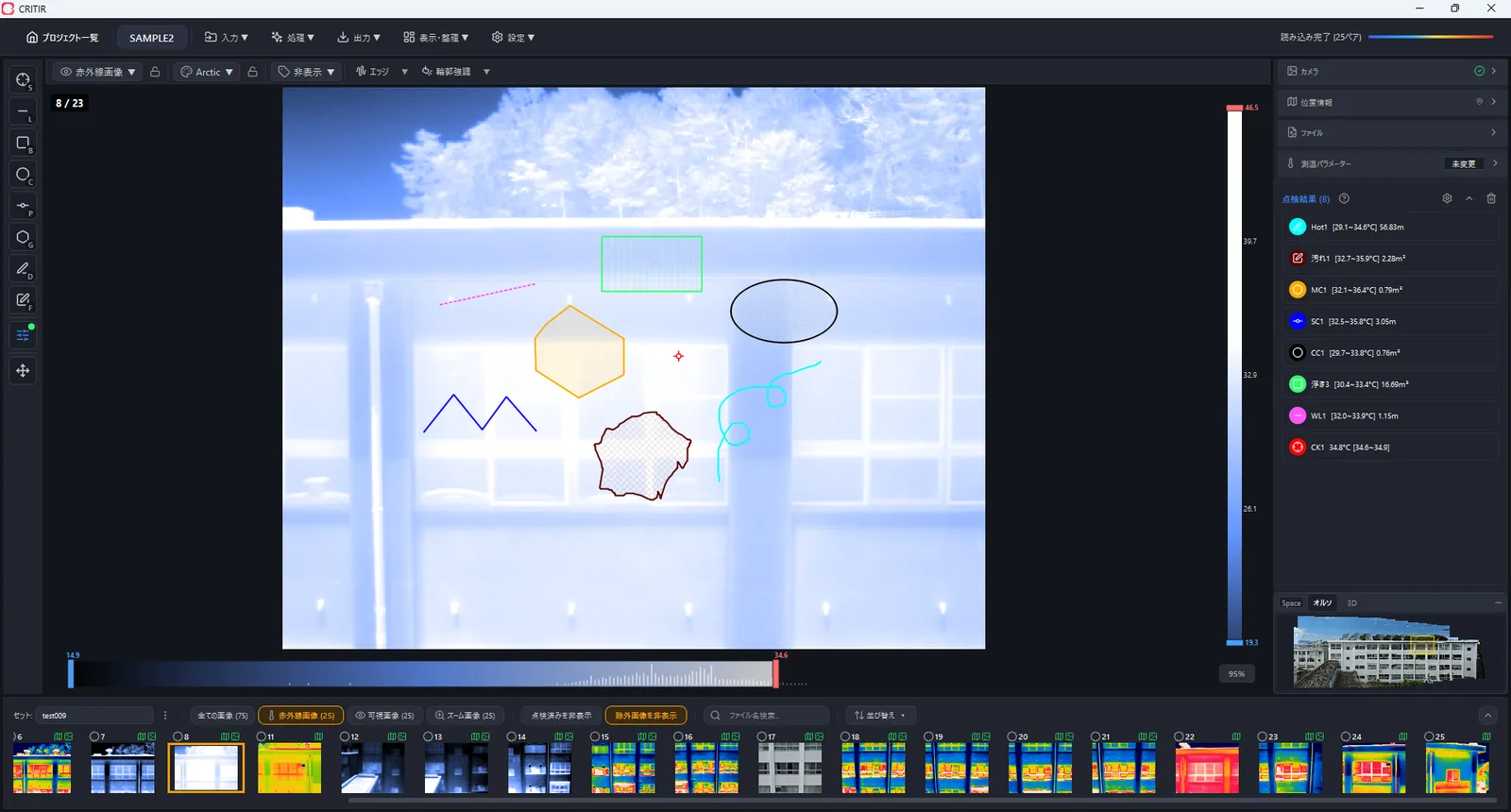
| Icon | Tool | Key | Operation | Measured values |
|---|---|---|---|---|
| Spot | S | Click a point on the image | Temperature at that point | |
| Line | L | Click two points | Temperature profile along the line, max/min/average temperature, distance | |
| Box | B | Click the start point, then click the end point | Max, min, average, median, standard deviation, area | |
| Circle | C | Click two points to set the bounding box (ellipse) | Max, min, average, median, standard deviation, area | |
| Polyline | P | Click multiple points, then double-click or press Enter to finish | Temperature profile along the polyline, max/min/average temperature, distance | |
| Polygon | G | Click multiple points, then double-click or press Enter to finish | Max, min, average, median, standard deviation, area | |
| Pen - Line | D | Drag to draw freely | Temperature profile along the line, max/min/average temperature, distance | |
| Pen - Polygon | F | Drag to draw a region freely | Max, min, average, median, standard deviation, area |
Area tools (Box / Circle / Polygon / Pen - Polygon) also generate a temperature histogram (distribution chart).
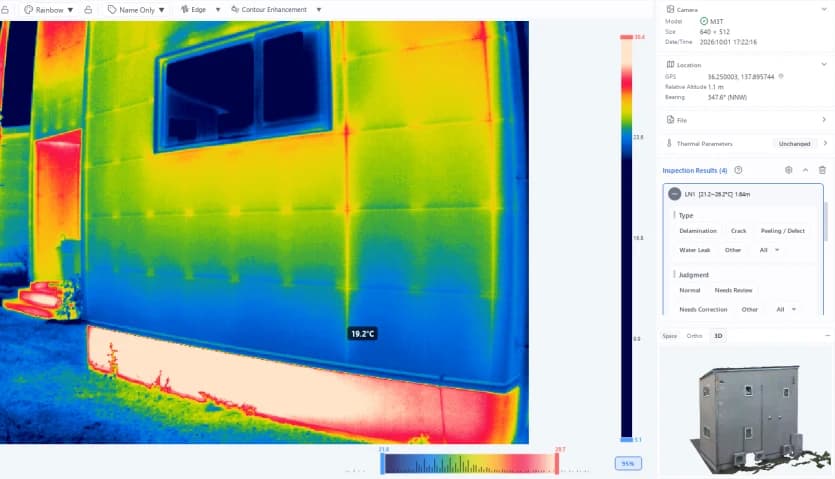
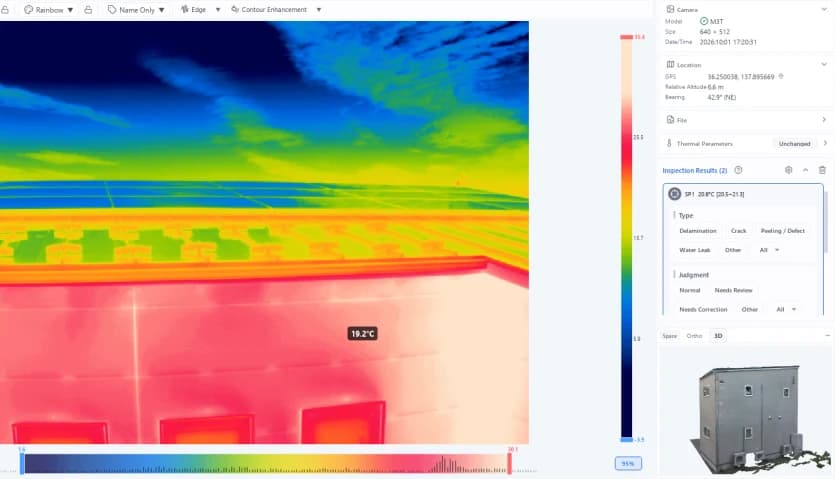
Here are some real measurement results. A line gives the temperature change along it, a spot gives the temperature at one point, and a box gives statistics for the area inside.
Drawing helpers
| Action | Description |
|---|---|
| Alt (held) | Constrains drawing. Line tools snap to horizontal/vertical or parallel/perpendicular to the previous edge; Box/Circle become a square/perfect circle |
| Ctrl + Z / Backspace | While drawing a polyline/polygon, remove the last vertex |
| Enter | Finish drawing a polyline/polygon |
| Esc / right-click | Discard the measurement being drawn (the tool stays selected) |
Hold Alt to keep lines straight
When measuring along joints or window frames, hold Alt while drawing. Lines snap to horizontal/vertical or parallel/perpendicular to the previous edge, and a box snaps to a square.
Measurement projection
Measurements created on one image are automatically projected onto other images showing the same spot and onto the orthomosaic. Even in a photo taken from another angle, the same area appears with the same ID.
How one measurement shows up in other photos and the ortho
After image linking, CRITIR knows where each camera stood and which way it faced. When you draw a measurement on photo A, CRITIR casts a line of sight from camera A through each point you drew and finds where it meets the wall surface. That turns the measurement from a line on a photo back into a shape in 3D (a measurement drawn on an infrared image is first converted to its position in the visible image).
With the 3D shape known, the rest is the reverse calculation: where would it appear from photo B's camera, and where does it fall on the ortho? The shape is re-projected into each of them. That is why the same area shows up with the same ID even in a photo taken from another angle.
The flip side is that projection is only as accurate as the camera positions and orientations from image linking, and the estimated wall surface. That is why too few angles or too little overlap can make projections drift.
Projection accuracy depends on the accuracy of the image link (SfM) reconstruction. With insufficient capture angles or image overlap, projected positions may be offset.
To find the images that show a spot without creating a measurement, use same-location search.
Changing the source image of a measurement
Right-click a measurement that is projected from another image and choose Change Source Image to This Image to rebuild it as a measurement on the image you are viewing. Use this when you want to move a measurement to an image taken more head-on, or one where the temperature is easier to read.
- The shape stays as you see it, and temperature, length and area are measured again on the current image. The confirmation shows the image names before and after the change and how the maximum temperature changes
- In reports, the measurement appears as a measurement on the new image
- To undo, open the original image and do the same thing there
The following measurements cannot be changed (the reason is shown when you choose the item):
- Integrated crack measurements, and measurements adopted from crack detection
- Measurements that partly extend outside the current image (do it on an image that shows the whole measurement)
- Measurements from another set
Label settings
Open the label panel from on the toolbar to configure how measurement labels are displayed.
| Setting | Description |
|---|---|
| Name + Measurement | Show both the name and the measured value on the label (default) |
| Name Only | Show only the name on the label |
| Hidden | Hide labels |
| Size | Adjust the label font size (5–20) |
| Display Only on Measurement Image | Show only measurements created on the current image and hide projections from other images |
| Display in cm / cm² | Switch distance/area units from m / m² to cm / cm² |
Measurement presets
The Measurement Preset button in the tool icon bar at the left edge (a dot shows the current type's color) opens a panel where you decide what is filled in automatically for the measurements you are about to create. On sites where the same type and judgment repeat, you no longer have to pick them for every measurement.
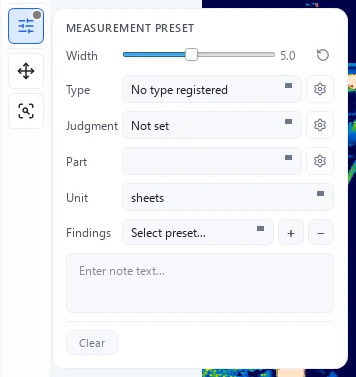
| Item | Description |
|---|---|
| Thickness | Line width for new measurements (1.0–10.0 px, default 2.0 px). restores the default |
| Type | Default type applied to new measurements. Edit the options with the ⚙ button next to it |
| Judgment | Default judgment applied to new measurements. Edit the options with the ⚙ button next to it |
| Part | Default part applied to new measurements. Edit the options with the ⚙ button next to it |
| Unit | Default unit given to quantities of area-based tools |
| Findings | Findings text inserted into new measurements |
Same type over and over? Set a preset first
On a site where you are picking up nothing but delamination, set the type and judgment in Measurement Preset first. After that, just outline each spot and the record fills itself in.
Findings presets
Frequently used findings text can be registered as a preset.
- Type text into the findings field and press + to add the current text as a preset
- Choosing a preset from the combo box inserts that text into the findings field
- Press − to delete the selected preset
- Clear empties the findings field
These are initial values for new measurements. Existing measurements are unaffected — change those individually from the inspection results panel.
Managing measurement results
Inspection results panel
The Inspection Results (N) panel on the right side of the screen lists the measurements on the current image.
Judgment and findings
Click a result to open its edit panel, where you can set the type (delamination / crack / spalling / water leak / other), judgment (Normal / Monitor / Needs Review / Needs Correction / Other), part (wall / column / beam / floor / ceiling), quantity and unit, and findings (free text). These entries are reflected in reports. The right side of the image at the top of this page shows the edit panel open.
For area tools, the bottom of the panel also shows a temperature histogram with the average temperature and standard deviation. On tiled façades it also shows an estimate of how many tiles the area covers ("Tile auto area: ≈N tiles").
Type/judgment settings
The ⚙ button in the header of the inspection results panel (tooltip: Input settings for type, judgment and part) opens Inspection input settings, where you configure the choices and display for types, judgments and parts on three tabs.
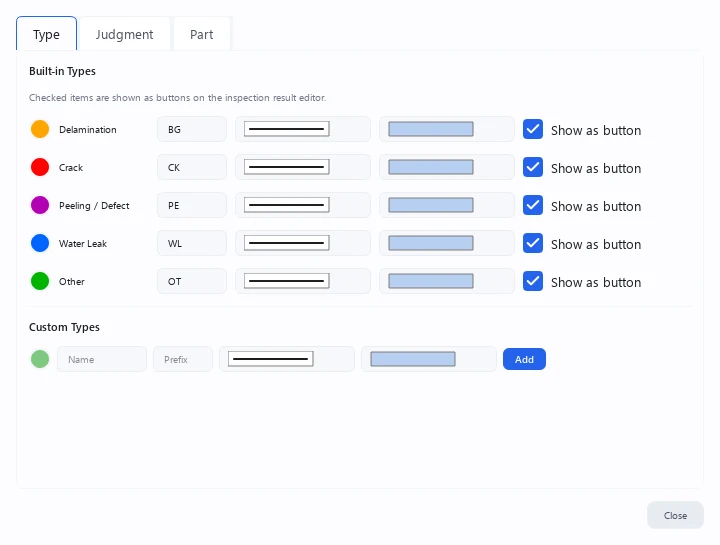
Color, line style, and fill pattern per type
On the Type tab you can assign a drawing style to each type. By styling delamination, cracks, water leaks, and so on differently, the kind of deterioration is recognizable at a glance.
| Setting | Options |
|---|---|
| Color | Any color per type |
| Line style | Solid / Dashed / Dotted / Dash-dot |
| Fill pattern | Solid / Diagonal / Diagonal (dense) / Diagonal cross / Diagonal cross (dense) / Grid / Grid (dense) / Vertical / Vertical (dense) / None |
| Prefix | ID name used in labels (e.g. CK → CK1, CK2...) |
| Show as button | Show the checked types as buttons in the result edit panel |
Under Custom Types, enter a name and a prefix and click Add to create your own type.
Styles are configured per type. All measurements of the same type are drawn with the same color, line style, and fill pattern, and this also carries over to the deterioration map CAD (DXF) export.
Quantity units
Measurements made with area tools (Box / Circle / Polygon / Pen - Polygon) and line tools (Line / Polyline / Pen - Line) can carry a quantity and a unit (Spot is excluded). Choose a default unit under Unit in the measurement presets and it is applied automatically to new measurements. Available units are sheets / locations / lengths / items / faces / m / m², and each measurement's unit can also be changed individually.
Deleting measurements
- Click the × button on the inspection results panel
- Select a measurement and press the Delete key
- Or right-click a measurement and choose "Delete"
The button on the inspection results panel deletes all inspection results (for the image or the set).
Inspection workspace
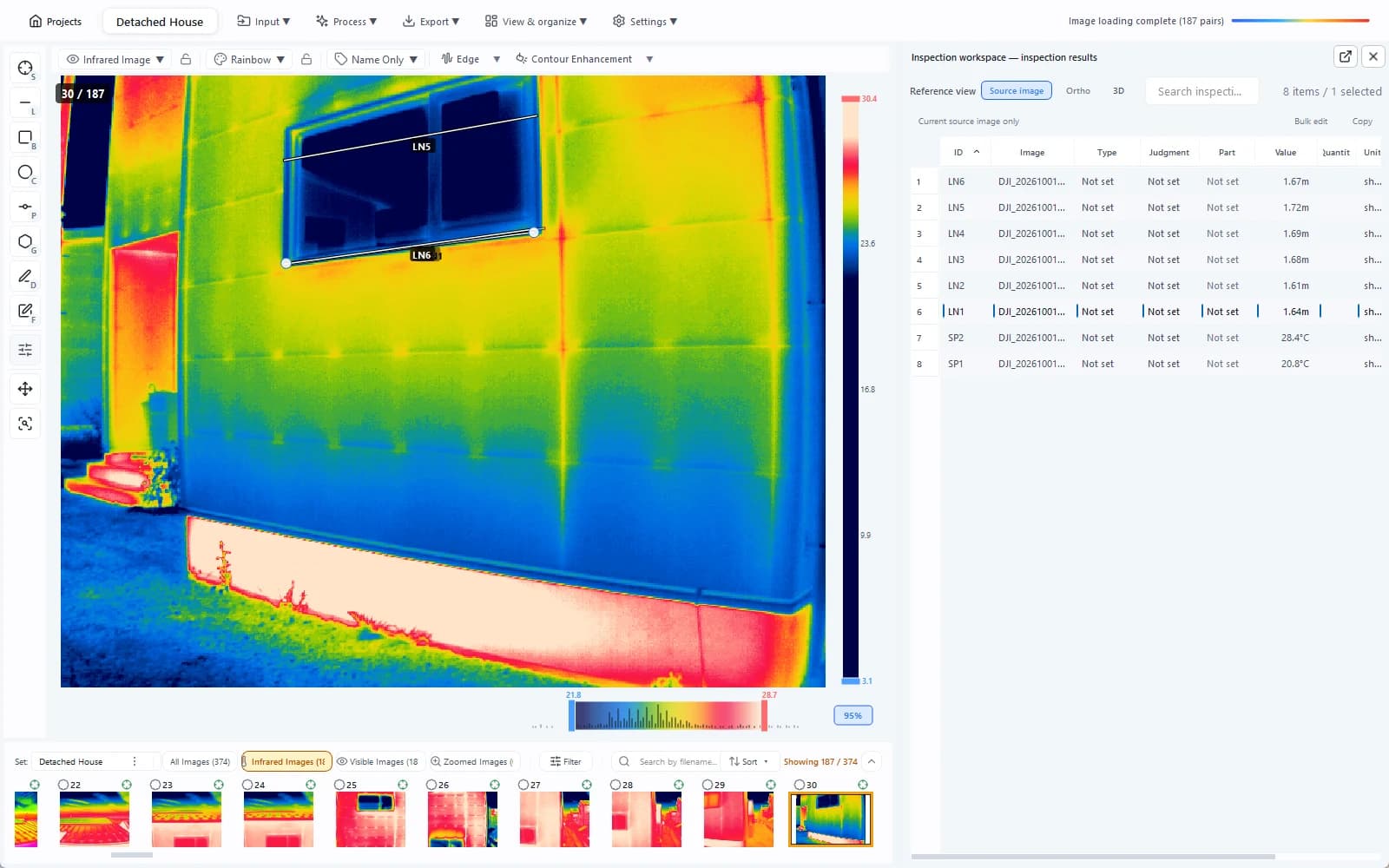
Turn on Inspect ▾ → Inspection workspace on the toolbar to see every measurement in the project in a table. This is handy for entering judgments and findings in bulk.
Reading the table
The table shows nine columns: ID / Image / Type / Judgment / Part / Measurement / Quantity / Unit / Findings, sorted with the newest measurements at the top.
The Type, Judgment, Part, Quantity, Unit, and Findings cells can be edited in place (ID, Image, and Measurement are read-only). Selecting a row moves the viewer to the corresponding measurement.
Filtering and bulk operations
| No. | Action | Description |
|---|---|---|
| 1 | Reference view | Switch between source image / ortho / 3D to choose which view to reference while organizing |
| 2 | Search inspection results… | Filter by keyword across all columns |
| 3 | Current source image only | Show only measurements created on the currently displayed source image |
| 4 | Bulk edit | Set Type, Judgment, Part, and Unit for multiple selected rows at once |
| 5 | Copy | Copy selected rows as tab-separated text with headers (Ctrl + C), ready to paste into Excel |
The panel can be dragged out into a separate window. When detached, the Return to main window button puts it back.
The choices for Type, Judgment, and Part can also be added or changed on the corresponding tabs under Settings ▾ → Common Settings....
Measurement Review
From Inspect ▾ → Measurement Review on the toolbar, you can list the measurements added in the current set and set judgments and findings while comparing them with other images showing the same spot. This is handy for a final check before building a report.
Measurement Review is a PRO plan feature. See Plans and features for details.
The screen has three columns, from left to right:
| Position | Content |
|---|---|
| Left | The list of measurements, with a Filter (judgment, category, part, tool and image) and a thermal/visible switch for the thumbnails. Click a cell to set the type, judgment, part, quantity, unit and findings |
| Center | The images that show the selected measurement. The image the measurement was drawn on is shown large, and zooming and panning are linked across all images. The temperature range also applies to every image of the selected measurement |
| Right | An overview at the top (switch between Ortho / 3D and Nearby / All) and a per-image temperature chart at the bottom |
- You can also set the judgment with the number keys; after you set one, the next measurement is selected. Use ← → to pick an image, and hold V to show the visible images
- Select two or more measurements and an action bar appears above the list so you can set them all at once. Undo (Ctrl + Z) reverts any change
- Open in main window shows the selected image in the main window
- Save Display Settings saves the temperature display you adjusted in the center as that image's display settings
Like the inspection workspace, what you set here is saved to the project and reflected in reports.
Finding other images requires an image link result. For measurements without an image link or 3D shape, only the measured image is shown.
Scale settings
Give one known length with two points so distances and areas on orthos, 3D models and photos come out in real units — and see why photos alone can't tell you size.
Export
Export annotated images, temperature data as PNG, TIFF or CSV, HTML viewers and whole projects — and choose the right format for whoever receives it.