
Export
Export annotated images, temperature data as PNG, TIFF or CSV, HTML viewers and whole projects — and choose the right format for whoever receives it.
Pick the format
that fits who receives it.
In this chapter you will learn to
- Paste measurement-annotated images into documents
- Export temperature data as PNG, TIFF or CSV
- Share results with an HTML viewer, no CRITIR needed
- Move a project to another PC
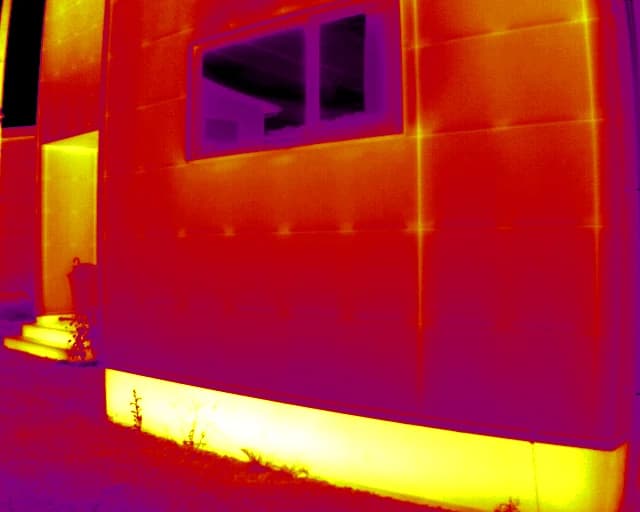
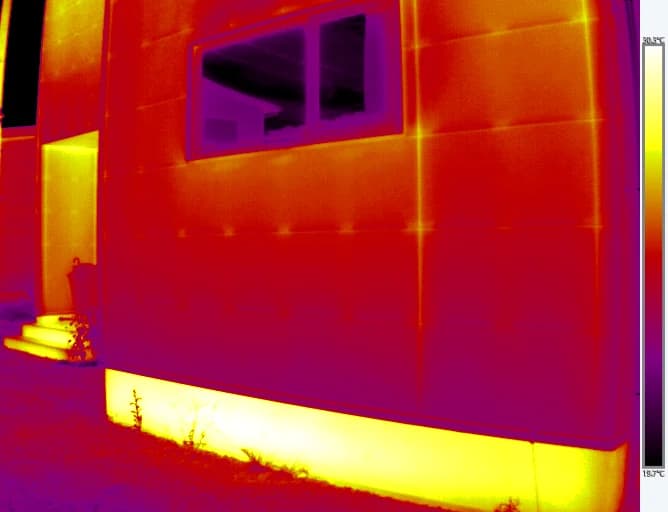
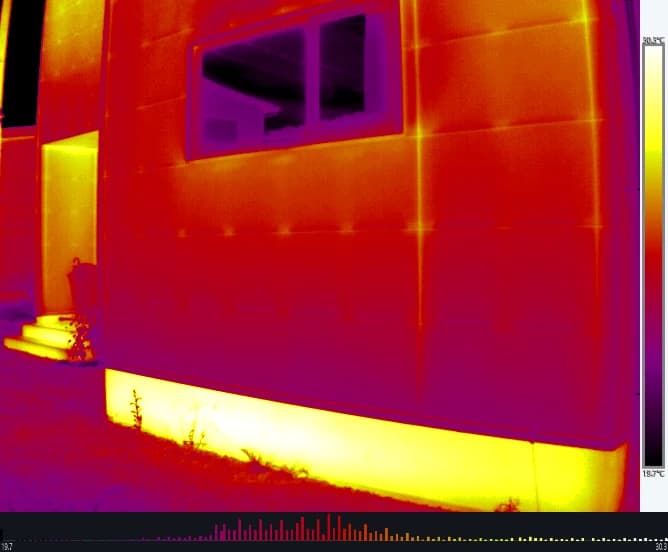
CRITIR can export thermal images and temperature data in a variety of formats. All of the images below are PNG exports of the same photo; the options decide what goes on them.
Choose the format by who receives it
CRITIR has a lot of output formats, but the choice gets simple once you start from who receives it. To show colleagues "this spot, in this image", use a measurement-annotated _critir.jpg or a PNG — it pastes straight into Word or Excel. For someone who wants to analyse the temperature values themselves in other software, hand over TIFF or CSV.
For the client deliverable, export a report. If the recipient doesn't have CRITIR but should still be able to page through photos and findings, use the HTML viewer; if a teammate needs to carry on the work on their own PC, send the whole project as a .critix file.
And when something goes wrong, the log is what goes to support. It is all "export", but the right shape changes completely with the person on the other end.
Export methods
There are three ways to export.
| Method | Operation | Use case |
|---|---|---|
| Export menu | Export button on the toolbar → Export Image | Export with fine-grained control over format and options |
| Right-click menu | Right-click in the image list → Export Image... | Quickly export the selected images |
| Drag & drop | Drag a thumbnail from the image list and drop it into a folder, Word, etc. | Hand a PNG image directly to Explorer, Word, and other applications |
Output formats
| Format | Extension | Contents |
|---|---|---|
| PNG | .png | Thermal image with the colormap applied. Color bar, histogram, and measurement markers can be overlaid |
| TIFF | .tif | 32-bit floating-point temperature data, for analysis or post-processing in other software |
| CSV | .csv | Temperature data as text, openable in Excel and other spreadsheet software |
The TIFF and CSV formats are only available when a thermal image is present.
Export image dialog
Select Export menu → Export Image on the toolbar to open the export dialog.
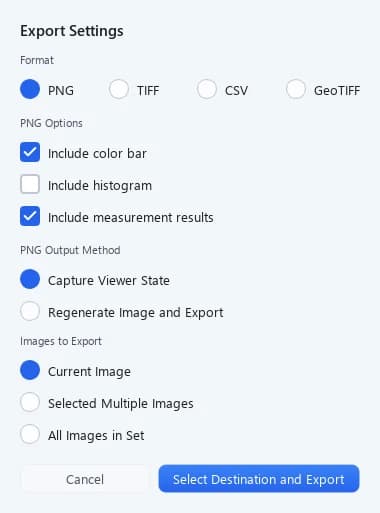
1 Output format 2 PNG options 3 Export method
Choosing the output format
At the top of the dialog, choose PNG / TIFF / CSV / GeoTIFF. The options in the lower part of the dialog change according to the selected format.
GeoTIFF exports a georeferenced orthomosaic. See GeoTIFF export for details.
PNG options
The following options are available when the PNG format is selected.
Overlays
| Option | Description | Default |
|---|---|---|
| Include color bar | Overlay the temperature scale bar on the image | On |
| Include histogram | Overlay the temperature distribution histogram | Off |
| Include measurement results | Overlay measurement markers and labels | On |
Output method
| Mode | Description |
|---|---|
| Capture Viewer State | Capture the current viewer display as-is. Single image only |
| Regenerate Image and Export | Regenerate the image from the saved display settings. Supports batch export of multiple images |
Export scope
| Scope | Description |
|---|---|
| Current Image | Only the image currently shown in the viewer |
| Selected Multiple Images | The images selected in the image list |
| All Images in Set | Every image in the current set |
When exporting multiple images, use Select Destination and Export to choose the destination folder. PNG can be exported for any scope; TIFF and CSV of an orthomosaic are limited to the current image.
Right-click and drag & drop export
Both Export Image... in the right-click menu and drag & drop from the image list export PNG images directly, without opening a dialog.
- Right-click: A folder selection dialog appears, and the PNGs are saved to the selected folder
- Drag & drop: Drag a thumbnail and drop it into Explorer, Word, or other applications
Skip the dialog and go straight to Word
Drag a thumbnail from the image list into the body of a Word document and the PNG lands right there. Decide once under Settings → Image Export whether the color bar and measurements are included, and you never have to choose again.
Image export settings
The overlays included in the output can be changed in the Settings → Image Export tab. These settings apply to both right-click export and drag & drop export.
| Option | Description | Default |
|---|---|---|
| Include color bar | Overlay the temperature scale bar | On |
| Include histogram | Overlay the histogram | Off |
| Include measurement results | Overlay measurement markers | On |
These settings are kept application-wide. They are independent of the options in the Export Image dialog.
Automatic saving of measurement-annotated JPEGs (_critir.jpg)
When you display an infrared image and then move to another image, a JPEG with the current view (palette, display range and measurements) burned in is automatically saved next to the original image. No export operation is needed.
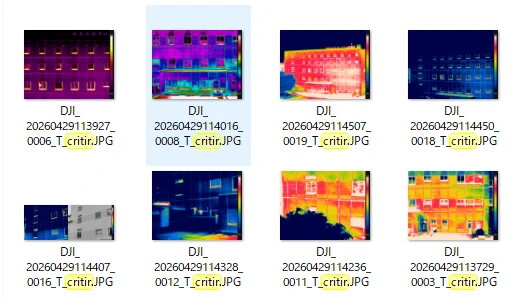
The file name is the original thermal image name with _critir appended (for example, DJI_20260429113927_0006_T.JPG → DJI_20260429113927_0006_T_critir.JPG).
How to use it
The saved _critir.jpg is a regular JPEG image. Simply drag & drop it from Explorer into Word or Excel to paste it straight into reports and internal documents. It can also be attached to emails or shared in chat as-is.
Embedded temperature data
In addition to the visible JPEG image, _critir.jpg has the temperature data, measurement results, and temperature display settings embedded in it. Reopen it in CRITIR to analyze it again as a temperature-enabled image.
Ordinary image viewers and Word treat it as a normal JPEG image. The embedded data never interferes with viewing or pasting.
When it is saved
The file is saved automatically at the following moments, reflecting the display state and measurement results at that time.
- When you switch to another image
- When you exit the application
- When you switch the reference image in comparison mode
Saving runs in the background. If you switch projects or perform similar operations while a save is in progress, you may see a message such as "The operation was canceled because CRITIR is waiting for image saving to complete." Wait a few seconds and try again.
Report export
From the Export menu → Create Report on the toolbar, you can export an inspection report in PDF or Word format.
See Creating reports for template selection and detailed report settings.
HTML viewer export
From the Export menu → Export Viewer on the toolbar, you can export an interactive HTML viewer that runs in a browser. Anyone can review the images just by opening it in a browser — no CRITIR installation required.
| Item | Description |
|---|---|
| Output Folder | Folder where the viewer bundle is saved |
| Folder Name | Name of the output folder (default: <project name>_viewer) |
| JPEG Quality | JPEG quality of the images (50–100%, default 85%) |
| Optimize for web publishing | When on, resizes images to 2560px on the long edge and saves them as WebP. Images are displayed at the same size while transfer drops to a fraction, and switching between images gets faster. Enable this when you share a URL for others to view. Leave this off if you need to zoom in to inspect fine detail (default: off; your last choice is remembered) |
If a folder with the same name already exists in the output location and is not empty, you are asked: "The folder (folder name) already exists. Replace the viewer in it with the current content? Files for images and findings not included this time will be deleted." Choosing Replace deletes the files for images and findings from the previous export that are not included this time. To keep them, choose Cancel and change the folder name.
The exported viewer automatically bundles the contents of the project.
- Switching between thermal / visible / side-by-side views
- Measurement results (inspection results) and temperature information
- Orthomosaic and camera frames
- 3D model (a "3D View" button appears only if a model has been generated)
Whether visible, thermal, measurement, orthomosaic, and 3D data are bundled is determined automatically. There are no individual on/off settings; whatever has been generated is included as-is.
Exporting / importing projects
You can move a project to another PC or save it as a backup. These operations are performed from the project list screen.
Export
| Operation | Description |
|---|---|
| Right-click a project card → Export... | Export a single project as a .critix file (ZIP-compressed) |
| Settings ▾ → Export All Projects... | Export all projects to a specified folder in one batch |
Import
From Settings ▾ → Import Project..., choose the import source.
.critixfile — Load an exported.critixfile- Folder — Load a project folder directly
The entire project folder (including measurement results, orthomosaics, 3D data, and more) is covered. If a name conflicts during import, the project is renamed automatically; existing projects are never overwritten.
Exporting logs
From the Settings menu → Export Logs... on the toolbar, you can export diagnostic logs as a ZIP file.
The archive contains application activity logs and project information, and can be used for support when a problem occurs.
Measurement tools
Measure anomalies with spot, line, box, polygon and other tools, then record type, judgment and findings as inspection results — plus how one measurement appears on other photos and orthos.
Creating reports
Pick a template to turn inspection results for façades, solar arrays or structures into a report and export it as PDF, Word, Excel or DXF — including photo ledgers, deterioration maps and quantity summaries.