
Viewer operations
Compare infrared and visible images in eight display modes, correct the misalignment caused by parallax between the two cameras, and read temperatures right under the cursor.
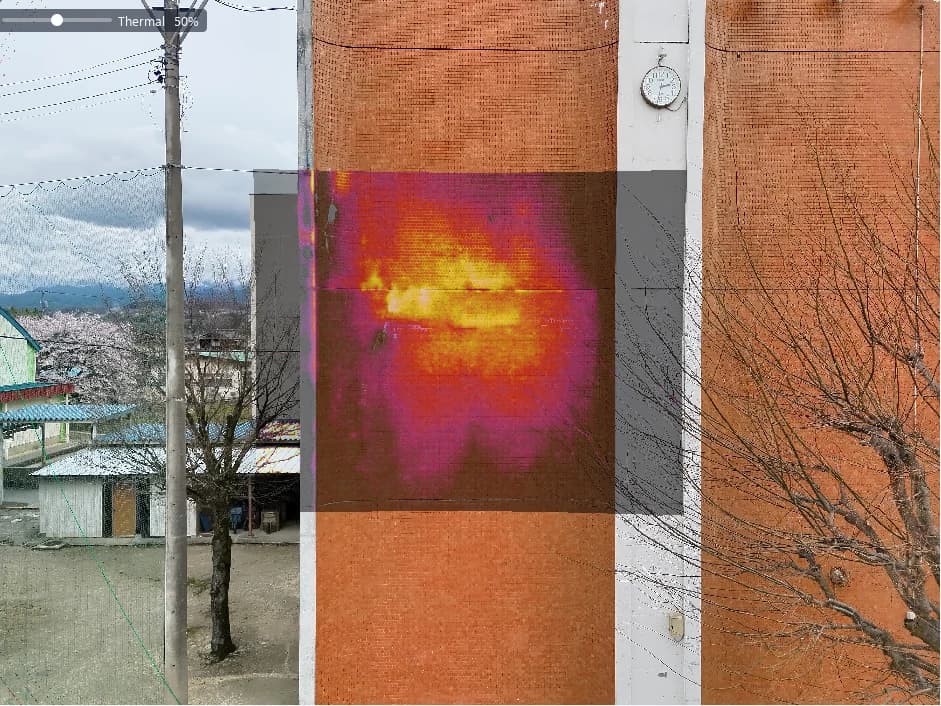
Temperature and scenery,
laid exactly on top.
In this chapter you will learn to
- Switch between the eight display modes
- Check what a hot spot really is with the V key
- Fix misalignment between infrared and visible
- Inspect while presenting on a second screen
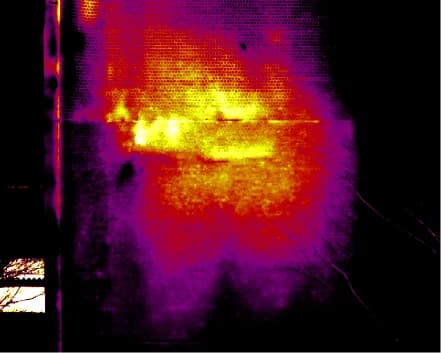
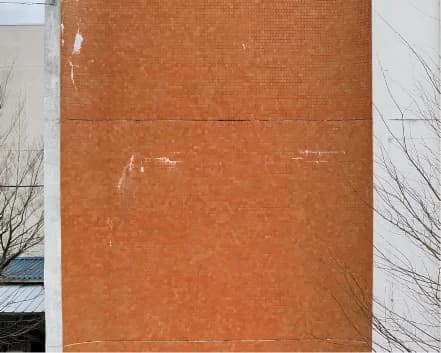
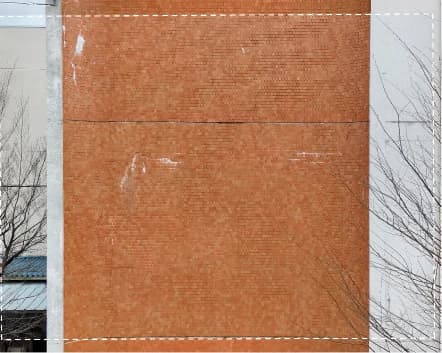
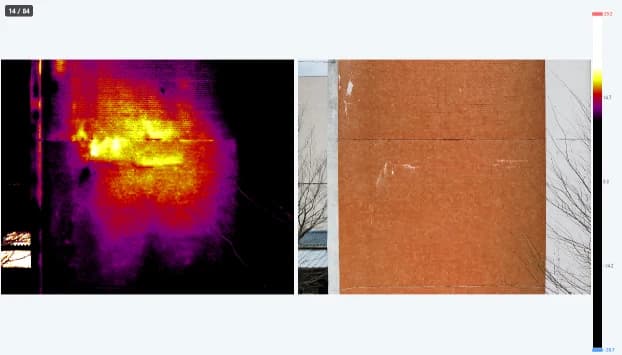
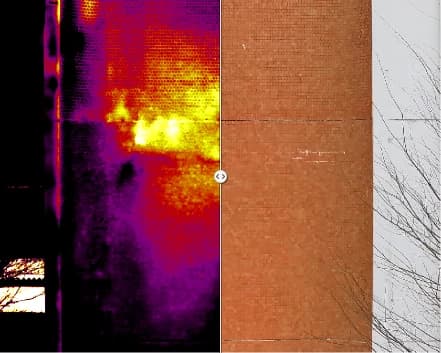
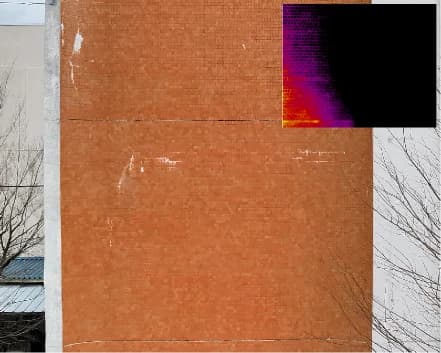
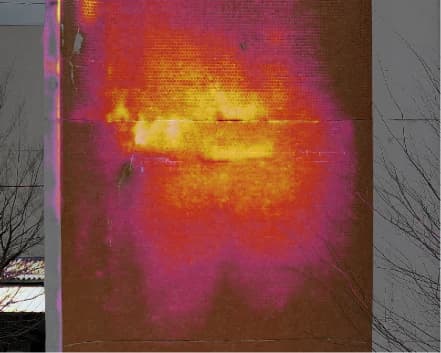
The CRITIR viewer can show one pair of infrared and visible images in eight different ways, depending on what you want to check. All of the images below are the same photo. Keys 1–8 switch between them instantly.
Basic controls
| Action | How |
|---|---|
| Zoom | Mouse wheel |
| Pan (move) | Middle-button drag, right drag, or left drag |
| Switch viewer | SPACE, or click the ortho minimap |
| Find images showing that spot | Right-click → Find Same Location (Same-location search, PRO plan) |
The top-left corner of the view always shows the current photo number, e.g. 14 / 84 (current / total).
The eight display modes
Switch modes with the display mode button on the toolbar, or with keys 1–8. In the display mode menu, just hovering over an item previews that display.
| Key | Mode | Description |
|---|---|---|
| 1 | Infrared | Shows the infrared image alone. For temperature measurement and palette review |
| 2 | Visible Image | Shows the visible-light image alone. For checking appearance and getting oriented |
| 3 | Zoom Image | Shows a magnified portion of the visible image. For inspecting fine detail |
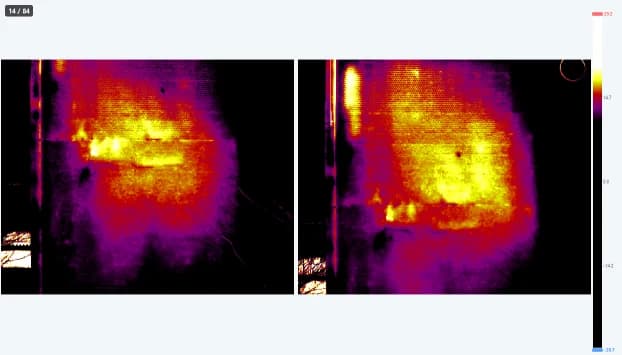
| 4 | Side-by-side | Shows infrared (left) and visible (right) side by side. Compare the same spot simultaneously |
| 5 | Swipe | Drag the handle to reveal infrared or visible. Switchable between horizontal and vertical |
| 6 | Picture-in-Picture | Overlays a small infrared window on the visible image. Drag the window to move or resize it |
| 7 | Overlay | Blends the infrared image over the visible image. Adjust the blend (0–100%; 100% shows infrared only) with the Visible ― Thermal slider that appears at the top left of the image (to the right of the photo number). You can also turn the mouse wheel over the slider |
| 8 | Compare Mode | Compares infrared-to-infrared or visible-to-visible across different images. Shows the best pair based on automatically computed overlap ratio |
Locking the display mode
Turn on the display mode lock button on the toolbar to keep the current display mode when switching images. When off, each image uses its own display mode.
Locking the color map
The color map lock button next to it keeps the current color palette when you switch images.
When off, the color palette saved with each image is restored. Turn it on when you want to review a whole survey with one consistent palette.
Two locks, one steady eye
Turn on both the display mode lock and the color map lock and you can page through image after image with neither the mode nor the palette changing. When you are working through dozens of photos in a row, a view that never shifts makes anomalies far easier to spot.
Temperature scale in compare mode
In compare mode (8), a Temp scale selector appears on the toolbar. The temperature bar (bottom) and color bar (right) are shared by both sides, so this selector decides which image they control.
| Selection | Behaviour |
|---|---|
| Base image | The bars control the left (base) image. The right side keeps its own range |
| Compare image (default) | The bars control the right (compare) image. The left side keeps its own range |
| Shared | Both sides use the same temperature range and alarm thresholds |
Choose Shared for time-lapse or time-of-day comparisons that must share one temperature scale; switch between Base image and Compare image when you want to tune each side for readability.
Right after switching from Shared to Base image / Compare image, the compare image keeps the shared range as its starting point. Adjusting from there makes the two sides move independently.
Full visible display
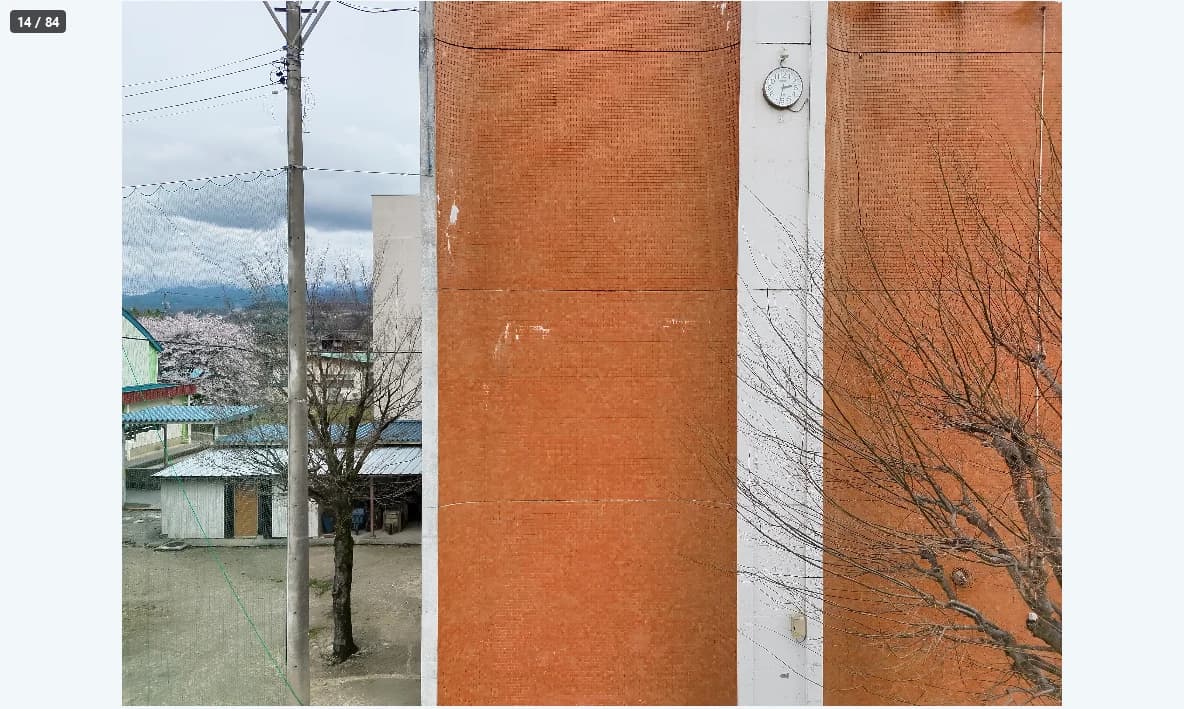
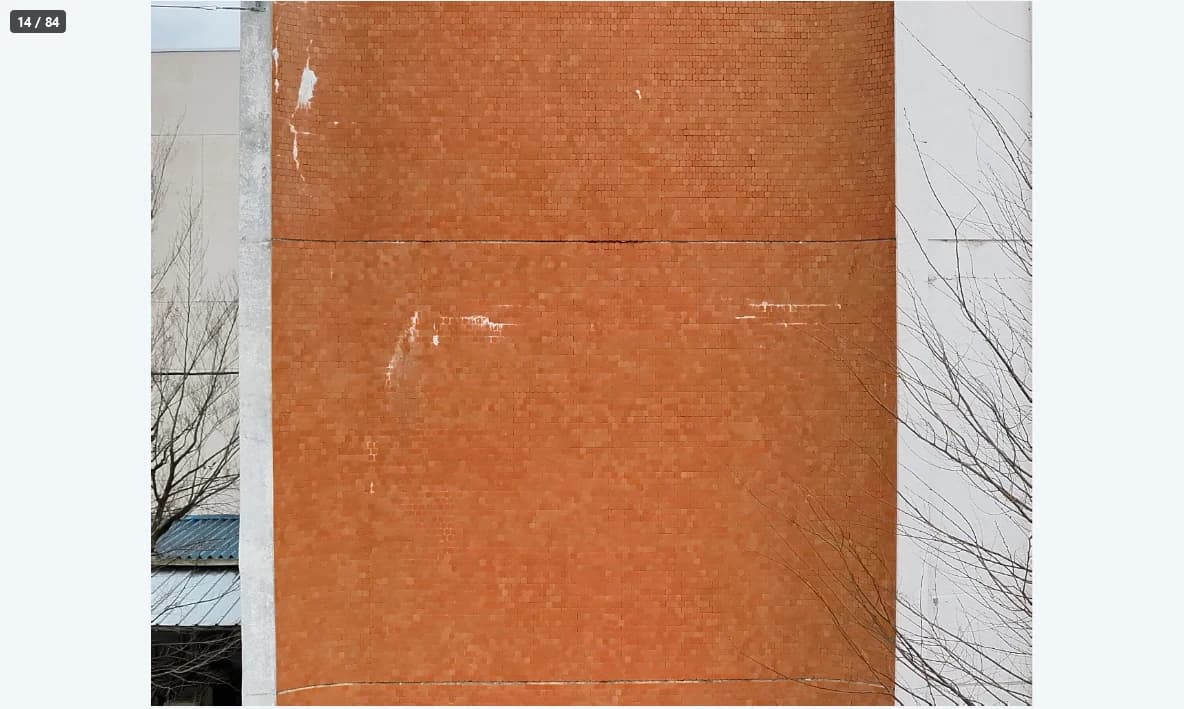
The visible camera covers a wider area than the infrared camera. Normally the visible image is cropped to the extent of the infrared image; turn on Full Display (No Crop) in the display mode menu to see the whole visible image.
Quick visible check (V key)
While V is held down, the view switches to the visible image; release it to return to the previous display mode.
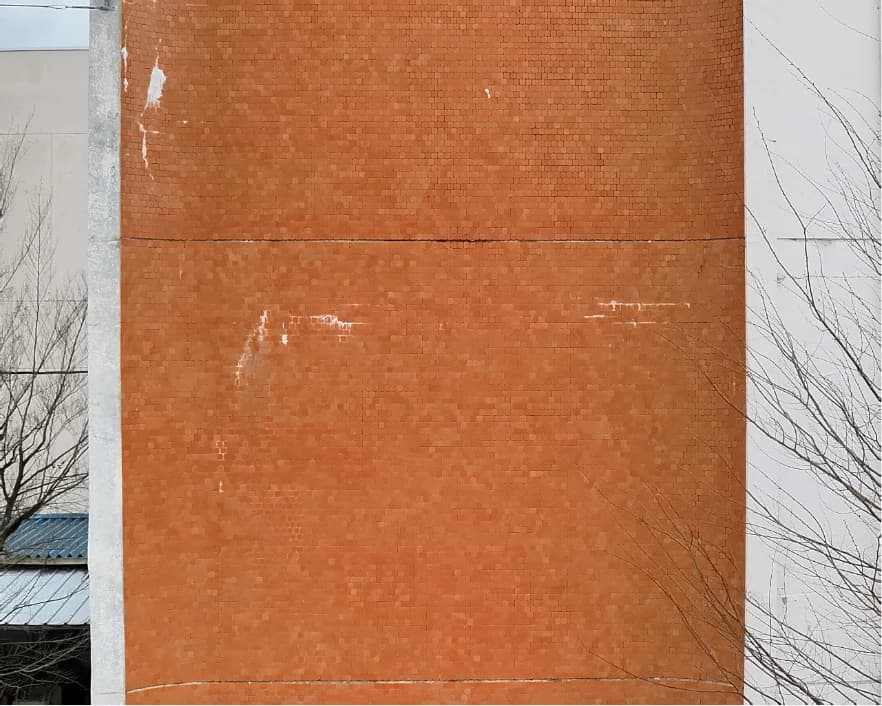
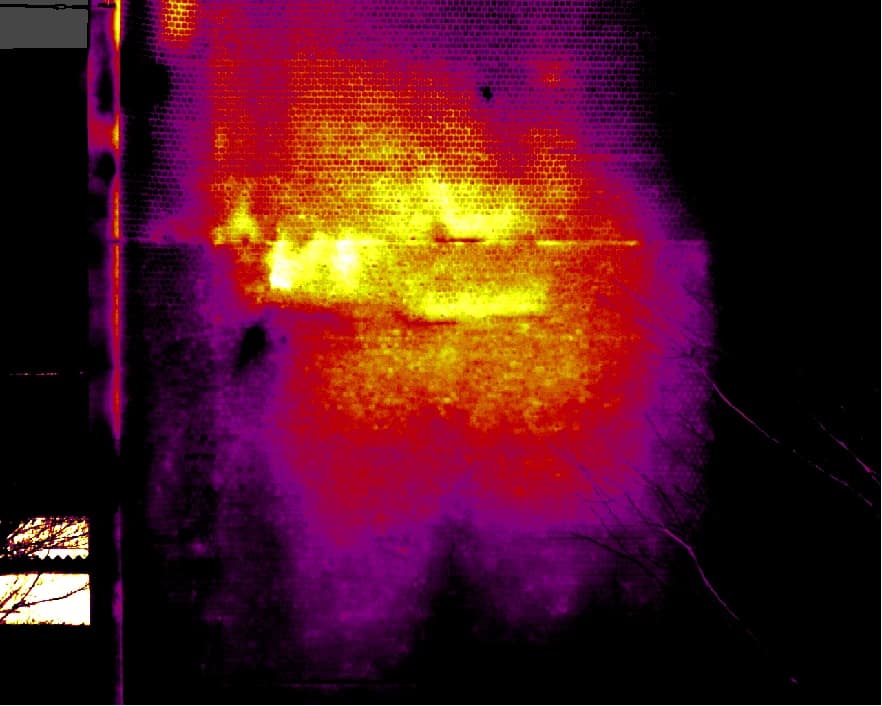
This lets you instantly judge — without changing display modes — whether a thermal anomaly is truly heat-related or just dirt or a reflection.
| Situation | Behavior |
|---|---|
| Normal | The main display mode shows the visible image only while the key is held |
| Ortho viewer active | Switches to the main viewer first, then shows the visible image |
| Edge display active (reference = thermal) | Only the reference panel switches to the visible image |
This does nothing for pairs without a visible image, and nothing changes if the visible image is already displayed.
The 2 key is a regular mode switch that changes to the visible image each time it is pressed. Use whichever fits the situation.
Fine-tuning alignment
The infrared and visible cameras sit at different positions and have different fields of view. CRITIR overlays the two using a per-model calibration, but depending on things like shooting distance they can be slightly off. Turn on the Alignment Adjustment button in the tool icon bar at the left edge of the window. The view switches to overlay and a panel opens for adjusting how the two images line up for that image.
Why don't visible and infrared line up?
Even when the infrared and visible cameras share one housing, their lenses sit in different places. Just as a finger held close to your face jumps sideways when you close one eye and then the other, the two lenses see the same point from slightly different angles (parallax). That angle difference is large for near objects and small for distant ones.
The two cameras also differ in field of view and resolution. CRITIR compensates for that with a per-model calibration, but because parallax changes with shooting distance, calibration alone cannot line things up perfectly every time.
So Precise alignment uses the image-link result to take each shot's depth into account, and Auto fine-tune measures the offset directly from the patterns in the two images. Anything that still does not fit can be finished by hand.
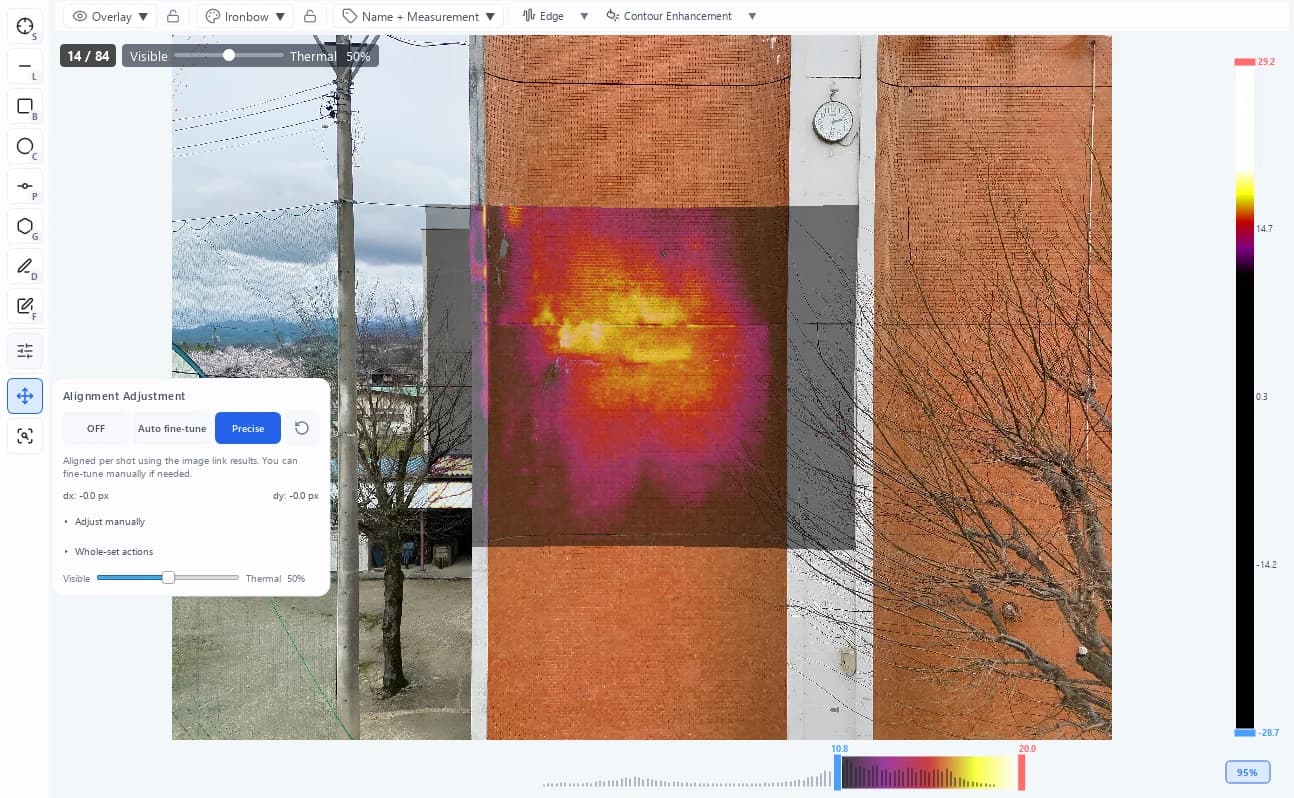
1 Alignment mode 2 Adjust manually 3 Visible ― Thermal slider 4 Whole-set actions
Choose the alignment mode for the image from the three options at 1.
| Mode | Description |
|---|---|
| OFF | Align using the calibration only |
| Auto fine-tune | Measures the offset between the visible and infrared images from the images themselves and aligns this image only |
| Precise | Uses the image link results to align each shot, taking depth into account. This is the default for images where it is available |
Whichever mode you choose, you can add a manual adjustment on top of it. If the precise result does not fit an image, switch that image to Auto fine-tune or OFF.
Precise alignment is available for supported models (DJI Mavic 3T (M3T) / Matrice 30T (M30T) / Zenmuse H20T / Zenmuse H30T) after image linking. When it cannot be used for an image, the Precise button is disabled and the reason is shown in the panel (or in the button's tooltip).
- Before image linking: "Link images to enable precise alignment."
- Unsupported model: "This camera model does not support precise alignment." (tooltip)
- Images that could not be aligned even after image linking: "Precise alignment was not possible for this image. Use auto fine-tune or adjust manually."
| Item | Description |
|---|---|
| Resets the manual adjustment of this image | |
| Adjust manually | Buttons for moving up/down/left/right, rotating and scaling (the move step is switchable). The center button resets this image |
| Visible ― Thermal | Blend of the visible and infrared images in overlay display (0–100%; the further right, the stronger the infrared, and 100% shows infrared only) |
| Whole-set actions | Batch operations for every image in the set (see below) |
Images you have moved by hand show "● Adjusted by hand" in the panel.
Judge alignment on straight lines
Slide the Visible ― Thermal slider back and forth while watching straight features — tile joints, window frames, column edges. That is where misalignment shows most clearly; when the lines stop doubling up, you are aligned.
Each thumbnail shows an icon for the alignment actually in effect for that image (hover over the icon for a description).
| Icon | Meaning |
|---|---|
| (green) | Aligned with precise alignment |
| (gray) | Precise alignment is turned off |
| (green) | Auto fine-tuned (for images where precise alignment failed: "Precise alignment was not possible; auto fine-tune is used") |
| (blue) | Manually adjusted (including precise alignment with manual fine-tuning, and images where precise alignment failed and the manual adjustment is used) |
| (yellow) | Neither precise alignment nor auto fine-tune could align the image, so only the calibration is used. Hover over the icon to see why, and check the image visually |
Set-wide actions
| Button | Action |
|---|---|
| Auto-fit | Measures and aligns every image in the set one by one. Manually adjusted images and images using precise alignment are left unchanged. Progress is shown as "Auto-aligning... (n/N)" and the run can be cancelled |
| Apply current values | Copies the adjustment currently shown to every image in the set |
| Undo auto adjustments | Removes only the adjustments that were set automatically. Manually aligned images are kept |
| Reset everything | Clears the adjustments of every image in the set, automatic and manual alike |
For images whose offset cannot be measured (little texture, not enough matching edges, or a misfit that a shift cannot correct), the app reports "Cannot auto-align" and leaves the values unchanged. Bring the images closer manually and try again.
The adjustments are stored per image and apply not only to the viewer but also to the overlays in reports, orthomosaics, 3D models and the HTML viewer.
Temperature at the cursor
Hover the mouse cursor over an infrared image and the temperature at that point is shown next to the cursor. This is convenient for scouting before placing a measurement tool.
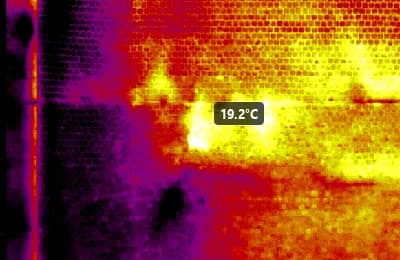
It works in the main viewer, the ortho viewer, and compare mode. No readout is shown for pixels without temperature data or pixels excluded by the temperature mask.
Dual view
Turn on Inspect ▾ → Dual View on the toolbar to open the Secondary Viewer in a separate window. This is useful for dual-monitor work and for screen sharing in meetings.
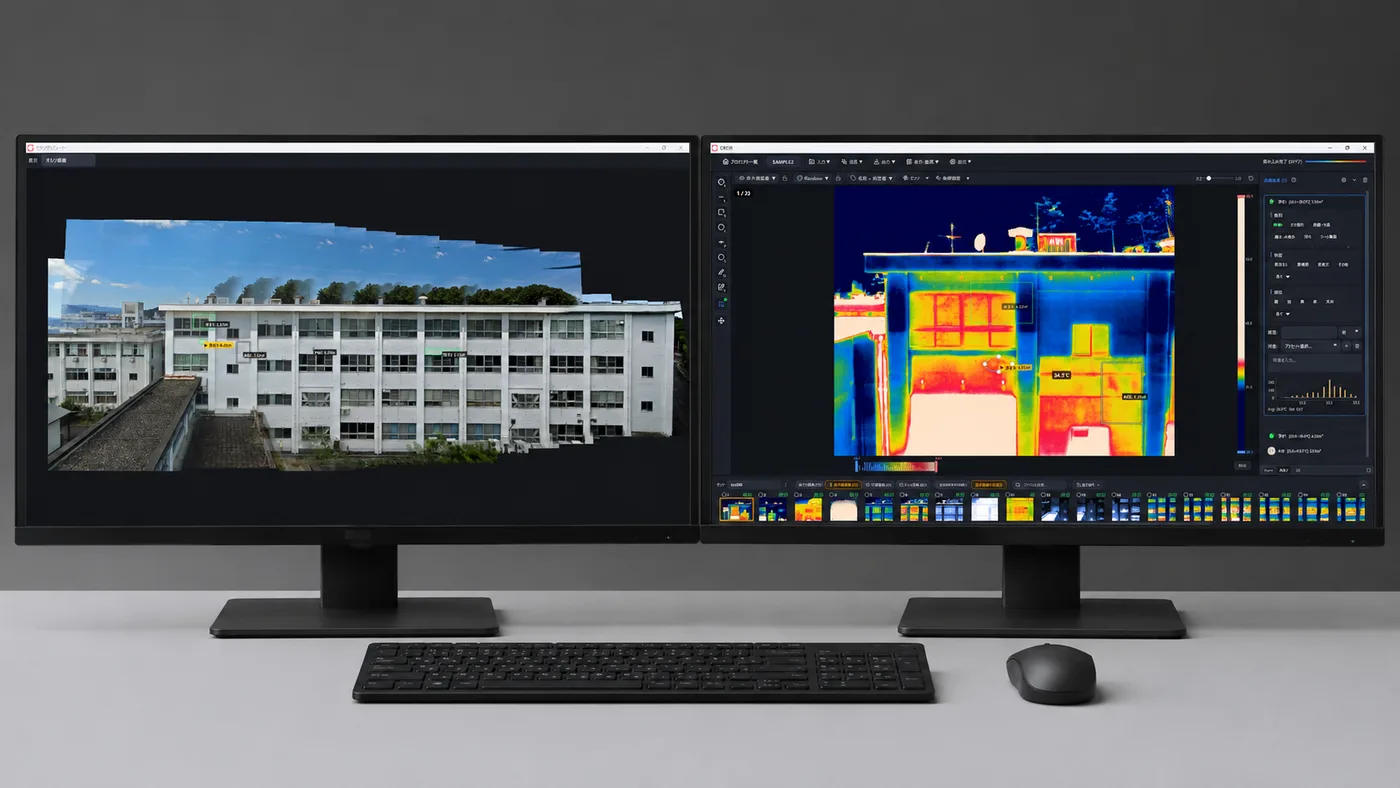
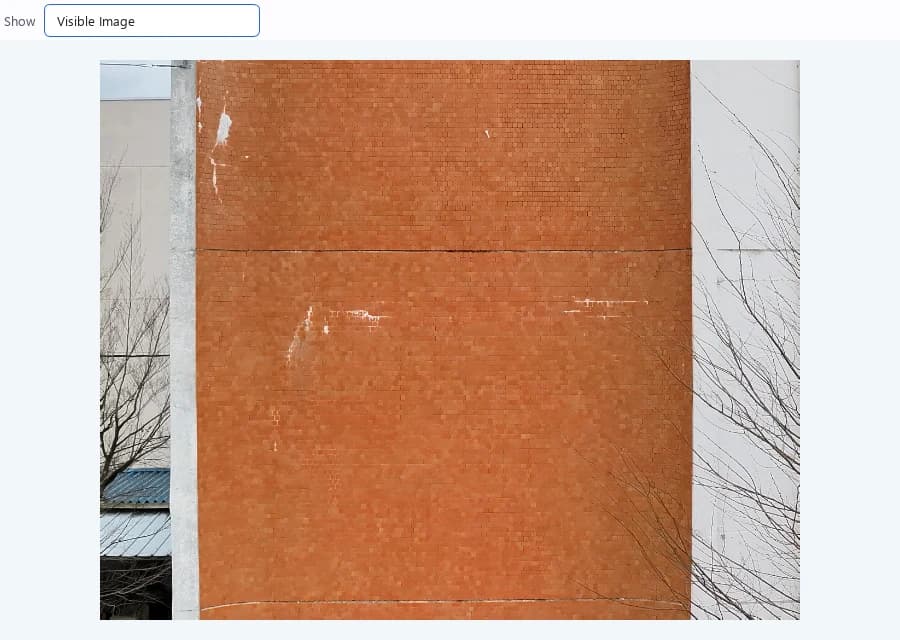
Use Show 1 at the top of the window to choose what the Secondary Viewer displays.
| Show | Content |
|---|---|
| Visible Image | Visible-light image (default) |
| Infrared Image | Infrared image |
| Zoomed Image | Zoom image |
| Orthomosaic | Orthomosaic |
| Orthomosaic (Camera Frame) | Orthomosaic with camera frames |
| 3D View | 3D mesh (if generated) |
- The mouse position in the main window is mirrored on the secondary side as a crosshair cursor
- While showing the Visible Image, zoom and pan stay synchronized with the main viewer (not synchronized in side-by-side, zoom, or compare mode)
- The orthomosaic reflects the main ortho viewer's settings such as rotation, crop, colormap, and temperature range
Dual view cannot be enabled when no project is open. It closes automatically when you switch projects.
Project management
Manage hundreds of infrared and visible photos from drones or handheld cameras — of façades, solar arrays or other structures — as one set per face, then filter them and thin out duplicates by location.
Infrared image analysis
Make temperature anomalies — from delaminated tiles to overheating solar panels — easy to spot with the display range, palettes, alarms and temperature masks, plus an illustrated look at why delaminated tiles appear warm.