
Template builder
Combine rows, columns and blocks to build report pages with a fully custom layout. Includes an illustrated look at insert variables and image slots.
Your house style,
built block by block.
In this chapter you will learn to
- Lay out a page with rows, columns and blocks
- Fill in values automatically with variables
- Add fields to type in when creating a report
- Save and share your own templates
The template builder lets you design report pages with your own layout. Templates you create appear alongside the built-in templates (Standard, Photo ledger, etc.) when exporting a report.
When a report is generated, the images in the report are poured into your template in order. Whatever doesn't fit on one page flows onto new pages automatically, forming the final report (the column in the Insert variables section illustrates how).
The template builder is independent of the built-in templates (Standard / Photo ledger A / Photo ledger B / Visible photo ledger / Deterioration map / Deterioration quantity summary). It does not edit the built-in templates themselves — it is for creating new custom templates.
Opening the builder
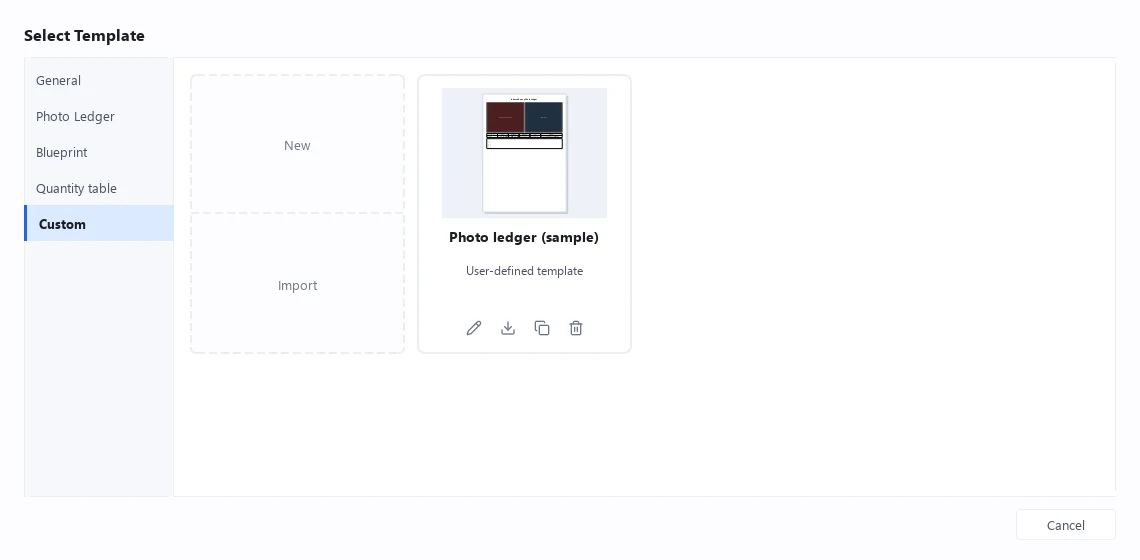
- Select Export menu → Create Report on the toolbar to open the template selection screen
- Select the Custom category in the left sidebar
- Click New to open the template builder
To edit an existing custom template, open it with the Edit button on its card. You can also open the builder with New / Edit from the template selector in the report creation screen.
Screen layout
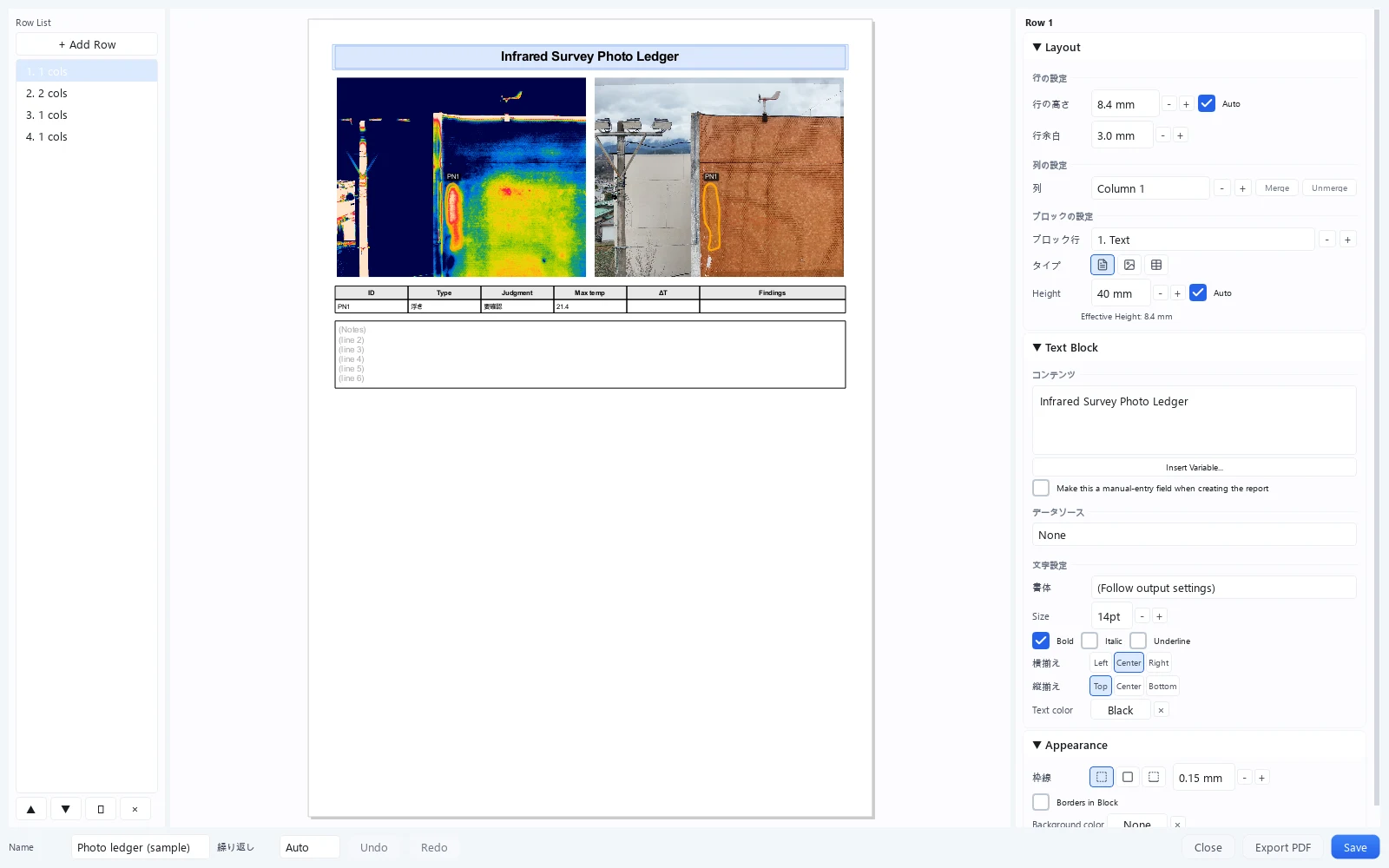
The template builder consists of three panels.
| Panel | Role |
|---|---|
| Left: row list | List of the rows that make up the page. Add, reorder, duplicate, and delete rows |
| Center: preview | Live A4-size preview. Click an element to select it |
| Right: properties | Settings for the selected row, column, or block |
Layout model
Pages are laid out as nested rows → columns → blocks.
- Stack rows vertically to build the page (+ Add Row)
- Each row can be split into multiple columns (
+/-under Column structure). Merge joins the selected cell with the cell to its right; Unmerge splits it again - Each column can stack blocks vertically (
+/-under Block rows)
Rows can be reordered by drag & drop in the left panel, or with the ▲ / ▼ (move), ⧉ (duplicate), and × (delete) buttons. Row height, column widths (ratios), and margins are adjusted in the properties panel.
Block types
Each block is one of three types, chosen with Type in the properties panel.
| Type | Contents |
|---|---|
| Text | Text. Supports insert variables and manual-entry fields |
| Image | Images such as infrared, visible, orthomosaic, drawings, or logos |
| Table | Tabular display of measurement data and similar content |
Image types for image blocks
Image blocks let you choose which kind of image to display.
| Image type | Contents |
|---|---|
| Infrared (no measurements) | Infrared image without measurement markers |
| Infrared (+ measurements) | Infrared image with measurement markers |
| Visible image | Visible-light image |
| Infrared (zoomed to measurements) | Infrared image cropped and enlarged around the measurements |
| Visible (zoomed to measurements) | Visible image cropped and enlarged around the measurements |
| Zoom camera (aligned to visible) | The zoom (telephoto) image composited onto the visible image |
| Zoom camera (zoomed to measurements) | The zoom image cropped and enlarged around the measurements |
| Location map (set at export) | Capture-location map. The source (orthomosaic / drawing / 3D) is chosen at export time |
| Ortho image | Orthomosaic |
| Drawing | Imported drawing |
| Drawing (+ capture area) | Imported drawing with that image's capture area overlaid |
| User image | Fixed image chosen from a file, such as a logo |
About zoomed-to-measurements images
Zoomed to measurements crops the area enclosing every measurement in the image and enlarges it, keeping the original aspect ratio. Use it when small defects need to be shown large.
The zoom factor is set under Measurement zoom in the Custom Template group of the report screen. When measurements are spread widely, the factor is automatically reduced so that everything fits.
Insert variables
Text blocks can have project and measurement values inserted into them. Choose a variable via Insert Variable... in the content field, and it is inserted as a placeholder such as {{セット名}} (set name). The app inserts these placeholders automatically; their Japanese token names are part of the placeholder syntax and should not be translated or edited manually.
| Category | Example variables |
|---|---|
| Project | Project name / set name |
| Image | Image No. / file name / capture date & time / date / date (Japanese style) / time / time (Japanese style) / camera model |
| Measurement | Measurement ID / max temp / min temp / temperature difference / judgment / findings / type / part / quantity / tile count / length / area / width |
All variables other than the project name and set name are tied to the block's data source (the image slots described below). Text blocks that use these variables must have a data source configured.
A page is nested boxes plus image slots
What you build in the template builder is the pattern for a single page. Stack rows vertically, split a row into columns, and place text, image and table blocks inside each column — like assembling the nested boxes on the left of the diagram.
Blocks that show photos or measurement values are given a data source (Image 1, Image 2, …). That is the slot that decides which image fills that spot. {{プロジェクト名}} (project name) and {{セット名}} (set name), on the other hand, ignore slots and print the same value on every page.
At export time, the images in the report are poured into the slots in order. A pattern that uses only Image 1 puts one location on each page; use Image 2 as well and you get two per page. Whatever doesn't fit flows onto new pages automatically (when Repeat is set to Auto).
Manual-entry fields
Turn on Make this a manual-entry field when creating the report on a text block to turn it into a field whose content is entered on the report creation screen.
- Field name — Name of the input field (e.g., Notes / Weather)
- Scope — Per page (entered separately for each measured location) / All pages (one entry applied to every page)
Block properties
Data source
Blocks that show images, tables, or measurement variables specify which image's data to display via the data source (slots such as Image 1 / Image 2 ...). Blocks with no data source set are outlined in a warning color.
Text
You can set the font, size (6–32 pt), Bold / Italic / Underline, horizontal alignment (left / center / right), vertical alignment (top / middle / bottom), and text color. Setting the font to (Follow output settings) inherits the default font chosen on the report output screen.
Table
Add columns under Table columns, and assign each column a header and the variable to display (ID / type / judgment / part / quantity / tile count / length / area / width / max temp / min temp / temperature difference / findings / measurement type).
| Setting | Description |
|---|---|
| Data source | Visible Images Only / All Data |
| Column width / row height | Width ratio of each column and the row height |
| Font | Default (follow output settings) or a specific font |
| Min rows | Minimum number of rows to display (Auto is also available) |
| Header background | Background color of the header row |
Style (borders and background)
For both text and image blocks, you can set the border (none / all sides / bottom line) and its line width, plus the background color. Text blocks additionally offer Borders in Block (an underline beneath each line of text), and image blocks offer an image margin.
Saving and using templates
- Save with the Save button at the bottom. A name is required
- Saved templates appear as cards in the Custom category of the template selection screen and can be selected when creating a report
- From a custom template's card you can Edit / Export / Duplicate / Delete; use Import in the Custom category to load one (
.critir-template.zipformat) - Closing with unsaved changes asks for confirmation
Don't start from scratch: duplicate and evolve
Once you have a template you like, make variations with Duplicate on its card instead of re-tuning row heights and column widths. Hand out the .critir-template.zip from Export and the whole team can work from the same format.
You cannot save while any block has no data source set, or while an input field has an empty field name. Also, while the content overflows the A4 page and Exceeds page bounds is shown, saving and PDF export are unavailable.
Preview and export
- The center preview updates live at all times. The extra pages created as images flow in can be browsed with the
</>buttons and the page indicator at the bottom - Setting Repeat to Auto fills each page with as many images as the template has image slots (two per page if it uses Image 2) when the template contains data-bound blocks, and adds pages only as needed (None fixes it to a single page)
- Click the Export PDF button at the bottom to export a PDF
Custom templates can only be exported as PDF (Word / Excel / DXF are not supported). The paper size is fixed at A4 portrait with 10 mm margins.
Creating reports
Pick a template to turn inspection results for façades, solar arrays or structures into a report and export it as PDF, Word, Excel or DXF — including photo ledgers, deterioration maps and quantity summaries.
Settings
What you can change in Common Settings — image export, temperature mask, type/judgment/part, language, temperature unit, theme and display scale