
Ortho viewer
See how anomalies spread across a whole wall or solar array, overlay drawings, and check camera coverage and inspection progress — plus why a thermal ortho offers three kinds of temperature.
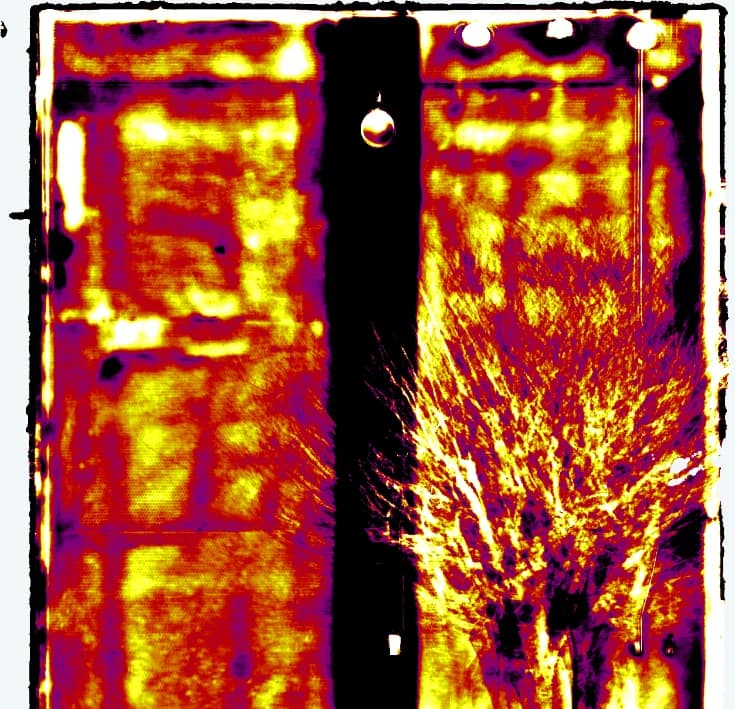
Every anomaly on the wall,
in a single view.
In this chapter you will learn to
- See how anomalies spread across the whole wall
- Switch temperature types to suit the task
- Overlay and align a blueprint
- Check which areas have been inspected
Once an orthomosaic has been generated, switch to the ortho viewer with SPACE or via the minimap at the bottom right of the screen. It lets you see how anomalies spread across the whole wall, which single photos cannot show.
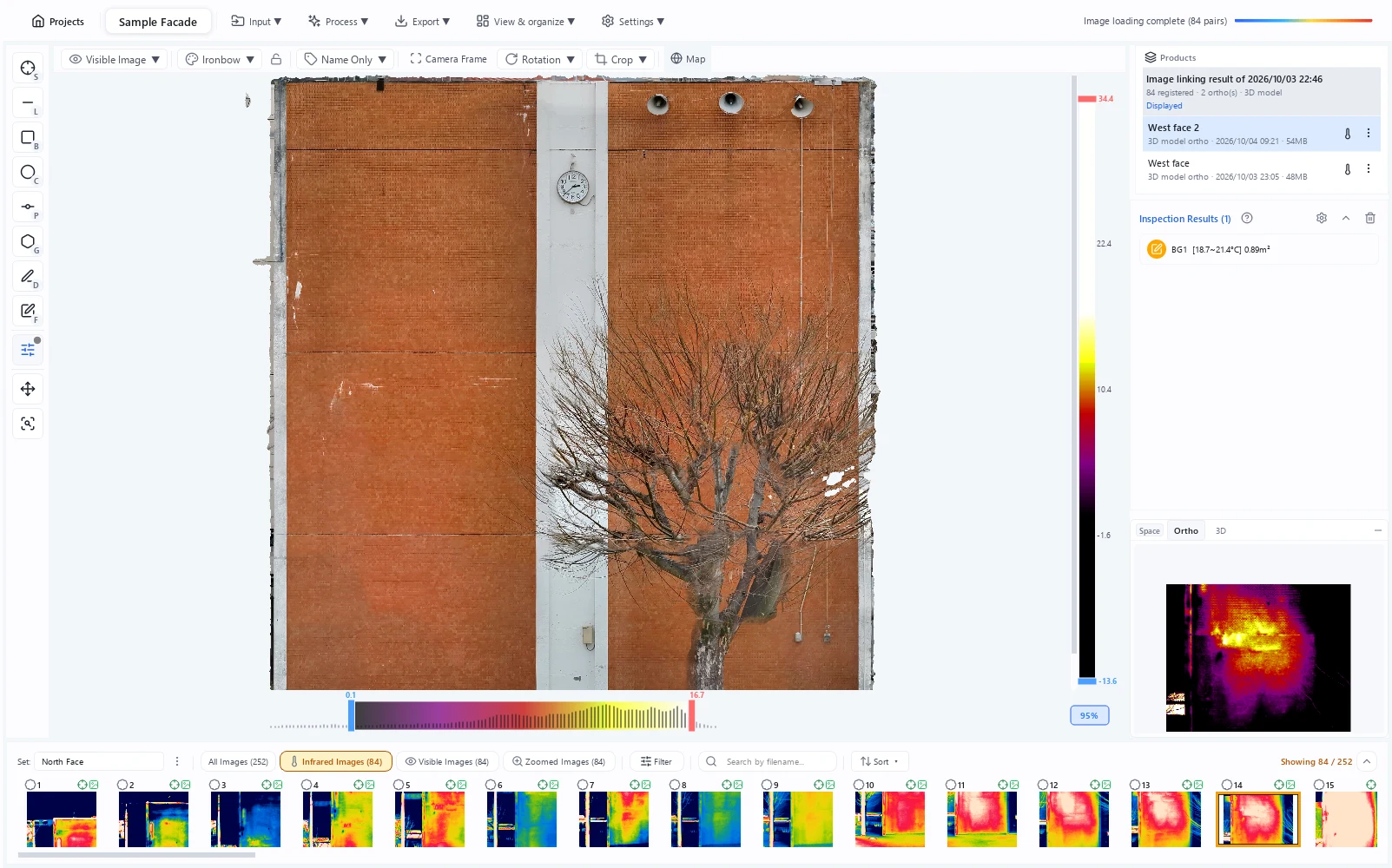
1 Toolbar 2 Orthomosaic 3 Products (orthomosaics) list 4 Minimap (switch with SPACE)
Display modes
Switch modes with the display mode button on the toolbar.
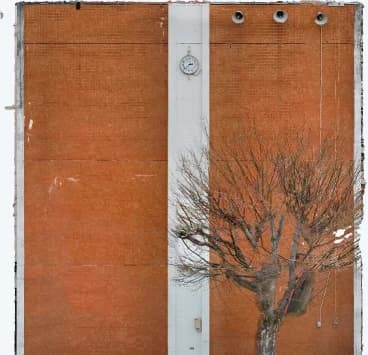
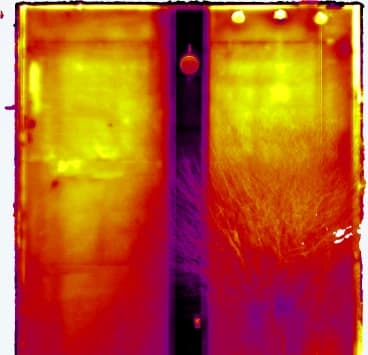
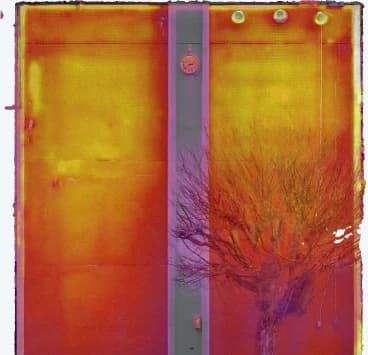
| Mode | Description |
|---|---|
| Visible Image | Shows the visible orthomosaic |
| Infrared Image | Shows the infrared orthomosaic |
| Blueprint | Shows the loaded blueprint |
| Overlay | Overlays the visible, infrared, and drawing layers; the opacity of each can be adjusted with sliders |
| Compare | Overlays the orthomosaic of a linked set for comparison |
Toolbar

1 Display mode 2 Colormap (lock it with the padlock) 3 Temperature type 4 Measurement labels 5 Camera frames 6 Rotate 7 Crop 8 Map
When a set has orthomosaics of several surfaces, a surface selector appears at the start of the toolbar; when one surface has several products, a product selector appears.
Ortho list (managing products)
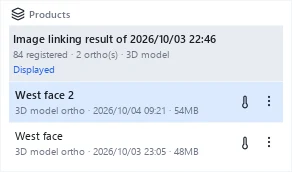
While the ortho viewer or 3D viewer is displayed, the right panel shows the Products list. The orthomosaics created for the set are grouped by the image linking result they were created from. If you made orthomosaics of several surfaces in one set (such as each elevation), you can switch between them here to compare.
| Item / action | Description |
|---|---|
| Ortho card | Click to switch the display. An orthomosaic without a name is shown by the direction of its face (North face, Southeast face, Top face, etc.), or by its method (Planar ortho, 3D model ortho, etc.) when the direction is unknown. The second line shows the method, creation date and time, and size |
| … menu | Rename... gives it a name. Delete... deletes that orthomosaic |
| Displayed / Includes thermal ortho | Hovering over a card shows whether it is displayed and whether it includes a thermal orthomosaic |
The heading of the image linking result currently in use carries a Displayed badge (Displayed: ortho / Displayed: 3D model when only one of them is used). When the displayed result has no orthomosaic, the list says so.
Other image linking results
Image linking results that are not displayed appear under the heading Image linking result of (date), together with the number of registered images, the number of orthomosaics, and whether there is a 3D model. Expand the heading to list the names of the orthomosaics created from that result.
- Switch displays the orthomosaics and 3D models of that image linking result and uses them for reports and other outputs. Measurements and scale carry over to the selected image linking result
- Delete this image linking result... in the … menu deletes the whole image linking result (individual orthomosaics are not deleted on their own). The displayed image linking result cannot be deleted, so switch to another result first
Orthomosaics created with earlier versions that have no image linking record are grouped under Orthos without an image linking record, and can be deleted together with Delete orthos without a record... in the … menu.
Loading and aligning a blueprint
Loading a blueprint and overlaying it on the orthomosaic lets you locate defects on the drawing. It is also required for deterioration map reports.
Blueprint alignment requires an orthomosaic. Run orthomosaic generation first.
Loading
Load it from Input ▾ → Add Blueprint File on the toolbar. Load Blueprint on the blueprint-mode toolbar opens the same dialog.
Supported formats are DXF, PDF and images (JPG, PNG, BMP, TIFF). You can drag & drop a file instead of picking one from the dialog.
Specifying four corresponding points
The alignment screen opens once the file is loaded. Click four points that mark the same locations on the orthomosaic and on the blueprint, in order (1 → 2 → 3 → 4).
- Choose points you can identify reliably in both, such as building corners or opening corners
- Accuracy improves the more widely spread the four points are
- Clear All starts the selection over
- Once four points exist on both sides you can Save
Re-aligning and deleting
The Blueprint Alignment button on the blueprint-mode toolbar reopens the screen so you can redo the corresponding points at any time. Delete Blueprint on that screen removes the loaded blueprint.
Temperature on mouse-over
While the infrared orthomosaic is displayed, hovering the mouse cursor over the image shows the temperature at that point next to the cursor, e.g. 23.4°C. Nothing is shown over pixels without temperature data.
The temperature shown is the one selected under Temperature type below. While Local variation is shown, the difference from the surroundings is shown with a sign, e.g. +0.8°C.
Temperature type of the infrared orthomosaic
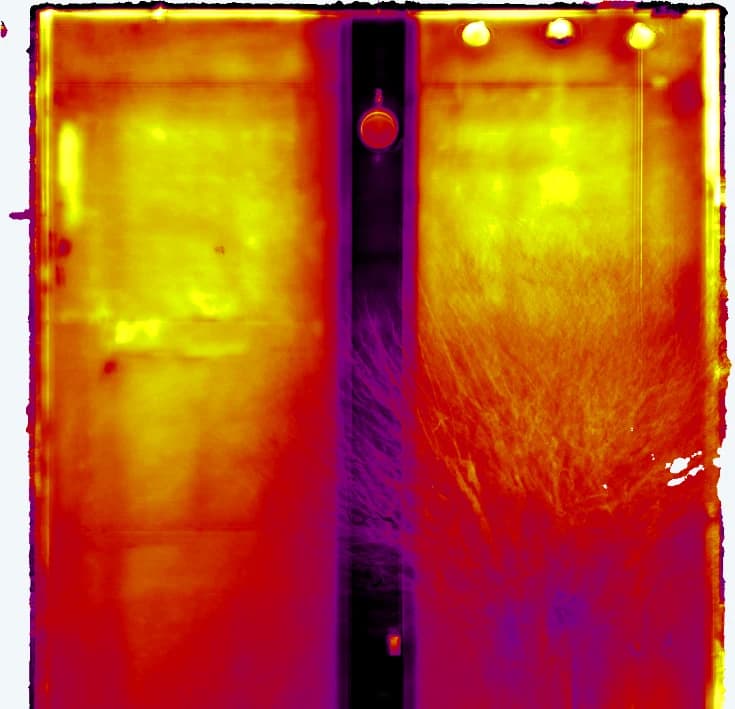
While an infrared orthomosaic is displayed in Infrared Image or Overlay mode, a Temperature type button appears on the toolbar to the right of the colormap, letting you choose which temperature is shown on the orthomosaic. It works the same way as the temperature type of infrared 3D.
| Temperature type | Description |
|---|---|
| Corrected temperature (default) | Temperature with each photo's offset (e.g. drift during the flight) estimated from the overlaps and removed. Best for viewing the overall temperature distribution. It can differ by a few °C from a single photo's reading |
| Measured temperature | Temperature taken from the photos as measured. Borders between photos taken at different times may appear as color steps |
| Local variation | Difference between the corrected temperature and the average of the surroundings (about 0.5 m). Best for finding local temperature variations such as delamination |
- Colors, the temperature at the cursor, the temperature bar, and alarm thresholds all use the selected temperature type
- Local variation is not saved; it is calculated the first time you select it for each orthomosaic. For a large orthomosaic, the mouse cursor shows a busy indicator until the calculation finishes. You do not need to regenerate the orthomosaic
- Because Local variation is a temperature difference, its display range starts at ±1.5°C. Switching between Local variation and an absolute temperature releases any locked display range or thresholds. Switching back from Local variation restores the display range you had before
- The temperature mask is based on absolute temperatures, so while Local variation is shown it is evaluated using the corrected temperature of the same pixel
- The selected temperature type is kept when you switch to another orthomosaic
Why does an infrared orthomosaic have three temperature types?
The temperatures a thermal camera records drift slightly in "level" from one shot to the next. Sensor drift during the flight, or the wall itself cooling down over time, means the same spot can read differently in different photos. Stitch them as they are and every photo border becomes a color step, turning the wall into a patchwork. That is Measured temperature.
Corrected temperature uses the areas where photos overlap to estimate each photo's offset and subtract it. The offsets are anchored so that their median is zero, so the result sits at the level of a typical shot from the whole capture rather than any single photo. That is why it can differ by a few °C from one photo's reading.
Local variation goes one step further and subtracts the average of the surroundings (about 0.5 m). Broad trends such as a whole wall warming toward its sunny side disappear, leaving only local anomalies such as delamination. The average is computed so that extreme values such as windows don't drag it around, which keeps false rings from appearing around windows.
The Temperature type button appears only for infrared orthomosaics that have both a corrected and a measured temperature; it is not shown for infrared orthomosaics created with earlier versions. It is also hidden while Visible Image or Blueprint is displayed. Local variation is not available for orthomosaics whose scale (size in meters) is unreliable, because the surrounding 0.5 m cannot be determined.
Camera frames
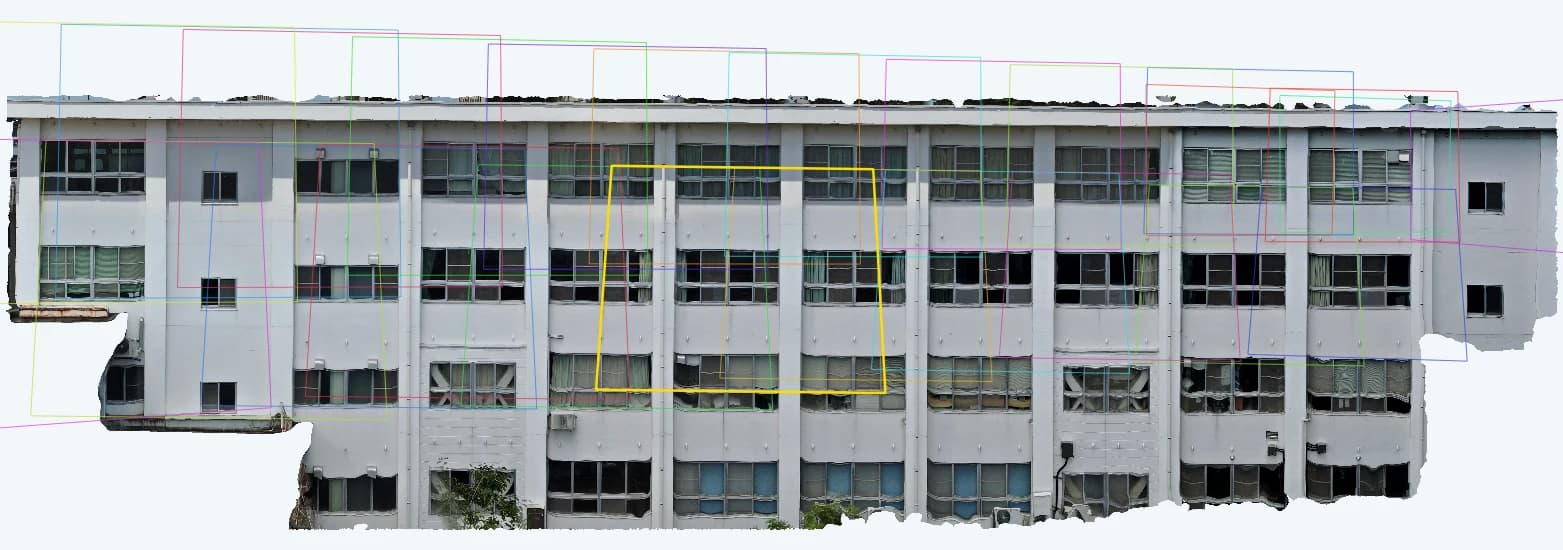
The orthomosaic shows the approximate capture area of each photo, and clicking a frame opens the corresponding photo.
Toggle the display on/off with the camera frame button .
Find it on the ortho, confirm it on the photo
Spotted something in Local variation? Click the camera frame that covers it. That photo opens in the main viewer, so you can check the details on the original image. The orthomosaic is for surveying; the photo is for judging.
Inspection checklist
Each image in the image list panel has a checkbox you can tick once the image has been inspected.
When an image is checked, the inside of its camera frame is shown filled on the orthomosaic. This gives you a visual overview of inspected versus uninspected areas directly on the orthomosaic.
Measurement projection
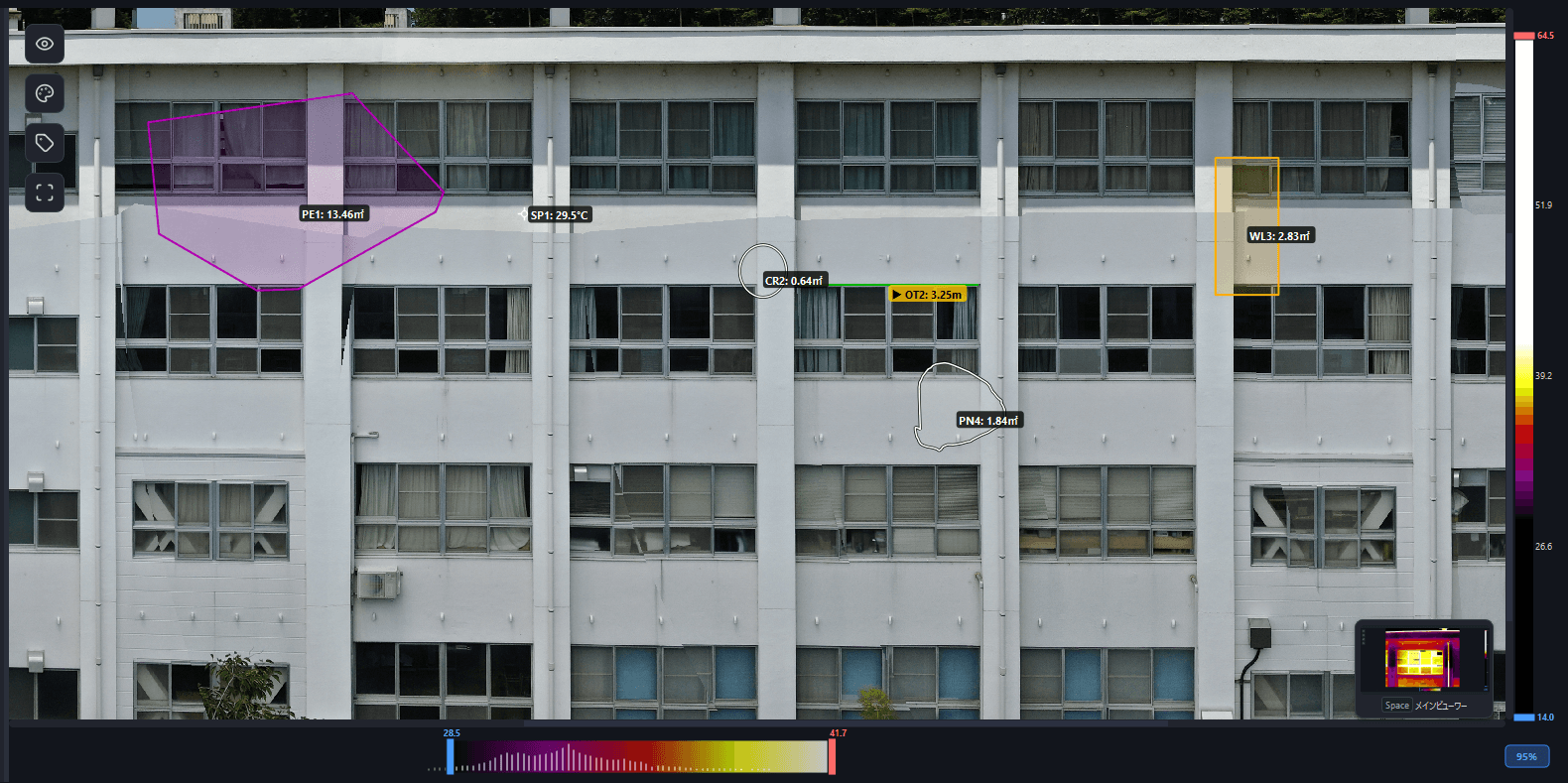
Measurements made on individual photos are projected onto the orthomosaic.
Rotation and guide grid
Rotate the orthomosaic from the Rotate dropdown on the toolbar (in 90° / 1° / 0.1° increments, clockwise or counterclockwise). While the rotation panel is open, guide grid lines (a center cross plus an evenly spaced grid) indicating screen-space horizontal and vertical are displayed to help you adjust the tilt. Toggle them with the Horizontal / vertical guides checkbox.
North arrow
Orthomosaics whose north direction is known (overhead orthomosaics of the ground, roofs and the like, made from photos with GPS) show a north arrow marked N at the top right of the view. These orthomosaics are created with north at the top (Orientation adjustment). When you rotate the view, the arrow rotates with it. It is not shown for wall (elevation) orthomosaics or orthomosaics whose north is unknown.
Polygon crop
Use the Crop dropdown on the toolbar to cut away unneeded areas of the orthomosaic.
- Rectangle crop — drag to define a rectangular region
- Polygon crop — click to place vertices and define an arbitrary polygonal region
- Backspace / Ctrl + Z removes the last vertex
- Enter confirms
- Hold Alt while placing vertices to constrain them to horizontal/vertical
- Control the edit with Confirm / Cancel / Reset
GeoTIFF export
Top-down orthomosaics (horizontal surfaces such as the ground or a roof) can be exported as a GeoTIFF with absolute coordinates, ready to be georeferenced in GIS software such as QGIS.
- Right-click on the orthomosaic → Export as georeferenced GeoTIFF…
- Or select GeoTIFF as the format in the image export dialog
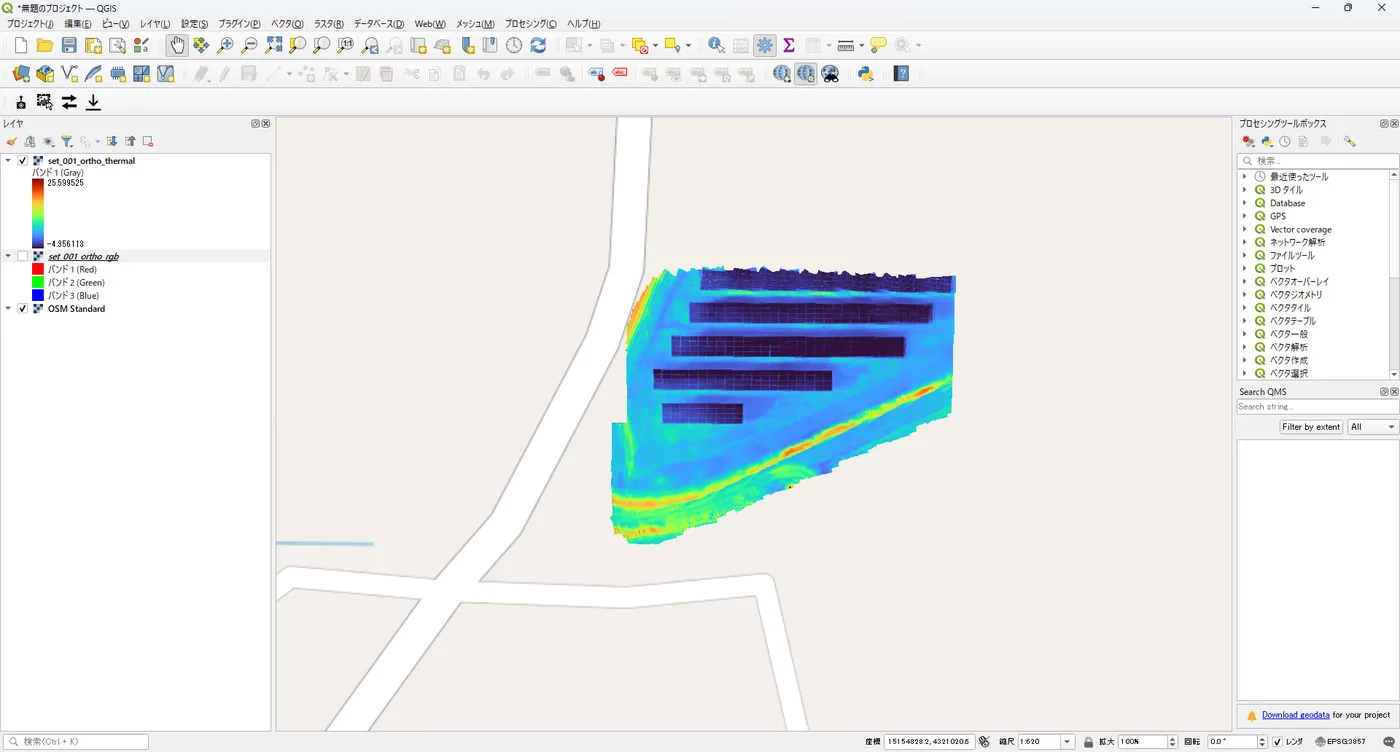
The RGB orthomosaic and the thermal temperature orthomosaic are each exported as a .tif, and the embedded EPSG code is shown on completion. The coordinate system (EPSG) is determined automatically from the UTM zone at orthomosaic generation time, so there is nothing to specify at export.
Georeferenced GeoTIFF export is only available for orthomosaics that have GPS information and cover a horizontal surface (ground or roof). Wall (elevation) orthomosaics and orthomosaics without GPS are exported as "no coordinates / local" and will not be georeferenced in GIS.
Map view (3D map)
Use the Map button on the toolbar to switch to a CesiumJS-based 3D map view. Based on the capture positions (GPS), you can review the orthomosaic, camera positions, and measurements in 3D space on the map.
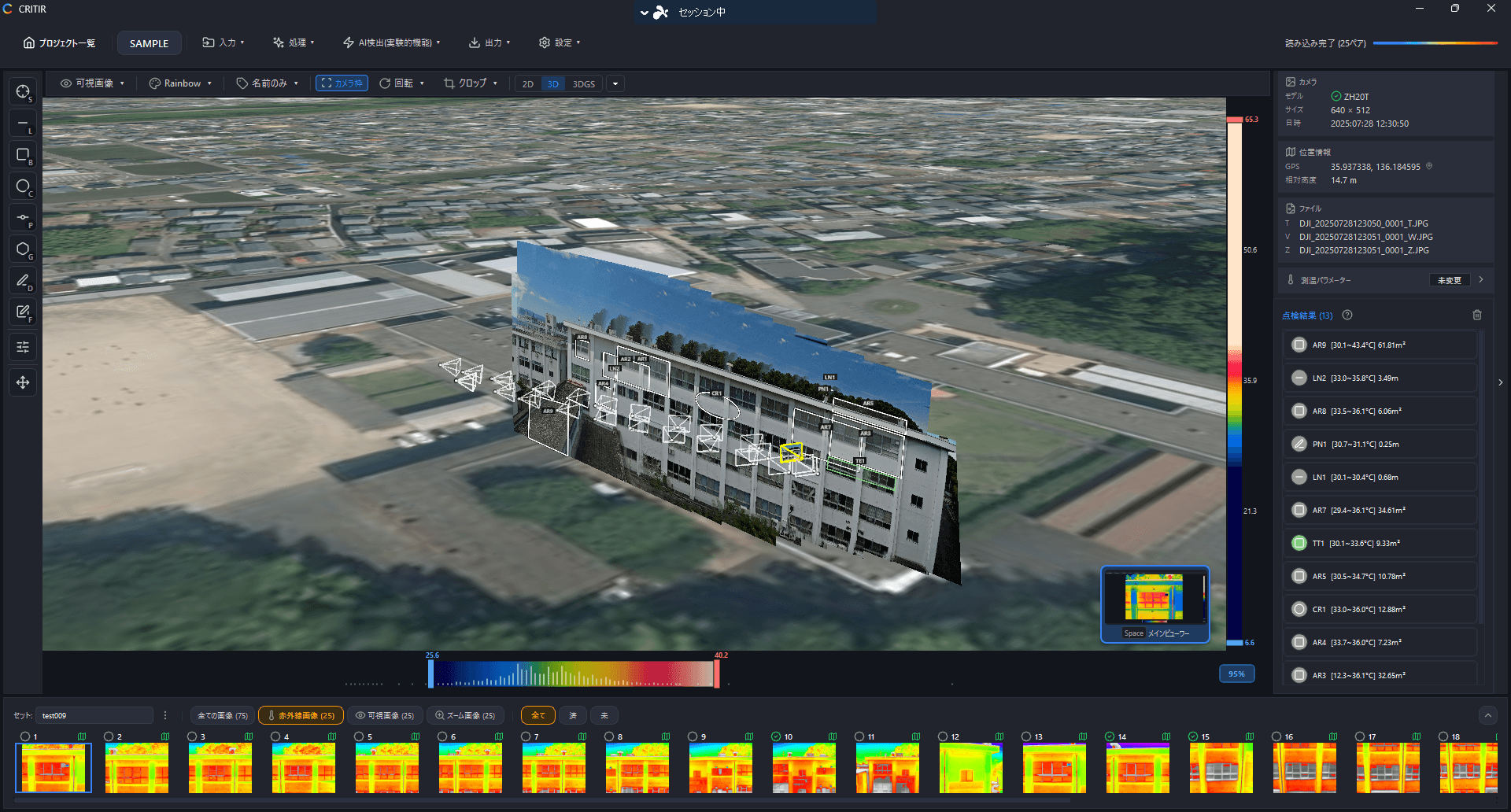
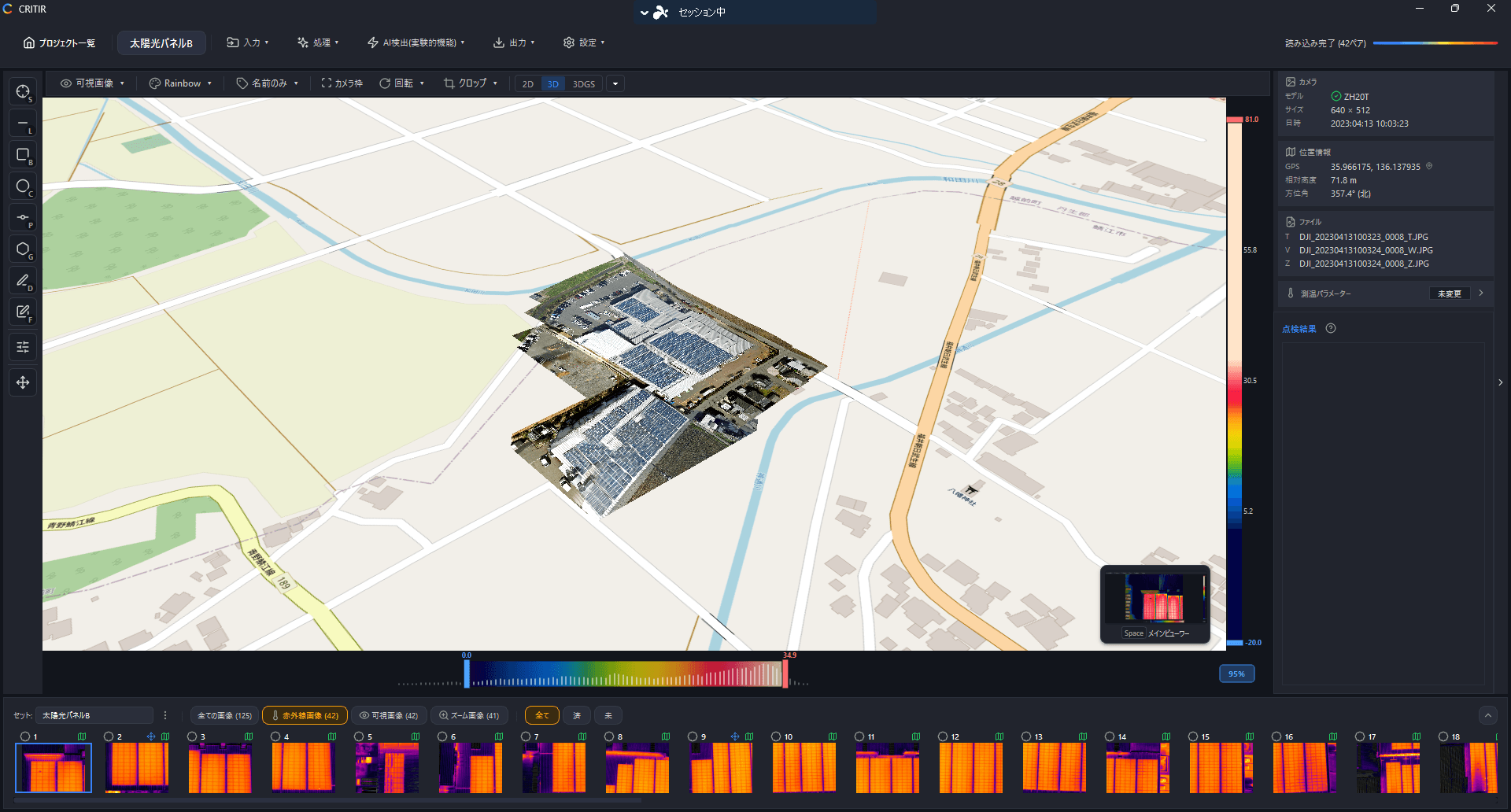
The background map tiles can be switched between three options: Satellite Imagery, Standard Map, and OpenStreetMap.
For sets with a generated 3D model, Show 3D Model is added to the map tile menu so you can overlay the 3D model on the map. Uncheck it to hide the model.
This map view (3D display on a map) requires an image linking (SfM) result and GPS information in the photos. The Map button is not shown for orthomosaics made from photos without GPS information.
3D model
If you generate a 3D model — a full 3D reconstruction of the subject itself — you can browse it from the 3D tab in the right side panel. You can also project measurements onto it and analyze a temperature 3D model with infrared data projected onto it.
This is a separate screen from the "map view" above, which shows the orthomosaic on a map: here you work with the 3D model itself, without a map. See 3D model for details.
Orthomosaic generation
Stitch many drone or ground photos into one front-on image of a building façade, retaining wall or solar array. Includes an illustrated look at how a photo differs from an orthomosaic.
Set link
Link two sets with four pairs of matching points and compare photos of the same spot side by side — for year-over-year or time-of-day comparisons.