
Infrared image analysis
Make temperature anomalies — from delaminated tiles to overheating solar panels — easy to spot with the display range, palettes, alarms and temperature masks, plus an illustrated look at why delaminated tiles appear warm.
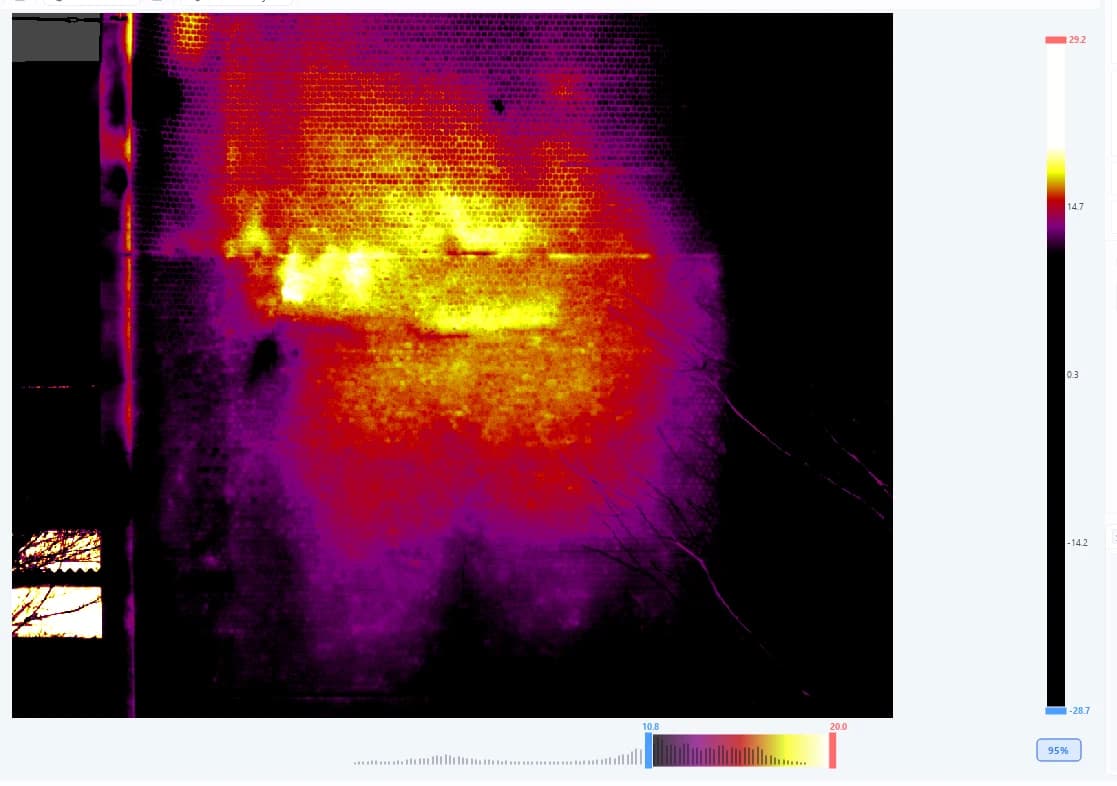
What you couldn't see
rises up as temperature.
In this chapter you will learn to
- Make temperature anomalies stand out
- Pick the right palette for the job
- Spot "everything above X °C" at a glance
- Measure without the background skewing results
An infrared image is a map of surface temperature. Tile delamination and insulation defects that are invisible in a visible-light photo show up as temperature differences.
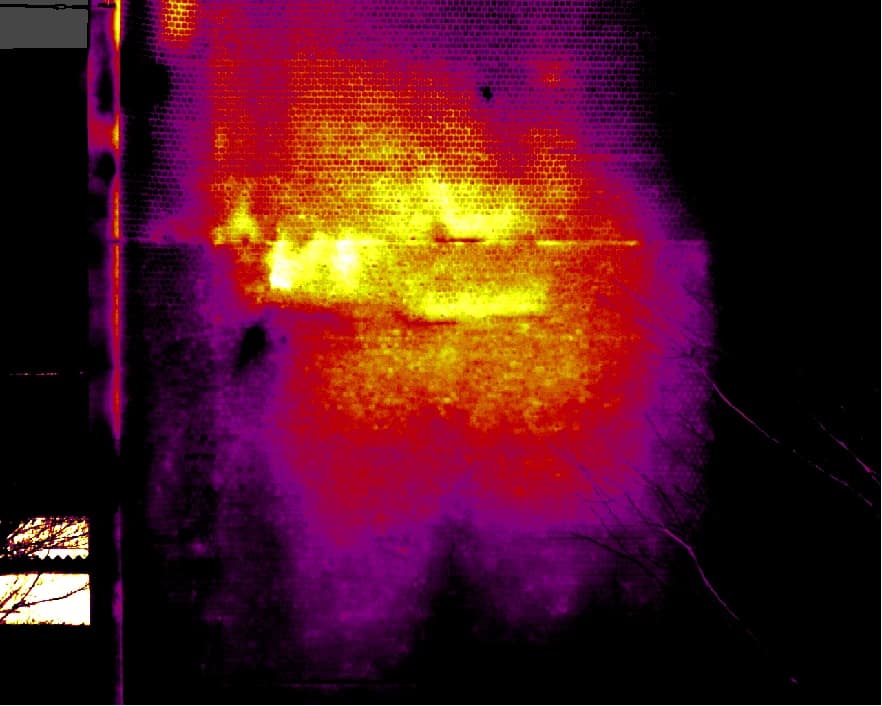
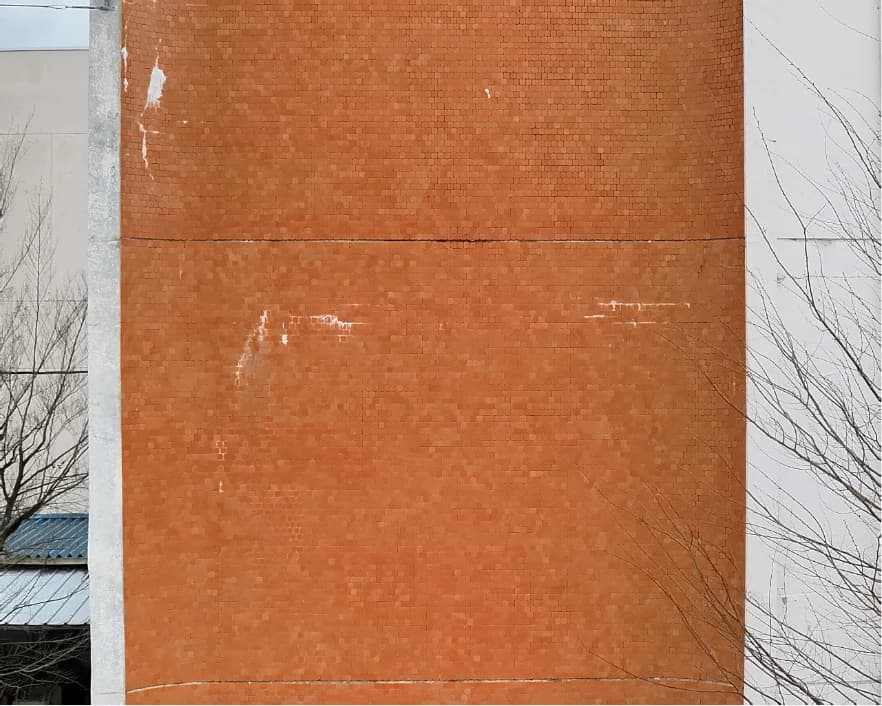
Straight out of the camera, though, temperature differences are often hard to see. This page walks through the adjustments that make anomalies easier to find, starting with the ones that matter most.
Why does a delaminated tile look warm?
During the day, a façade warms up in the sun. A well-bonded tile passes that heat through the mortar into the concrete behind it.
A delaminated tile, however, has a thin layer of air behind it. That air acts as insulation and blocks the path. With nowhere to go, the heat builds up at the surface, so only the delaminated area looks warmer than its surroundings.
In the evening, as the wall cools down, the opposite can happen: the delaminated area cools first and appears colder. The same wall can show the anomaly the other way around depending on when you shoot.

- 1 Switch the displayed image (infrared, visible, overlay, …)
- 2 Color palette
- 3 Temperature edges
- 4 Contour enhancement
Fit the displayed temperature range
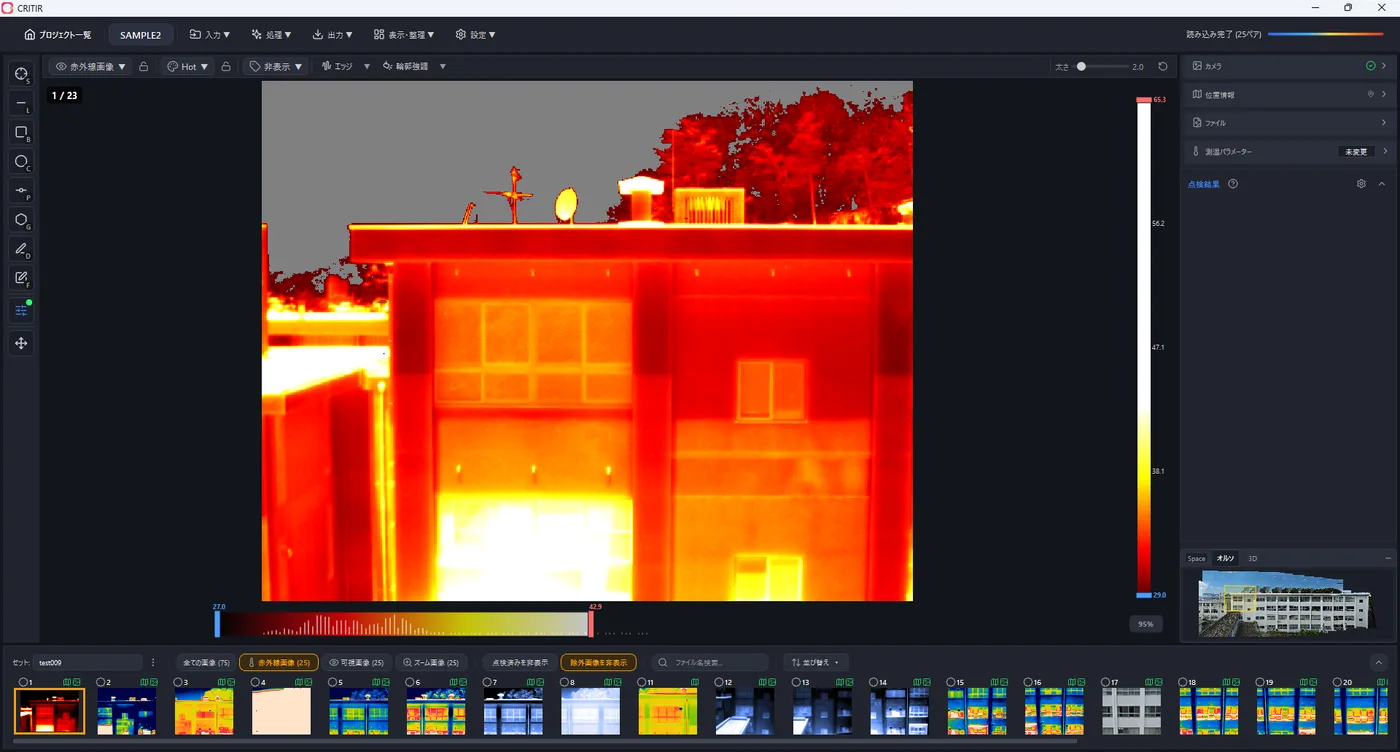
The most effective adjustment is the display range — which temperatures the colors are spread across. When something extremely cold or hot such as the sky or background is in the frame, most of the colors are spent on it and the differences within the wall get flattened.
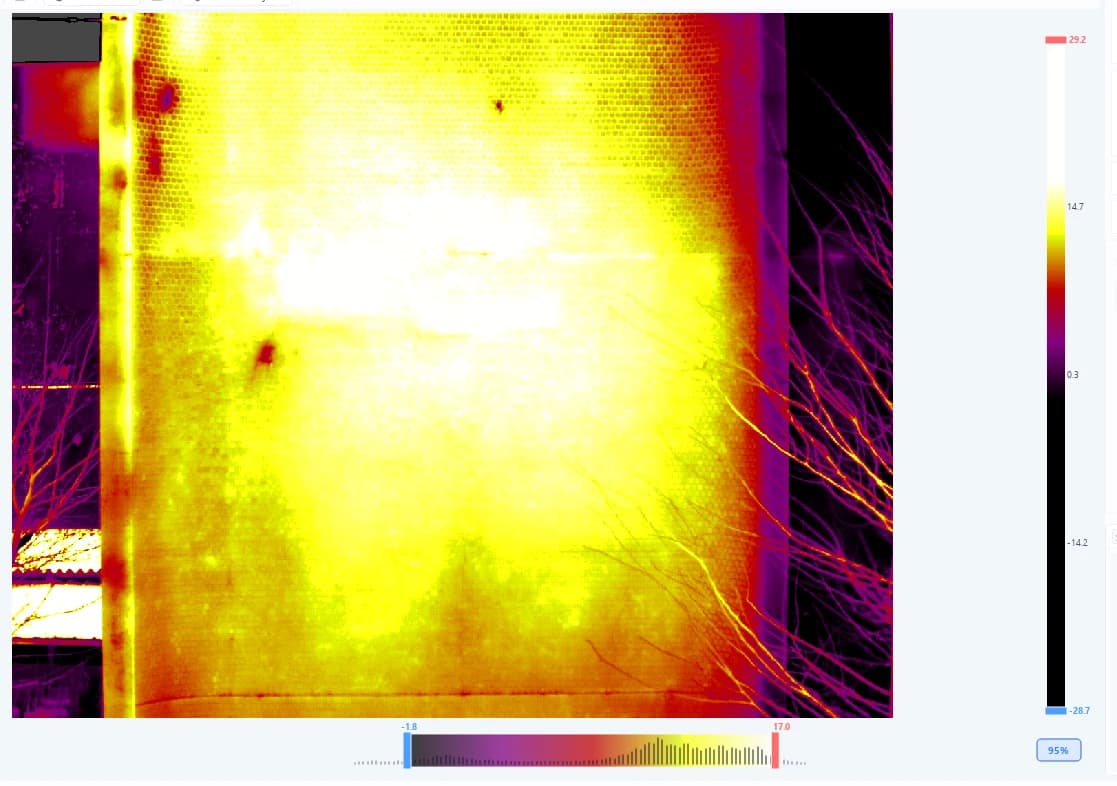
Set the display range with the temperature slider 1. The temperature distribution (histogram) is shown in the background.
- Drag the blue handle and red handle to set the lower and upper limits
- Drag between the two handles to slide the whole range
The color bar 2 shows which colors are assigned to the current range. It is also used for alarms.
Quick adjustment with the Shift key
You do not have to reach for the temperature slider — hold Shift and move the mouse over the image to adjust the display range (no clicking required). Dial in the contrast while keeping your eyes on the image.
| Action | Effect |
|---|---|
| Hold Shift and move left/right | Slide the display range |
| Hold Shift and move up/down, or use the mouse wheel | Widen or narrow the temperature span (contrast adjustment, center preserved) |
Release Shift to finish. This works in the main viewer, the ortho viewer, and the 3D view.
Dial in contrast with one hand, eyes on the image
Shift under your left hand, mouse moving up and down under your right. Hunting for the point where the outline of an anomaly suddenly snaps into focus is oddly satisfying once you get used to it.
Percentile presets
Double-click the temperature slider or press the preset button at the bottom right to jump to a commonly used display range.
| Preset | Description |
|---|---|
| 95% | Standard range excluding outliers. Higher contrast (default) |
| 98% | Slightly wider range. Use when extreme highs and lows should also be visible |
| 100% | Full data range. Lower contrast because outliers are included |
Presets are computed from the temperature distribution of the whole image. When a lot of sky or background is in the frame, as in the example above, narrowing the slider to the wall after applying a preset makes the image much easier to read.
Locking the display range
You can lock the display range from the right-click menu. While locked, the range is kept when you switch images — handy for comparing many images under the same conditions. Unlock by double-clicking or via the right-click menu.
Color palettes
Choose how infrared images are colored from 10 palettes, using 2 on the toolbar. The same image can reveal different things depending on the palette.
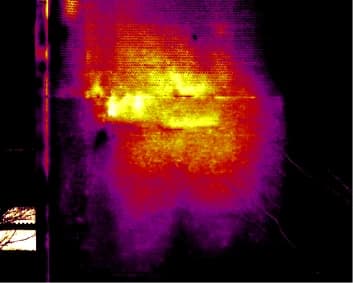
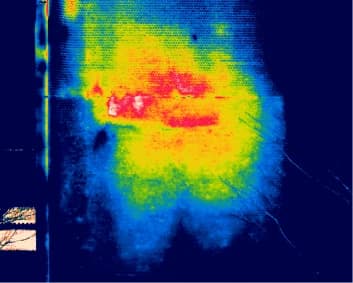
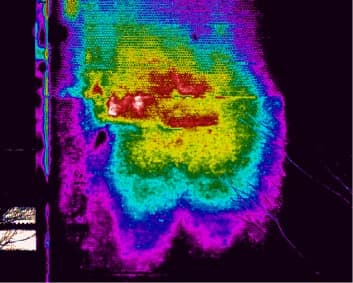
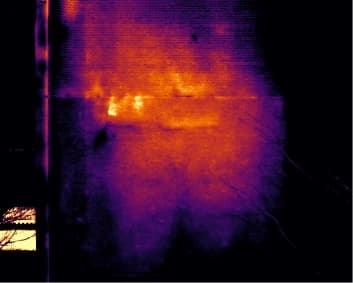
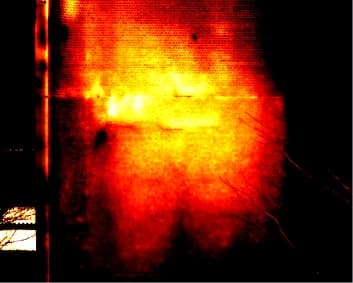
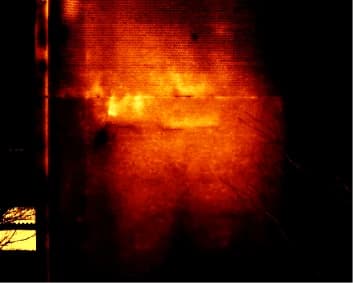
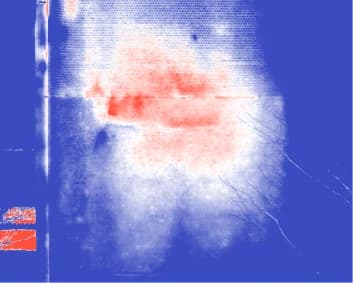
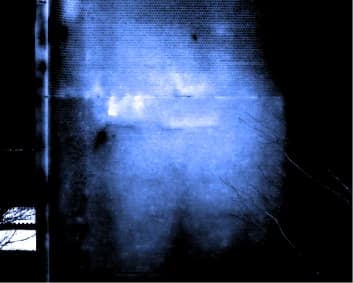
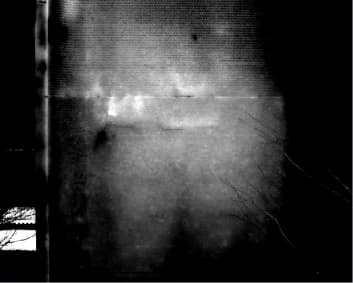
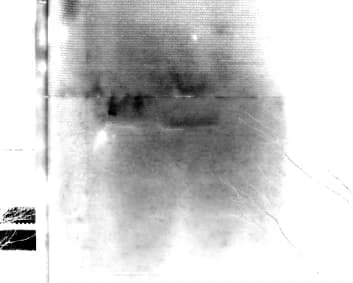
One palette for hunting, another for showing
Use Rainbow HC, which exaggerates differences, when hunting for anomalies on site, and calmer palettes like Ironbow or Inferno when showing results to a client in a report. Same image — just dressed differently for the job.
Alarm settings
Shows only a chosen temperature band in color and turns everything else gray, so you can see at a glance where the temperature exceeds a given value.
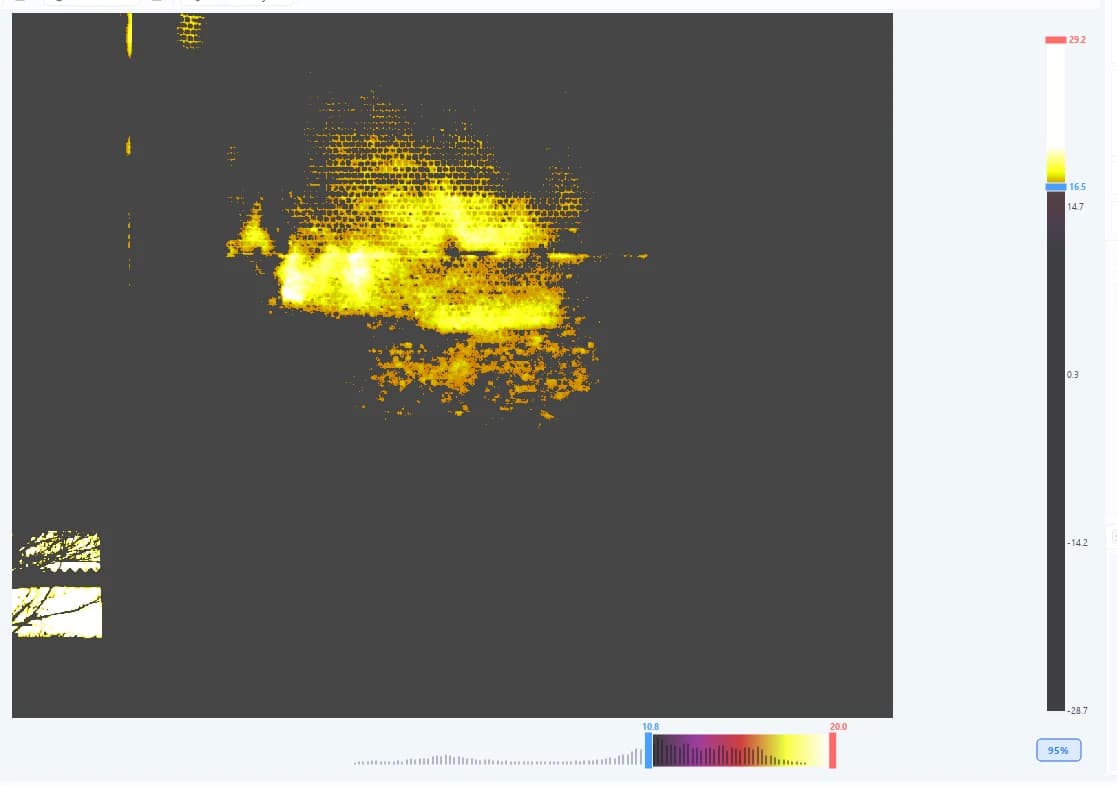
Set the thresholds on the color bar (alarm bar) 1.
- Drag the red handle (upper limit) and blue handle (lower limit) to set the thresholds
- Drag between the two handles to shift both thresholds together
- Double-click to reset the alarm thresholds
Locking the thresholds
You can lock the thresholds from the right-click menu. While locked, the thresholds are kept when you switch images. Unlock by double-clicking or via the right-click menu.
The temperature slider state and alarm settings are saved automatically.
Temperature mask
Masks pixels outside a specified temperature range and excludes them from statistics. You get accurate maximum, minimum, and average temperatures that are not skewed by sky or background in the frame.
An alarm only changes how the image looks; a temperature mask removes pixels from measurement statistics. Use the mask when you want the background out of the numbers.
How to configure
Open the settings from either of the following:
- The button to the right of Infrared Image in the display mode bar (tooltip: Temperature Mask Settings)
- Settings ▾ → Common Settings... → Temperature Mask tab on the toolbar
| Item | Description | Default |
|---|---|---|
| Enable Temperature Mask | Turns the mask on or off | Off |
| Lower Limit | Masks temperatures below this value (-100.0 to 100.0 °C) | -20.0 °C |
| Upper Limit | Masks temperatures above this value (100.0 to 3000.0 °C) | 1600.0 °C |
| Display masked areas using the visible image | When on, masked areas show the visible image; when off, they are shown in gray | Off |
Preset buttons apply representative values quickly.
| Preset | Lower / Upper |
|---|---|
| Default | -20.0 °C / 1600.0 °C |
| Strict | -10.0 °C / 500.0 °C |
| Lenient | -40.0 °C / 2000.0 °C |
Where it applies
The settings apply to both the main viewer and the ortho viewer, and measurement statistics are recalculated. They are also reflected in report output and image export. The settings are saved with the project and restored the next time it is opened.
The operating range of the temperature slider (display range) is not affected by the temperature mask. Even with a mask configured, you can adjust contrast across the image's full temperature range.
Edge display
Overlays temperature boundaries or contours from the visible image on the infrared image. Use 3 4 on the toolbar.
Contour enhancement
Overlays contour lines from the visible image onto the infrared image. Joints, openings, and component boundaries become visible on the infrared image, making it easier to explain where on the building an anomaly is.
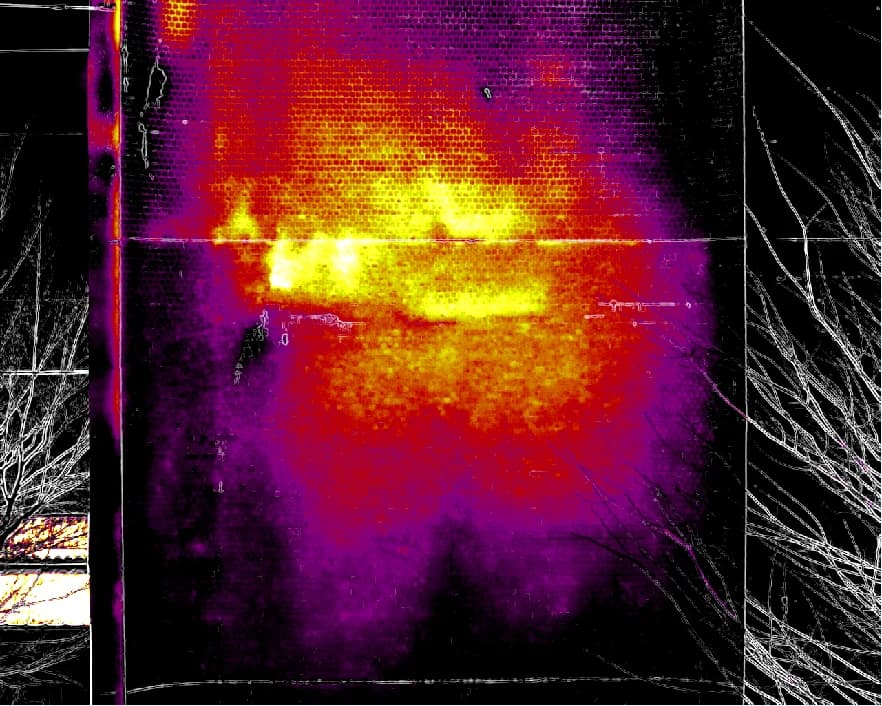
| Setting | Description |
|---|---|
| Sensitivity | Contour detection sensitivity (0–100) |
| Edge Color | White or black |
Temperature edges
Visualizes the boundaries of temperature changes, making areas with steep temperature gradients easy to spot.
| Setting | Description |
|---|---|
| Source | Extract edges from the display (image after colormap) or from temperature (temperature data) |
| Reference Image | Choose the infrared or visible image as the reference |
| Sensitivity | Edge detection sensitivity (0–100) |
| Opacity | Opacity of the background image while edges are shown (0–100%) |
Thermal parameters
The temperatures recorded by an infrared camera are computed under assumptions such as emissivity and reflected temperature. If the settings used during capture did not match the target, you can change them afterwards in CRITIR and have the temperatures recalculated.
Edit them under Thermal Parameters in the right panel. The panel appears while a FLIR or DJI thermal image is displayed.
| Item | Description | Default |
|---|---|---|
| Emissivity | Emissivity of the target. Roughly 0.90–0.95 for concrete and tile | 0.95 |
| Reflected Temperature | Temperature of the surroundings reflected by the target (sky, buildings, …) | 20 °C |
| Distance | Distance from the camera to the target | 1.0 m |
| Atmospheric Temperature | Air temperature during capture | 20 °C |
| Relative Humidity | Humidity during capture | 50 % |
An item marked (Estimated) was not recorded in the image and has been estimated by CRITIR. Enter the real value if you know the actual conditions.
Scope of the setting
The setting is applied together to images of the same camera model within a set. Different sets are configured independently, and different camera models within the same set are kept separate.
The badge at the top right of the panel shows the current state.
| Badge | State |
|---|---|
| Unchanged | Using the values recorded in the image as-is |
| Unsaved | You edited the values but have not saved yet |
| Saved | Your manual values are saved and applied |
Saving and recalculation
Pressing Save recalculates the temperatures of the affected images with the new parameters. Images that already have measurements also get their temperature values recalculated, with progress shown on the toolbar.
Use Image Defaults discards your manual settings and restores the capture-time values recorded in the image.
Thermal parameters cannot be changed for images captured in DJI thermal cameras' High Res mode — they are fixed by the capture settings. Because this format is not officially supported by the DJI SDK, temperatures are shown as reference values from a simplified decoder. Relative temperature differences can still be compared.
For what to configure at capture time, see Shooting tips. Keeping the settings consistent within a survey keeps comparisons in your report consistent too.
Viewer operations
Compare infrared and visible images in eight display modes, correct the misalignment caused by parallax between the two cameras, and read temperatures right under the cursor.
Orthomosaic generation
Stitch many drone or ground photos into one front-on image of a building façade, retaining wall or solar array. Includes an illustrated look at how a photo differs from an orthomosaic.